

How We Stream IRL on Speedify Live
In the recent years, Speedify Live engaged in a series of IRL live streams from the Philadelphia area. We hope we managed to bring a bit of the holiday spirit directly into your home via Twitch, YouTube, Facebook, LinkedIn and the other platforms we stream Speedify Live.
We needed a simple setup that could serve as an example for anybody who wants to IRL stream. That’s why we centered our setup around the iPhone, as many rave about its video quality for a smartphone. But there are a few other things we tossed into the mix, just make sure we broadcast the best possible video and avoid any types of issues. Read more below about live streaming IRL from your iPhone.
Use Speedify to Increase Your Upload and Download Speeds: Combine Wi-Fi, 4G / 5G Cellular, Ethernet, Starlink and Other Satellites

Speedify combines Wi-Fi, 4G / 5G cellular, Ethernet, Starlink, and other satellites for faster internet uploads and downloads
Speedify is the only software app that combines Wi-Fi, 4G / 5G cellular, Ethernet, Starlink and other satellites at once for secure, faster, and more reliable internet uploads and downloads so you stay online without interruptions.
Speedify will automatically detect and start using any available Internet connections on your device while intelligently distributing your online traffic between them for optimal performance. If you need help we have quick start guides available for most common set ups.

Speedify combines multiple personal hotspots for faster internet upload and download speeds
Speedify's Pair & Share feature enables you to connect to multiple hotspots at the same time for faster upload and download speeds and more reliable internet for everyone. Speedify's Pair & Share feature allows you to wirelessly share 4G / 5G cellular connections back and forth between multiple Speedify users on the same local network when live streaming from an event, calling from the commute or sharing from the field.
Speedify is the only app that allows you to share 4G / 5G cellular data between PCs, Macs, iPhones and Androids. Use multiple iPhones and Android phones as hotspots for internet access and get faster upload and download speeds and mobile failover for all paired devices.
Use Speedify to combine...
Combine these connections on:


Are iPhones Good at Live Streaming IRL?
One of the determining factors that made us choose the iPhone was that several of our customers are using iPhones to live broadcast events. Ben Reeder, for example, uses an iPhone 11 Pro to live stream weddings online. As of the beginning of 2022, any iPhone newer than 11 should be fine to live stream. That’s why we are using an iPhone 12 Pro.
The general rule for IRL streaming with an iPhone: try to use an iPhone released in the past 3 years for best results.
Fail-proof IRL Live Streaming Setup Using 2 iPhones
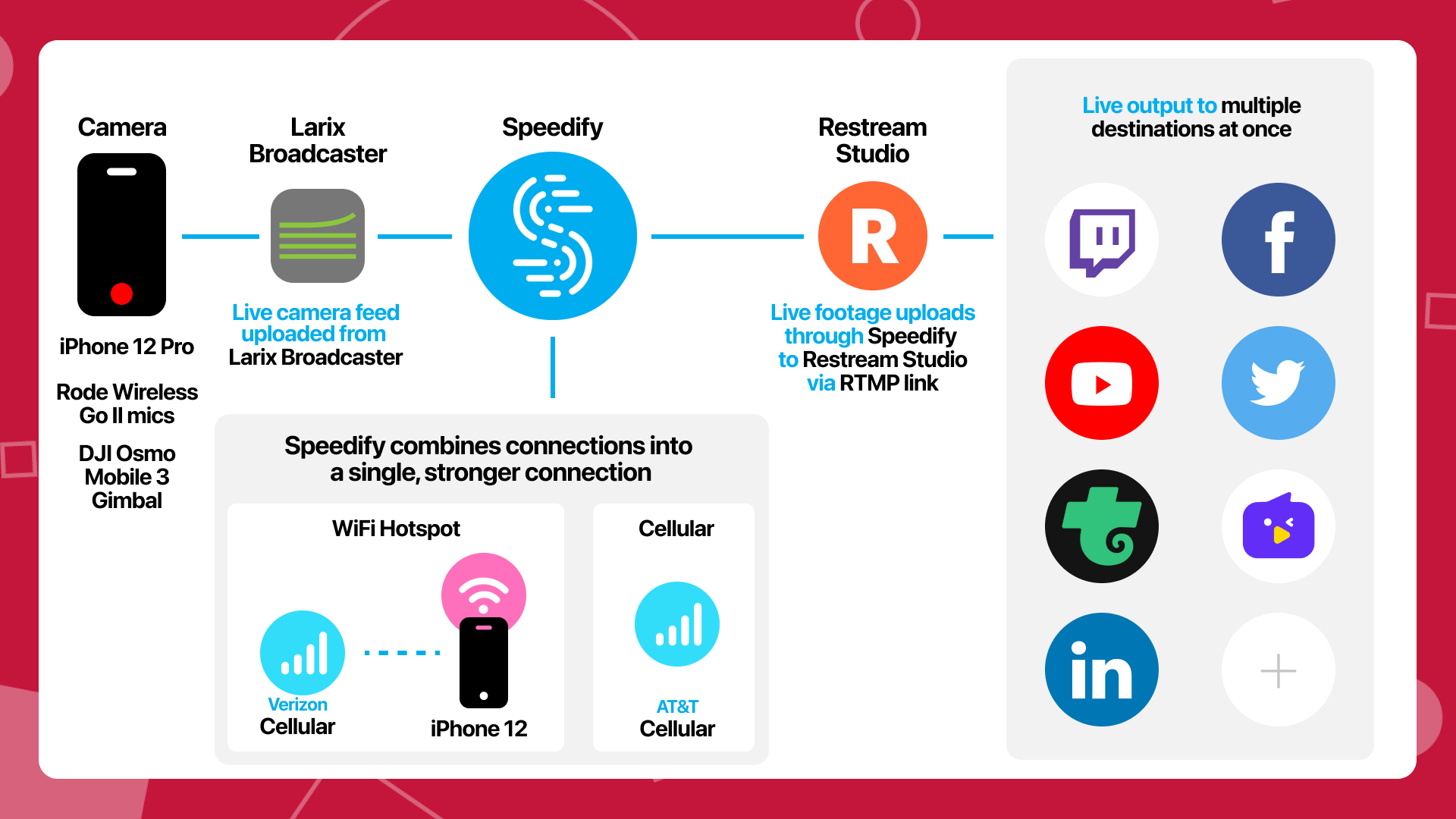
As you can see from the image above, the setup uses two iPhones - one that is used as the live streaming phone, for its camera. The other one is used as a Wi-Fi hotspot. Additionally, for better sound quality, we connected a couple of Rode Wireless Go II microphones via Bluetooth to the live streaming iPhone. It is also nicely cradled by a DJI Osmo Mobile 3 Gimbal, for awesome video stabilization.
In terms of software, the live streaming iPhone is connected to the Internet using two cellular sources from different network carriers: its own and an additional one, through a Wi-Fi hotspot, from another iPhone. Speedify bonds the two together at once for faster, more reliable connectivity.
We use Larix Broadcaster to upload a RTMP live camera feed into Restream Studio. Then, we output the live stream to our social platforms, including Twitch, Facebook, YouTube, Twitter, LinkedIn, etc.
We also have an external wireless-charging battery pack, just in case. But it does not fit into the gimbal so it is best to conserve battery as much as possible.
List of Components for the IRL Live Stream iPhone Setup
Hardware
- 1 x iPhone 12 Pro or newer with cellular data connectivity
- 1 x iPhone, another smartphone or a MiFi device with cellular connectivity from a different network carrier
- 1 x Rode Wireless Go II Bluetooth microphone set
- 1 x DJI Osmo Mobile 3 Gimbal
- 1 x external battery pack, min. 10,000 mAh
Software
- Speedify - to combine the two Internet sources
- Larix Broadcaster - to live stream through an RTMP link to your live streaming software or your native social app
- DJI MIMO app - to control the gimbal
- Live streaming software that accepts RTMP feeds - e.g. Restream Studio
Check out the Speedify Live video below for more details on the setup, plus some bonus Q&As on Speedify.
8 Steps to Live Stream IRL from Your iPhone
Here are the steps you need to do in order to get started:
- Prepare the iPhone: Make sure Larix Broadcaster, DJI MIMO, and Speedify are installed on the iPhone you’re going to use for live streaming and mount it in the gimbal.
- Connect the Rode microphones to your live streaming iPhone via Lightning-to-USB-C adapter.
- Setup Larix Broadcaster with the RTMP link from Restream Studio or the live streaming platform you’re using.
- Turn on the Wi-Fi hotspot functionality on the second iPhone / smartphone.
- Turn on both Wi-Fi and cellular on the live streaming iPhone and connect to the Wi-Fi hotspot from the secondary phone.
- Open Speedify and make sure it detects both connections and bonds them. We recommend you choose your dedicated server or the fastest server.
- Turn your iPhone brightness down to conserve battery and enable Do Not Disturb mode so your stream isn’t interrupted by notifications.
- Start Larix Broadcaster and go live.

Get started with Speedify today!
With Speedify you can combine Wi-Fi, 4G / 5G cellular, Ethernet, Starlink and other satellites into one bonded super-connection to improve livestreaming, video calling, gaming, web browsing, and everything else you do online.


Speed
Stability
Security
Speedify devs love talking tech on YouTube, Tiktok, and Instagram!
Alex Gizis and the Speedify devs discuss and explain technology including Starlink satellites, Wi-Fi 7 routers, Apple networking features, fiber optics, broadband internet, 5G mobile networks, AI, networking protocols, and much more. Follow Speedify on YouTube, TikTok, Instagram, and LinkedIn!
Alex and the Speedify team are always exploring the latest in networking and security technology—like 5G, 6G, WiFi 7, laser and satellite internet—and sharing it in new discussion content across YouTube, TikTok, Instagram, and LinkedIn every week.
Got a tech question? Let's go deeper! Pop into Speedify Office Hours live every Wednesday at 10 AM Eastern. Speedify CEO Alex Gizis and our network engineers are standing by to break down your questions about networks, tech updates, and Speedify features.
