
How to Tether an iPhone to a PC via Bluetooth
Windows laptop, no Wi-Fi in reach, an iPhone in your pocket and no cable on you. Bluetooth tethering solves that in three taps – and then caps your speed at roughly 1 Mbps, which you notice the moment you send anything larger than an email.
Speedify is an app for your PC, phone or tablet that uses more than one internet connection at once, so a Bluetooth tether becomes one lane of traffic rather than your only one. We talk about how to pair an iPhone with Windows 10 and 11, the three steps that actually matter, and how to get past the Bluetooth speed limit.
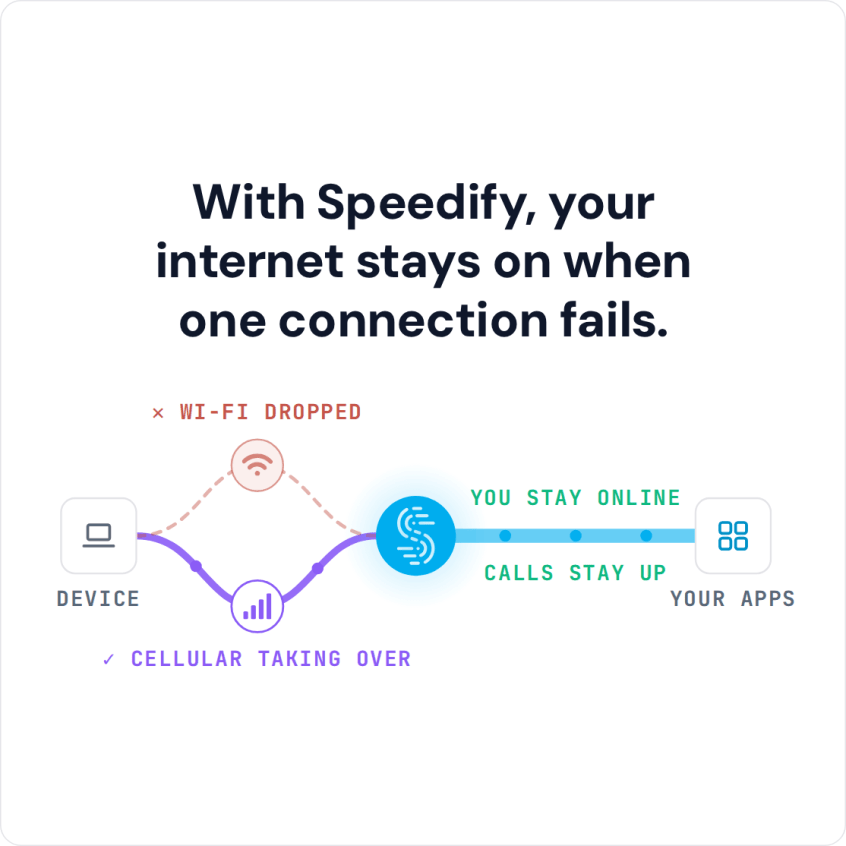
With Speedify, your internet stays on when one connection fails.
Three Steps for iPhone Bluetooth Tethering on Windows 10
First of all, make sure your Windows 10 PC has an internal Bluetooth adapter or get an external Bluetooth USB adapter, if not.
Step 1: Turn on the Personal Hotspot feature on your iPhone.
To do this, tap Settings from your home screen and go to Personal Hotspot.
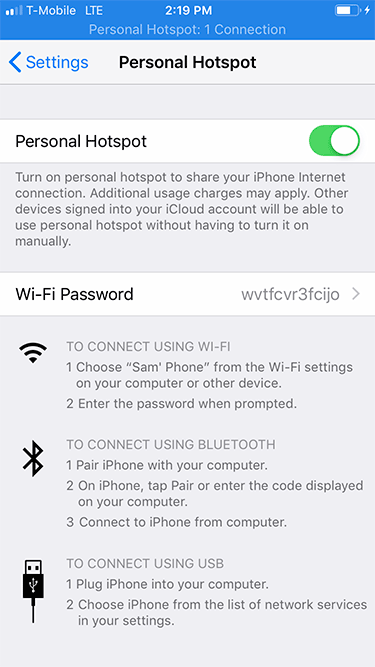
Step 2: Connect (or “tether”) your iPhone to your PC using Bluetooth.
If you’re using an external Bluetooth USB adapter, make sure you install it following the instructions you got with the device. You may need to restart your PC before being able to use it.
On your iPhone, make sure Bluetooth is enabled (Settings > Bluetooth).

On your PC, go to Bluetooth Settings (either from the lower right corner of the taskbar – systray – or by searching for “bluetooth”). Slide the Bluetooth toggle on – this will make your computer visible to other devices.
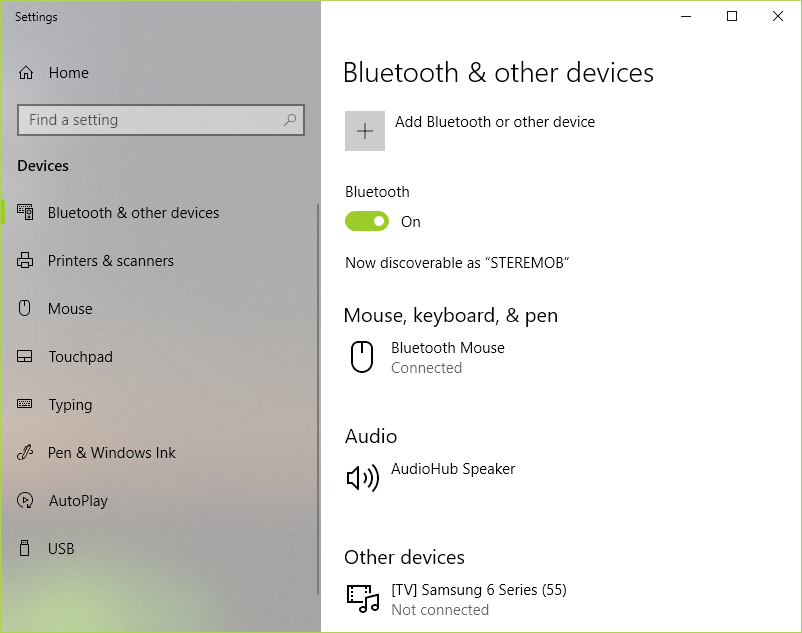
Click on the “Add Bluetooth of other device” and let your PC detect the iPhone. This may take a while, so give it a couple of minutes. Finish the pairing process following the instructions both on you PC and on your iPhone.
Step 3: Connect your PC to the Internet using the Bluetooth tethered iPhone.
Go to Network Connections (Windows key + X – choose “Network Connections”) and on the right side click on “Change adapter options”.
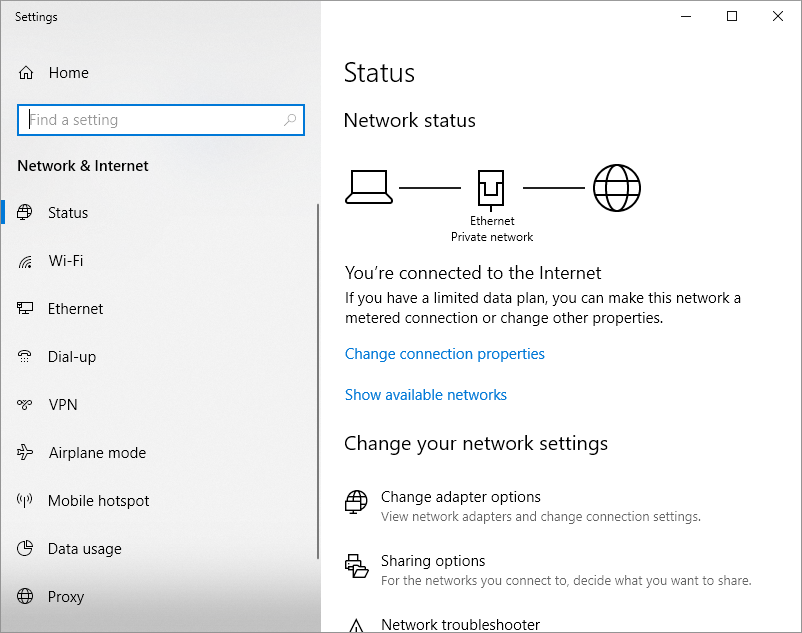
Look for the “Bluetooth Network Connection”.

If it’s connected – you’re good to go. If it’s not, double click to view Bluetooth devices. If your iPhone doesn’t automatically show up here, click on “Add a device” and add it.
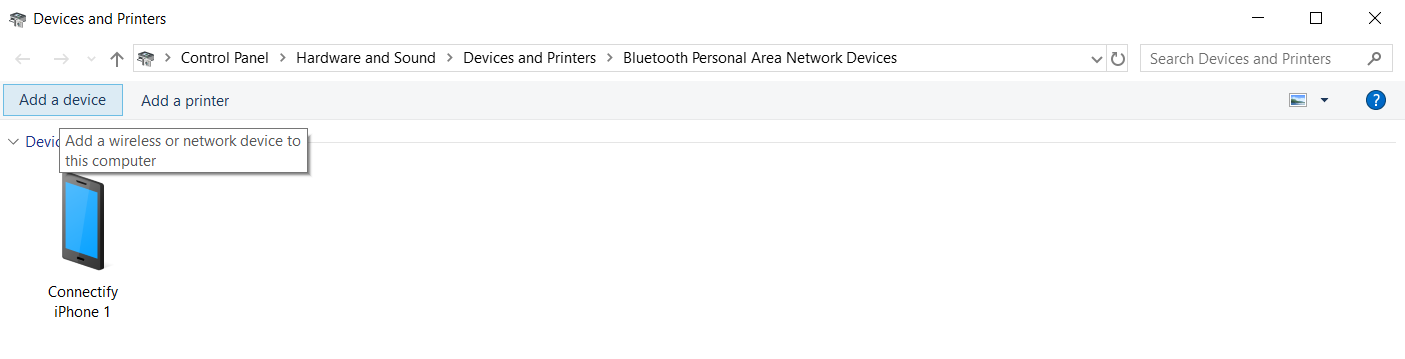
Click on the “Connect using” button above and choose “Access point”. Windows will set up the connection as “Network X” and you will be able to enjoy Internet connectivity.
And that’s all there is to iPhone Bluetooth tethering a Windows 10 PC!
Now – feel free to toss this tethered iPhone connection into any existing combination of active Internet connections on your PC. Use Speedify for Windows to combine them.
Bluetooth Tethering on iPhone Made Easy: Share the Internet with a Mac
You are away from Wi-Fi with a MacBook and an iPhone, and Bluetooth tethering is the connection that does not need a cable. It works – and then you try to upload something and discover Bluetooth caps you at around 1 Mbps.
Speedify is an app for your Mac, phone or tablet that uses more than one internet connection at the same time, so that Bluetooth link can carry traffic alongside any Wi-Fi you find rather than instead of it. Let’s look at how to set up Bluetooth tethering between an iPhone and a Mac, and what to do about the speed ceiling once it is running.
How to Tether your iPhone to a Mac using Bluetooth
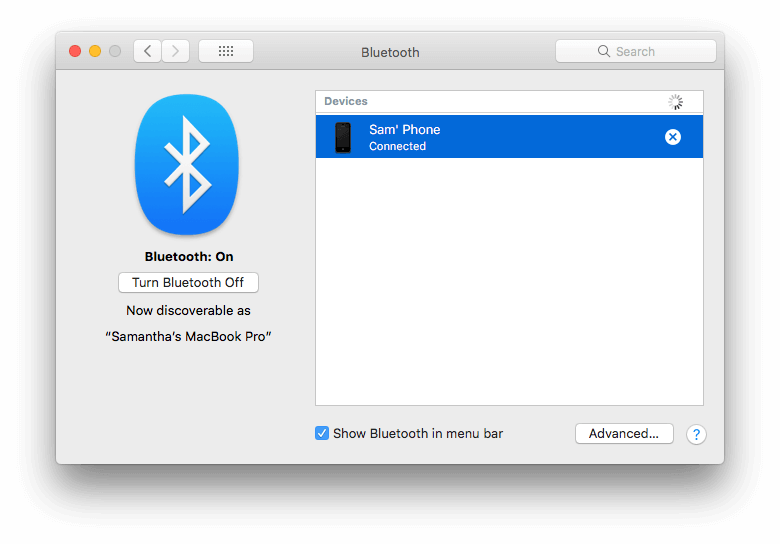
Step 1: First, ensure that your iPhone is paired with your Mac via Bluetooth. You can do this by going to System Preferences > Bluetooth. Then, select your iPhone from the pane that appears. Also take this opportunity to ensure that your Mac’s Bluetooth is turned on.
Step 2: Turn on your iPhone’s Personal Hotspot. To do this, open the Settings app and tap Personal Hotspot. Then toggle the switch on.
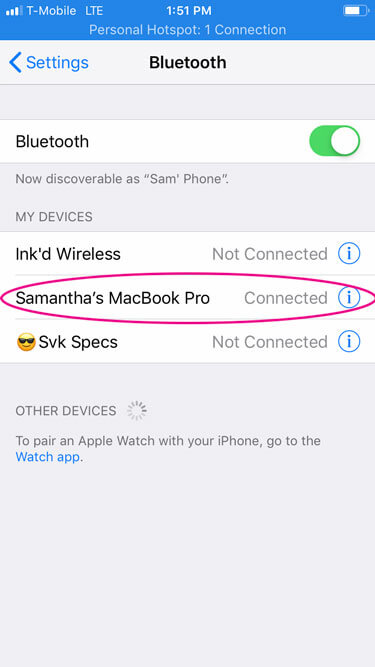
Step 3: While you’re in the Settings app, tap Bluetooth from the main menu and toggle the switch on if it isn’t already. You should see your Mac appearing under “My Devices.”
Step 4: Now it’s time to connect your Mac to your iPhone’s network. You can do this one of two ways:
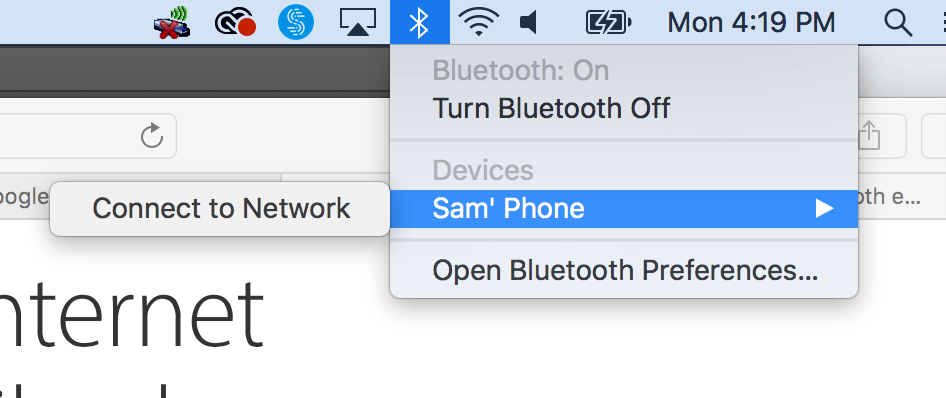
The first method is the simplest: navigate to the upper right-hand corner of the menu bar and click on the Bluetooth icon. (If this icon is not currently displayed, you can activate it by going to System Preferences > Bluetooth.) When you click the icon, a menu will appear. Mouse-over your paired device (iPhone) and click Connect.
Alternatively, you can navigate to System Preferences > Network. Click Bluetooth PAN on the left-hand side. If Bluetooth PAN isn’t visible, click the + button, and select Bluetooth PAN from the interface popup menu.
Finally, select your iPhone from the device popup menu and click Connect.
And that’s all there is to tethering your iPhone to your Mac using Bluetooth!
Now – feel free to toss this tethered iPhone connection into any existing combination of active Internet connections on your Mac. Use Speedify for macOS to combine them.
Speedify
Get started with Speedify today.
Speedify combines Wi-Fi, 4G/5G cellular, Ethernet, Starlink and satellite into one faster, more reliable internet connection. Free to try: 5 GB a month with a free account. No credit card required.
🚀 Speed
Faster uploads and downloads, because Speedify uses all your internet connections at once.
📶 Stability
If one internet connection drops, Speedify moves your traffic to the others in milliseconds.
🔒 Security
AES-256 encryption on every internet connection, on any network you join.



15M+ downloads worldwide. 75K+ five-star reviews on iOS and Android.