
Use Both Wi-Fi and Mobile Data with Speedify for Faster, Reliable Internet
When an iPhone won’t connect to Wi-Fi even with the right password, the cause is usually the stored details, not you: the iPhone remembers the settings for that network, and once the router’s password or security setting changes, the saved details no longer match. Busy airport and hotel networks also turn new devices away once they are full.
Speedify is an app for iPhone that uses Wi-Fi and 4G/5G cellular at the same time, so one network refusing the phone is no longer the end of it. Speedify cannot make the iPhone join a Wi-Fi network that refuses it: Speedify keeps you online over cellular in the meantime and combines both once the Wi-Fi connects, and with only one connection Speedify works as an encrypted VPN. Below are the reasons an iPhone will not join a Wi-Fi network and the steps that fix it. If the iPhone sees the network but will not log in, see fixes for an iPhone that won’t join Wi-Fi.
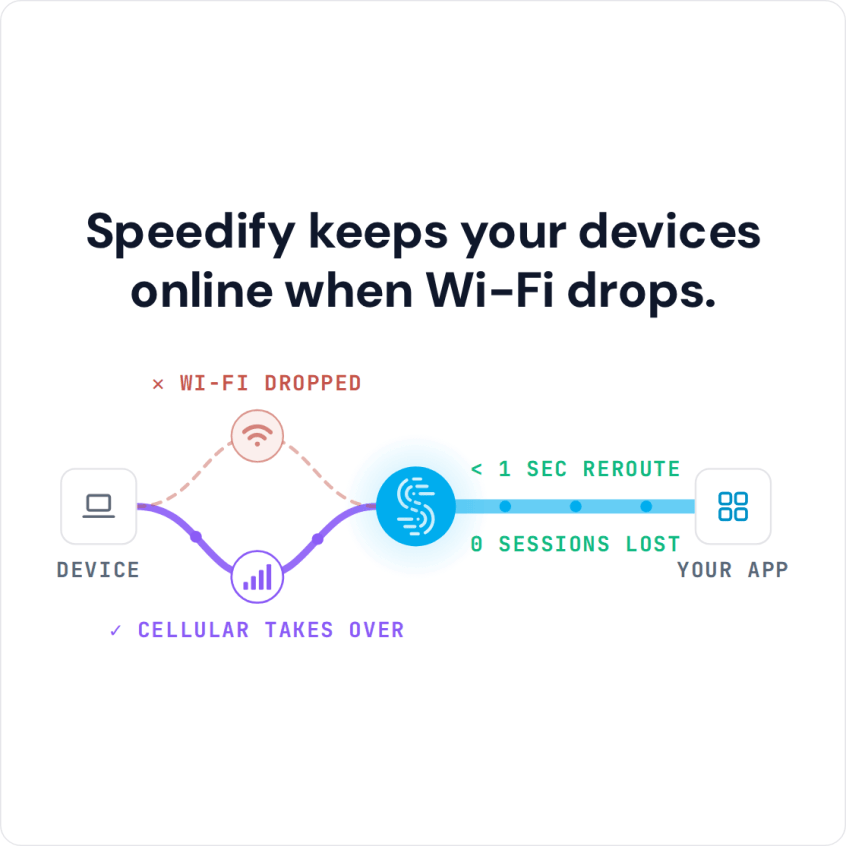
Speedify keeps your devices online when Wi-Fi drops.
How to Keep an iPhone Online When Wi-Fi Won’t Connect
- Download Speedify from the App Store on your iPhone (iOS 17 or later).
- Open Speedify and create a free account (the free tier includes 5 GB per month), or sign in.
- Keep Wi-Fi on and turn on cellular data as well.
- Connect. Speedify uses 4G/5G cellular while the Wi-Fi refuses the iPhone, and adds the Wi-Fi as soon as it connects.
- Use your iPhone as usual while you work through the Wi-Fi fixes below.
Why an iPhone Won’t Connect to Wi-Fi or Says “Unable to Join the Network”
Network Authentication Problems
The most frequent reason an iPhone won’t connect to Wi-Fi, and the usual cause of the “Unable to join the network” message, is an authentication failure: the iPhone has old network details stored that no longer match the router’s current password or security settings.
iOS Software Bugs
Apple’s iOS updates sometimes introduce temporary Wi-Fi connectivity bugs that can prevent your iPhone from properly connecting to networks. These issues often manifest as connection timeouts or repeated password prompts even when entering correct credentials.
Router Compatibility Issues
Older routers may struggle with newer iPhone models due to outdated security protocols or firmware. Similarly, some enterprise networks use authentication methods that aren’t fully compatible with iOS devices.
Network Congestion
In crowded areas like airports, hotels, or office buildings, Wi-Fi networks become oversaturated, making it difficult for your iPhone to establish and maintain stable connections.
Troubleshooting iPhone Not Connecting to Wi-Fi
Here are the most common troubleshooting steps you can take to try to fix your iPhone not connecting to Wi-Fi:
Get Closer to the Wi-Fi Router
If possible, try to connect your iPhone to Wi-Fi closer to the router that broadcasts the wireless hotspot. If at home, go into the room where the router is placed. In public spaces it’s harder to determine where that is, but you can definitely see the strength of the Wi-Fi signal in your wireless networks list, before connecting.
Reset Network Settings
Resetting your network settings is the last resort, after the quicker steps below: go to Settings > General > Transfer or Reset iPhone > Reset > Reset Network Settings. This clears all saved Wi-Fi passwords, VPN configurations (Speedify asks to add its VPN configuration again) and cellular settings, giving your device a fresh start.
Forget and Reconnect to Networks
For specific network issues, go to Settings > Wi-Fi, tap the “i” icon next to the problematic network, and select “Forget This Network.” Then reconnect by selecting the network and entering your password again.
Update iOS and Router Firmware
Ensure your iPhone runs the latest iOS version through Settings > General > Software Update. Additionally, check if your router needs firmware updates, as manufacturers regularly release patches for connectivity improvements.
Toggle Airplane Mode
A quick airplane mode toggle can resolve temporary connectivity glitches. Enable airplane mode for 30 seconds, then disable it to reset your device’s wireless connections.
Restart Your iPhone and Router
Sometimes the simplest solutions work best. Restart both your iPhone and Wi-Fi router to clear temporary software conflicts that might prevent proper authentication.
Improve Your iPhone’s Wi-Fi Internet with Speedify
Fixing the Wi-Fi connection comes first. Speedify adds a second line of defence: Speedify combines Wi-Fi and 4G/5G cellular on the iPhone, so the next time a Wi-Fi network refuses the phone or slows down, you stay online.
Use Multiple Connections at Once with Speedify for Better Reliability
Combine Wi-Fi and 4G/5G Cellular on the iPhone
Instead of choosing between Wi-Fi and cellular, Speedify lets your iPhone use both connections simultaneously. When the iPhone keeps refusing a Wi-Fi network, or when Wi-Fi performance is inconsistent, Speedify combines your cellular and Wi-Fi connections for more speed and reliability.
If your Wi-Fi drops or slows down, your internet session carries on over 4G/5G cellular, with the same public IP address, so calls and logged-in apps do not notice. When the Wi-Fi works well, Speedify adds it to your cellular connection for faster overall speeds.
Cellular Sharing for Group Travel
Speedify’s cellular sharing feature lets iPhone users traveling together share their 4G/5G cellular connections. Each phone can share its cellular connection, receive another phone’s, or both. Both devices run Speedify on the same Wi-Fi network; with no Wi-Fi around, turn on Personal Hotspot on one phone and connect the other phone to it.
When your iPhone receives a friend’s or colleague’s shared connection, Speedify combines it with your own. For example, if you are on Verizon and your travel companion uses AT&T, your iPhone can use both networks at once, which helps where one carrier’s signal is weak.
Cellular sharing helps most where one carrier’s coverage is poor: international travel, remote locations and crowded venues.
Real-World Benefits for iPhone Users
Wi-Fi troubleshooting fixes the network that refuses your iPhone; Speedify keeps you online while you fix it and the next time it happens. With Wi-Fi and 4G/5G cellular combined, you get faster downloads and fewer stalls on video calls.
For business travelers, content creators and anyone who depends on reliable internet access, the two together stop an iPhone that will not join Wi-Fi from stopping work.
Speedify
Get started with Speedify today.
Speedify combines Wi-Fi, 4G/5G cellular, Ethernet, Starlink and satellite into one faster, more reliable internet connection. Free to try: 5 GB a month with a free account. No credit card required.
🚀 Speed
Faster uploads and downloads, because Speedify uses all your internet connections at once.
📶 Stability
If one internet connection drops, Speedify moves your traffic to the others in milliseconds.
🔒 Security
AES-256 encryption on every internet connection, on any network you join.



15M+ downloads worldwide. 75K+ five-star reviews on iOS and Android.