
Speedify Uses a Tethered Android Phone as Backup for Starlink on Mac to Keep You Online
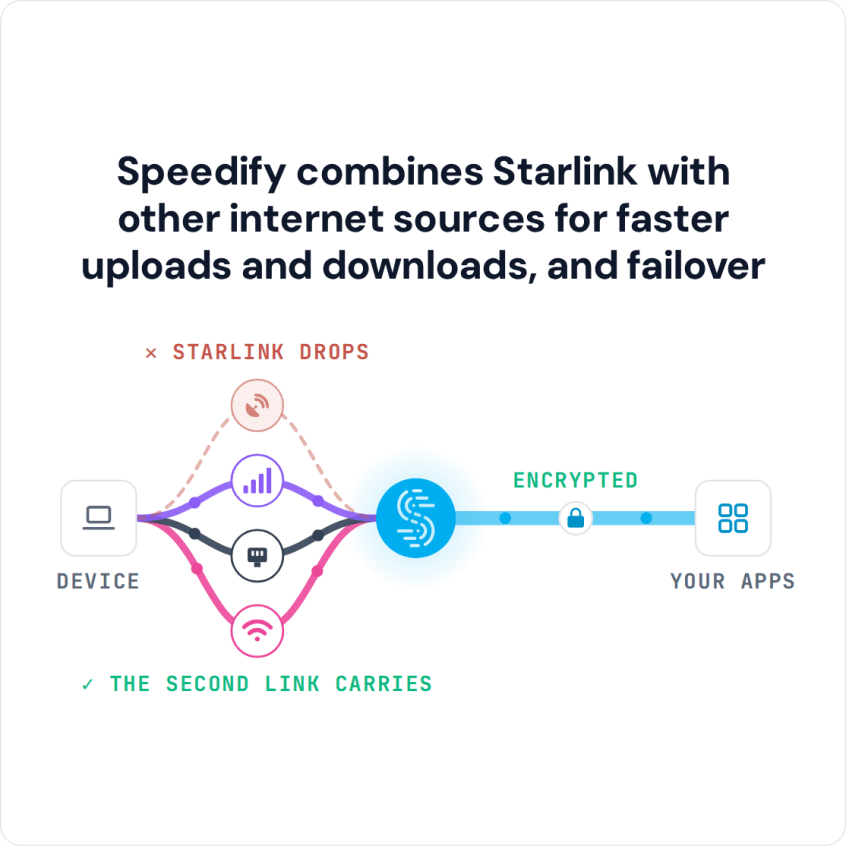
Turn on your Android phone’s Wi-Fi hotspot, connect your Mac to it, and plug your Mac into the Starlink router with an Ethernet cable. Speedify uses your Starlink internet connection and your Android phone’s 4G/5G cellular at the same time, and if Starlink drops, Speedify switches your traffic to the phone automatically, so calls, uploads and streams keep going. With a second Starlink dish, you can also combine two Starlink connections on a Mac.
The one thing to know first: your Mac’s Wi-Fi joins one network at a time. If the Android hotspot uses your Mac’s Wi-Fi, connect your Mac to Starlink with an Ethernet cable.
Speedify combines Starlink with other internet sources for faster uploads and downloads, and failover
Starlink Internet Connection Dropouts Happen to Everyone
Speedify measures thousands of Starlink users in more than 150 countries. From 29 September to 12 October 2026, fixed Starlink dishes went offline for about 37 minutes a day on average, and Starlink dishes on RVs and boats for about 61 minutes a day.
Starlink also switches each dish to a new satellite every 15 seconds, and a switch can cause a short dropout. Even a perfectly installed Starlink dish goes offline, and about 7 in 10 Starlink users on Speedify use Starlink together with a second internet connection, like 4G/5G cellular.
Why an Android Phone Is a Good Failover Connection for Starlink on a Mac
Starlink reaches you from satellites, and your Android phone’s 4G/5G cellular comes from cell towers on the ground. What slows Starlink down, like something blocking your Starlink dish’s view of the sky, a busy Starlink network in the evening, or the short drop each time your Starlink dish switches satellites (about every 15 seconds), doesn’t affect your phone’s cellular signal. A cell tower outage doesn’t affect Starlink. Because the two rarely fail at the same moment, each one covers for the other. On the phone itself, you can also use Starlink and 4G/5G cellular together on Android.
If you already carry an Android phone, its hotspot is a second internet connection you already have. You don’t need another subscription, as long as your phone’s data plan allows hotspot use.
How Speedify Uses Starlink and an Android Hotspot Together on a Mac
Once your Mac is on the Android phone’s hotspot and on Starlink, Speedify finds both internet connections and checks how fast and steady each one is, many times a second.
When both are working well, Speedify sends your traffic over both, so you get the download and upload speed of both together. When one weakens or drops, Speedify moves all your traffic to the other one, and your calls, uploads and streams keep going. Speedify needs that second internet connection: with Starlink alone, it can’t add speed or stop drops.
Speedify also encrypts all your internet traffic on both internet connections.
How to Use Starlink and an Android Phone’s Hotspot Together on a Mac with Speedify
Step 1: Connect Your Mac to Your Android Phone’s Wi-Fi Hotspot
On your Android phone, go to Settings > Connections > Mobile Hotspot and Tethering (the names vary by phone) and turn on the Wi-Fi hotspot. On your Mac, connect to the phone’s hotspot like any Wi-Fi network, and check that it shows in System Settings > Network.
Step 2: Connect Your Mac to Starlink with an Ethernet Cable
Run an Ethernet cable from the Starlink router to your Mac. The Starlink Gen 3 router has Ethernet ports built in. Older Starlink routers need the Starlink Ethernet Adapter. If your Mac has no Ethernet port, use a USB-C to Ethernet adapter.
On a Mac with an Intel processor and macOS 11 Big Sur or older, you can connect to Starlink over Wi-Fi with a USB Wi-Fi adapter instead. Newer Macs can’t use USB Wi-Fi adapters, so use the Ethernet cable. See how to connect to two Wi-Fi networks on your Mac.
Check that Starlink and the Android hotspot both show as active in System Settings > Network.
Step 3: Download and Run Speedify on Your Mac
Download Speedify and install it on your Mac, then open it. The first time you connect, if your Mac asks to let Speedify add VPN configurations, click Allow. Speedify then finds both internet connections on its own and starts using them together.
To save your phone’s data, click the Android hotspot connection in Speedify and set its priority to Backup: Speedify then uses it only when Starlink drops. You can also set a data limit for it.
Speedify Also Shows Your Starlink Dish Status on a Mac
Speedify shows real-time Starlink dish alerts in the app on your Mac. If the dish’s motor is stuck, its mast is tilted or it is overheating, Speedify shows an alert, so you know your Starlink dish needs attention.
Other Internet Connections Speedify Can Use with Starlink on a Mac
An Android hotspot is only one choice. Speedify uses any mix of internet connections your Mac can reach at the same time:
- A second Starlink dish: two Starlink dishes give you two separate internet connections, each with its own Starlink router. Without Speedify, your Mac uses one and the second sits idle. With Speedify, your Mac uses both, and keeps going on one when the other drops. See how to manage two Starlink dishes at once with Speedify.
- Cable or DSL: if you kept your cable or DSL service after getting Starlink, Speedify puts both to work instead of leaving one idle. Cable and DSL don’t depend on satellites, so they don’t slow down for the reasons Starlink does.
- A wired Ethernet line: in a home office or small office with a wired line, connect it with a USB-C or Thunderbolt to Ethernet adapter.
- An iPhone: an iPhone’s Personal Hotspot works the same way as an Android hotspot.
- A second Wi-Fi network: on a Mac with an Intel processor and macOS 11 Big Sur or older, a USB Wi-Fi adapter lets your Mac join Starlink Wi-Fi and a second Wi-Fi network, like a cable or DSL router or an office network, at the same time. On a newer Mac, connect to Starlink with an Ethernet cable, as in Step 2, and join the second Wi-Fi network with your Mac’s own Wi-Fi.
Speedify
Get started with Speedify today.
Speedify combines Wi-Fi, 4G/5G cellular, Ethernet, Starlink and satellite into one faster, more reliable internet connection. Free to try: 5 GB a month with a free account. No credit card required.
🚀 Speed
Faster uploads and downloads, because Speedify uses all your internet connections at once.
📶 Stability
If one internet connection drops, Speedify moves your traffic to the others in milliseconds.
🔒 Security
AES-256 encryption on every internet connection, on any network you join.



15M+ downloads worldwide. 75K+ five-star reviews on iOS and Android.