

Speedify Lets You Use 2 Starlink Dishes at Once on a Windows PC for Faster Uploads and Downloads
Yes. Speedify bonds two or more Starlink dishes on a Windows PC into one connection, so you get their combined upload and download speed and stay online if either dish drops.
This guide explains what you need to run two Starlink dishes on a Windows PC, why it improves both speed and reliability, and how to get started in three steps.
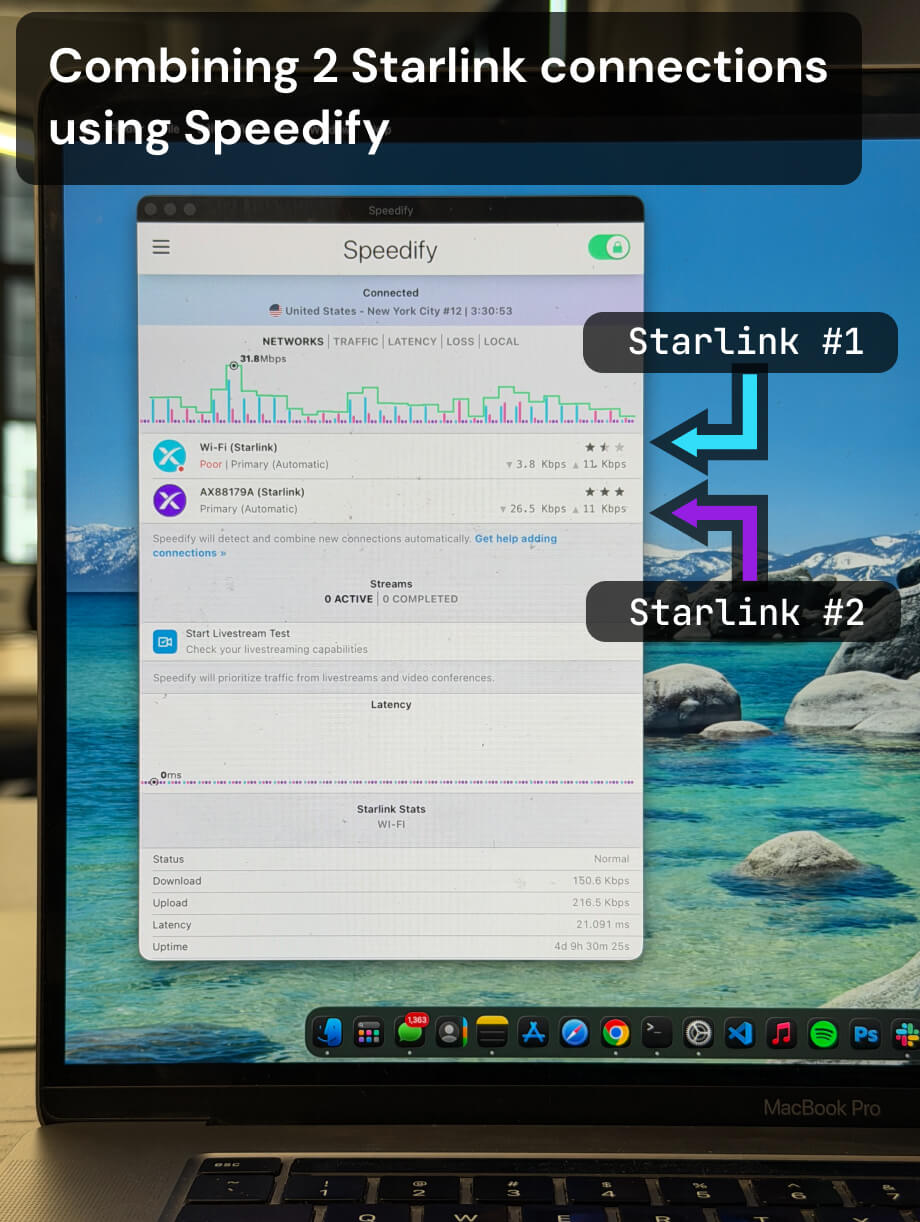
Multiple Starlink dishes, one faster and more reliable connection.
Speedify bonds all your Starlink dishes simultaneously — so you get the combined bandwidth of all your Starlink dishes, and stay online when any one drops.
What Using 2 Starlink Dishes on a Windows PC Actually Gives You
Two Starlink dishes at one location means two separate internet connections. Each dish has its own router, its own IP address, and its own data allocation. Without bonding software, your Windows PC connects to one dish at a time. Switching manually gives you no speed gain and no automatic protection against the first dish dropping.
With Speedify running on your Windows PC, both dishes are active simultaneously. Your traffic is distributed across both connections in real time. When both dishes are performing well, you benefit from the combined upload and download capacity of both. When one dish loses signal due to a physical obstruction, thermal throttle, or satellite congestion, Speedify moves all traffic to the other dish instantly, at the packet level. You do not see a reconnect prompt or a dropped session.
Note: For the strongest possible redundancy, two dishes on separate Starlink accounts are recommended. Dishes sharing the same account draw from the same satellite infrastructure pool and may be throttled simultaneously during periods of heavy congestion.
How Speedify Manages 2 Starlink Dishes on Windows
Speedify monitors both Starlink connections continuously, measuring latency, packet loss, and available bandwidth on each every few milliseconds. When both are healthy, Speedify delivers up to 95% of their combined upload and download capacity. When one degrades, Speedify shifts all traffic to the healthy dish at the packet level without interrupting your active sessions.
Speedify also encrypts all your internet traffic across both connections, so your data is protected regardless of which dish carries it.
How to Use 2 Starlink Dishes at Once on a Windows PC with Speedify
Step 1: Connect Your Windows PC to the First Starlink Dish
Connect your Windows PC to the first Starlink router via Ethernet cable or Wi-Fi. Confirm the connection is active in your system tray network indicator.
Step 2: Connect Your Windows PC to the Second Starlink Dish
Connect to the second Starlink router using a second Ethernet port or a USB Wi-Fi adapter if your built-in Wi-Fi is already in use. Confirm both connections appear as separate active interfaces in your network settings.
Step 3: Download and Run Speedify
Download Speedify and install it on your Windows PC. Speedify detects both Starlink connections automatically and begins bonding them. No manual routing setup is required.
Speedify manages both dishes in the background from that point: combining them for faster upload and download speeds, monitoring both paths, failing over instantly if either drops, and encrypting all traffic.
Who Should Use 2 Starlink Dishes on a Windows PC with Speedify
- Remote workers on Windows laptops at locations with two Starlink dishes who need the combined upload and download speeds of both
- Small businesses and branch offices running Windows workstations with two Starlink connections for redundancy and higher throughput
- Live streamers and media production teams uploading large video files from locations where a single Starlink dish is not enough
- Field operations teams on Windows PCs at sites where two Starlink dishes are deployed and both should be used actively
- IT managers overseeing dual-Starlink Windows deployments who want software-based bonding and automatic failover without hardware changes
Speedify Is Used on Millions of Devices Worldwide
Speedify has powered stronger Internet for millions of consumers since 2014
15M
Millions of Speedify downloads worldwide, and growing every day5⭐️
More than 75,000 5-star reviews for Speedify in the iOS and Android app stores82
Points of Speedify presence in datacenters around the globe500TB
Hundreds of terabytes of fast, secure data streamed every week via SpeedifySpeedify Partners
Speedify partners with these amazing organizations to deliver better internet and next-generation networking technology to their customers and employees.


Speedify Monitors Both Starlink Dishes on Windows
Speedify displays real-time Starlink dish alerts for each connected dish in the app dashboard on your Windows PC. If either dish detects a stuck actuator motor, a non-vertical mast, or a thermal throttle condition, Speedify surfaces the alert immediately. Alerts appear when the condition has been active for at least 15 seconds and clear once resolved.
Speedify gives you a single dashboard to manage both Starlink connections and monitor the hardware health of both dishes on Windows.
Speedify Business Solutions
Speedify Teams
Speedify for Routers

Speedify Embedded Solutions and Integrations
Embed Speedify software into your app or hardware products and leverage the core channel bonding technology of Speedify in new and interesting ways.