

Speedify Bonds Two Mounted Starlink Antennas into One Faster, More Reliable Connection
This guide covers how to mount two Starlink antennas, how to get past the IP conflict, and how Speedify combines them. Speedify combines Wi-Fi, 4G/5G cellular, Ethernet, Starlink and satellite into a single bonded connection, including two Starlink antennas at once.
Starlink disconnects all the time for ALL Starlink users. The Speedify Starlink Index report found that Starlink connections are down for an average of ~33 min per day. Plus, all Starlink dishes experience small drops and packet loss every 15 seconds, when the moving Starlink satellites hand off the connection to the next satellite overhead.
The best way to fix Starlink's connection drops is to combine your Starlink connection with another internet connection, such as 4G/5G cellular, cable, fiber, DSL, or another Starlink connection. Speedify makes this possible with channel bonding.
Most Starlink users already run a second connection.
From a sample of 6,228 Starlink users on Speedify, 71% ran at least one other internet connection while using Starlink. Cellular is the most common choice of backup connection.
What they pair with
Should you get a backup connection for Starlink?
Yes. Starlink goes down every day — an always-on dish averages about 34 minutes of downtime daily from routine satellite handoffs. A second connection keeps you online when Starlink drops.
What’s the best backup connection for Starlink?
A 4G/5G cellular hotspot or SIM is the most practical backup for most Starlink users — it works anywhere Starlink works, requires no installation, and uses a different network so outages rarely overlap. Cable or DSL broadband is a strong option if you have it at a fixed location. A second Starlink dish is also possible if you need maximum throughput.
How do you use two internet connections at once with Starlink?
Speedify combines Starlink with any other connection — cellular, cable, Wi-Fi, or a second dish — into one bonded connection. Speedify runs on your phone, laptop, or router. When Starlink drops, Speedify moves your traffic to the backup instantly, so calls don’t cut out and downloads don’t stall. Speedify is free to try.
71% of Speedify’s Starlink users already run a second connection. Speedify’s Starlink Index tracks real-world Starlink performance data from thousands of dishes.
See the full dataset →Use Speedify to stay online during Starlink satellite handoffs every 15 seconds
Research confirms Starlink switches between satellites every 15 seconds on a fixed schedule. Each satellite handoff is a potential dropout, and on a congested network or with any obstruction, those Starlink dropouts become real interruptions.
Speedify fixes Starlink connection drops by combining your Starlink internet connection with another satellite dish, Wi-Fi, 4G/5G cellular, or wired Ethernet at the same time. When Starlink drops, Speedify keeps your traffic moving on the backup internet connection instantly.

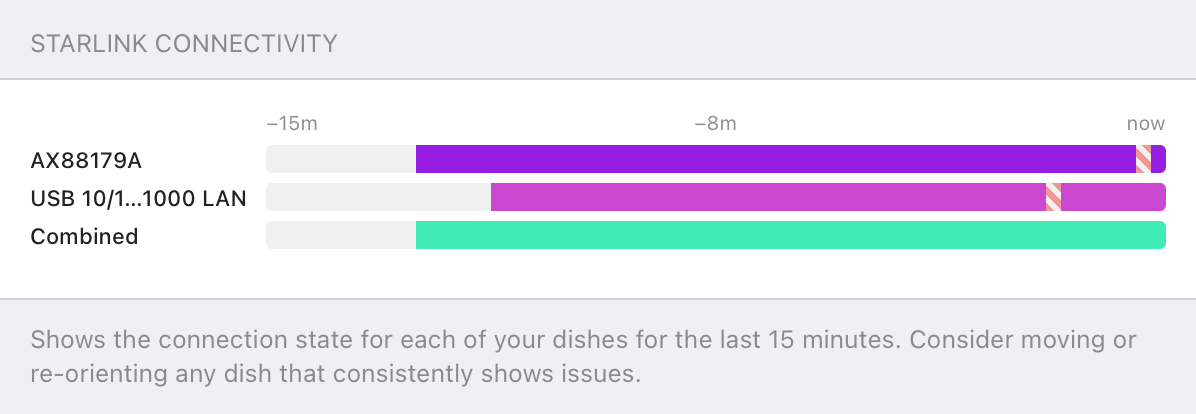
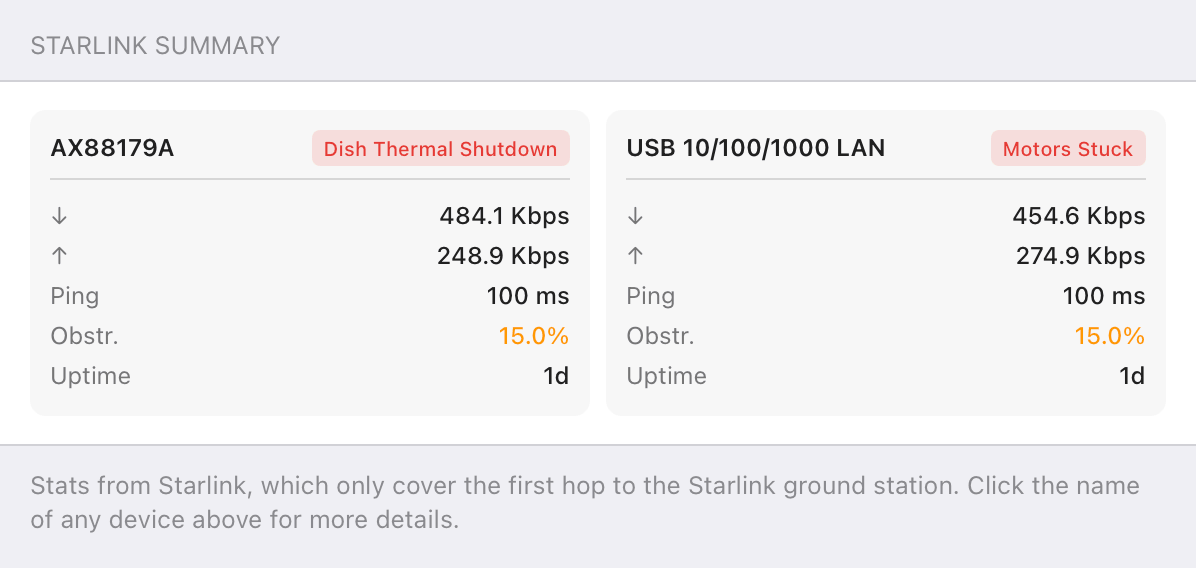
Speedify alerts you about your Starlink dish status
Speedify software alerts you about your Starlink dish status as soon as your dish experiences an issue - e.g. when your actuator motor is stuck, the mast is not vertical or there's a thermal throttle.
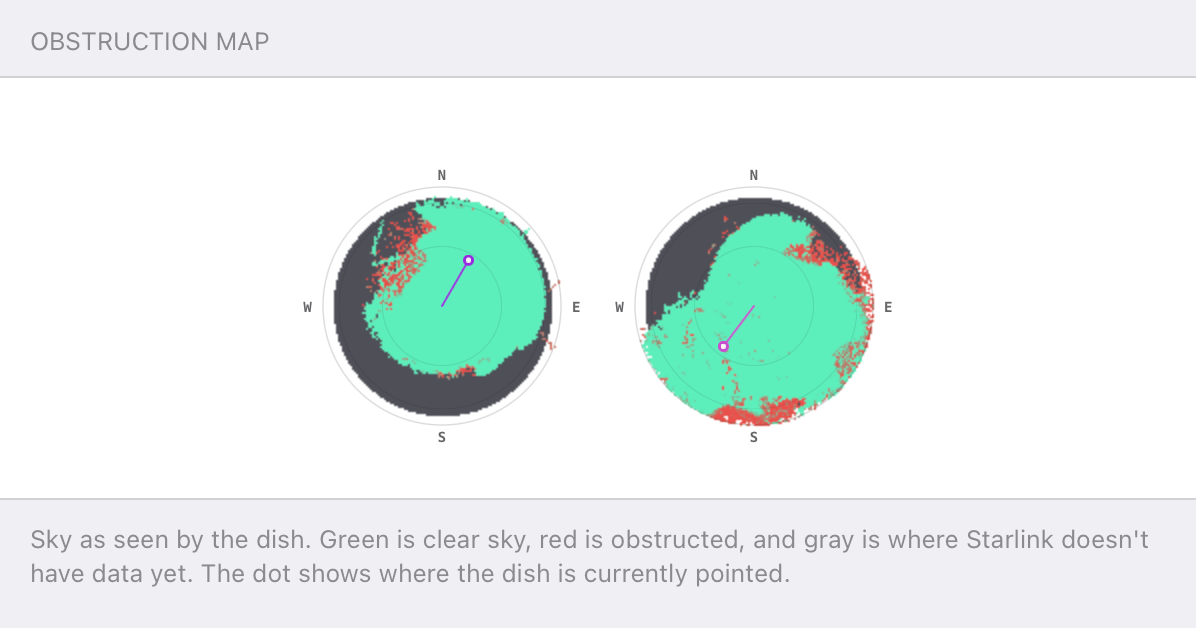
Speedify's Starlink Control Center helps you monitor all your Starlink dishes, read obstruction maps, and align multiple dishes all in the Speedify app. Get a real-time view of each dish's health and optimize the position of each Starlink dish, so you get the best possible performance out of your Starlink connections.
How to Mount Two Starlink Antennas
- Separate the two antennas. Mount them far enough apart that neither shadows the other and each keeps its own clear view of the sky.
- Point them at different sky. Aim each antenna at a different slice of open sky so they connect to different satellites, which is what adds capacity instead of duplicating it.
- Check each spot with the obstruction tool. Run the Starlink app’s obstruction check at each mounting position separately, holding your phone where that antenna will sit.
- Use solid mounts. Pole, mast, or roof mounts keep each antenna stable. On vessels and vehicles, keep both antennas clear of radar arrays and other transmitters.
The Starlink 192.168.100.1 IP Conflict, and How Speedify Solves It
Every Starlink antenna ships locked to the same local IP address, 192.168.100.1. With one antenna that’s fine. With two, both answer to the same address, so the Starlink app and a standard router can only reach one antenna at a time. The second antenna is effectively invisible.
Speedify talks to each Starlink antenna in parallel, so both show up at once. Speedify’s channel bonding technology distributes your traffic across both antennas at the packet level for up to 95% of their combined throughput, and Speedify’s automatic failover keeps you online if one antenna drops. Speedify’s Starlink Control Center shows both antennas side by side with their status and obstruction maps, and an alignment wizard helps point each one at different sky. For the full walkthrough, see how to manage two Starlink dishes at once with Speedify.
Who Mounts Two Starlink Antennas
The overlander. Someone living out of a rig mounts two Starlink antennas on a roof rack at different angles, so trees and terrain that block one don’t block both. Bonded with Speedify, the two antennas keep work and navigation online as the vehicle moves.
Live production. A broadcast or live-event crew mounts two Starlink antennas on a production truck as a bonded uplink. Two antennas pointed at different sky give the upload headroom live video needs and a second path, so a dropped antenna doesn’t end the broadcast.
The multi-building site. A farm or construction operation spread across several structures mounts antennas on different buildings to clear different obstructions. Speedify bonds them into one connection that covers the whole site and survives a single antenna failure.
Setting Up Two Mounted Starlink Antennas with Speedify
Once both antennas are mounted and connected, install Speedify on your device or a Speedify-compatible router, confirm both Starlink antennas appear as separate connections, and set each to Always mode. Speedify begins using both antennas at once.
Two Mounted Starlink Antennas Work as One with Speedify
Mount the two antennas apart and aimed at different sky, get past the shared IP address with Speedify, and the two work as a single connection that adds their speeds and survives one antenna going down. Speedify makes your Starlink setup faster, more reliable, and more secure.
Get started with Speedify today!
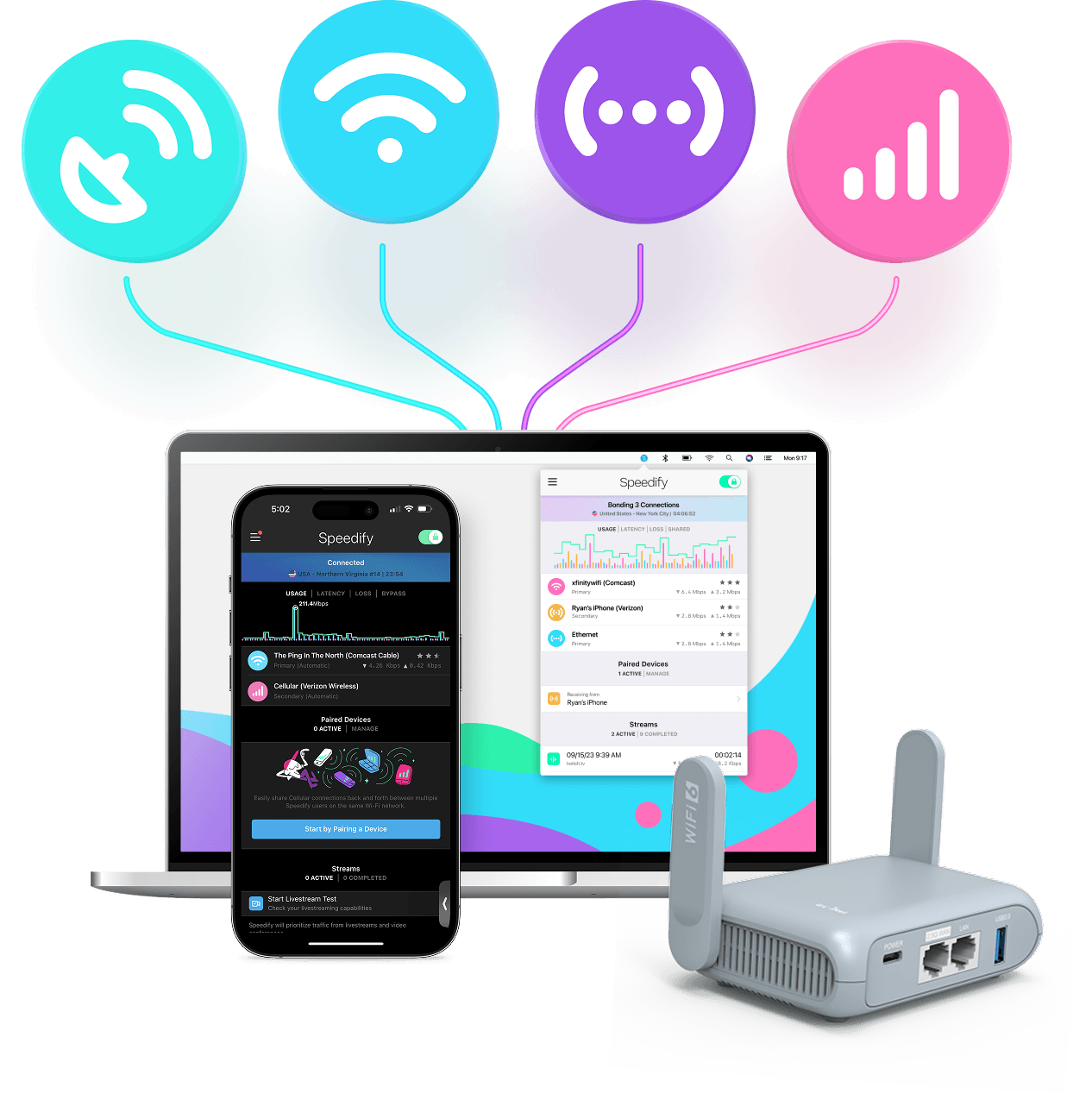
With Speedify you can combine Wi-Fi, 4G / 5G cellular, Ethernet, Starlink and other satellites into one bonded super-connection to improve livestreaming, video calling, gaming, web browsing, and everything else you do online.




Speed
Stability
Security
Speedify engineers love talking tech on YouTube, Tiktok, and Instagram!
Alex Gizis and the Speedify engineers discuss and explain technology including Starlink satellites, Wi-Fi 7 routers, Apple networking features, fiber optics, broadband internet, 5G mobile networks, AI, networking protocols, and much more. Follow Speedify on YouTube, TikTok, Instagram, and LinkedIn!
Alex and the Speedify team are always exploring the latest in networking and security technology—like 5G, 6G, WiFi 7, laser and satellite internet—and sharing it in new discussion content across YouTube, TikTok, Instagram, and LinkedIn every week.
Got a tech question? Let's go deeper! Pop into Speedify Office Hours live every Wednesday at 10 AM Eastern. Speedify CEO Alex Gizis and our network engineers are standing by to break down your questions about networks, tech updates, and Speedify features.
