
Use Your Home Internet, Tethered Smartphone and Any Other Connections Together at Once on Your Mac
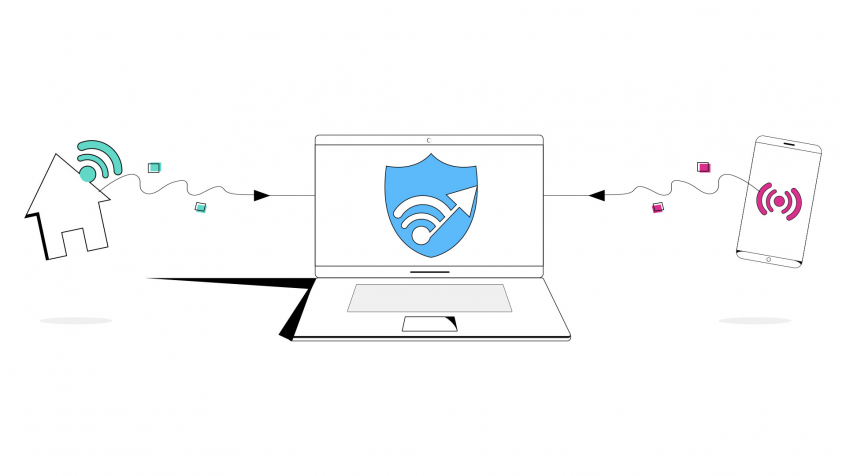
How many connections do you have available on your Mac? Let's think for a moment:
- you have your home Internet, which you can connect to via Wi-Fi or wired Ethernet
- you have your cellular connection from your smartphone
- you may have other USB network dongles for Wi-Fi or cellular
So why not use them together at once? There are only positives if you combine connections on macOS. You can get rid of slow, unreliable Internet. Then, will you be able to fully enjoy bandwidth intensive activities like streaming, online gaming and online learning without worrying about buffering and disconnects.
Some of you may already do that and think you're using 2 or more connections at the same time by just enabling them from macOS. Unfortunately that's not the case. Mac computers (including iMacs, Mac Minis, MacBooks) don't use all active connections at the same time, but they switch between them. And while this can work when you're browsing the Internet or checking your email, things get more complicated when you're streaming something or attending a video call.
This article explains how you can easily combine connections on macOS using a link aggregation (channel bonding) app: Speedify.
Fix slow upload and download speeds on Mac with Speedify: The powerful MacOS network tool
Need a stronger Internet connection on your Mac for your live streams, gaming, browsing, video calls like Meet, Teams or Zoom, or anything else you do online?
In this video, learn how to use Speedify to combine multiple Internet connections like 4G, 5G, DSL, Starlink, Wi-Fi and Ethernet to get faster, more stable and reliable uploads and downloads on your MacOS device.
Use Speedify to increase your upload and download speeds: combine internet connection sources like Wi-Fi, 4G, 5G, Starlink and wired broadband

Combine Wi-Fi, 4G, 5G, Starlink and wired broadband to fix slow upload and download speeds
Speedify is the only app that seamlessly combines all of your connections, including Wi-Fi, 4G, 5G, Ethernet, and Starlink, into one stronger connection to keep you online and secure.
In most cases, Speedify will automatically detect and start using any available Internet connections on your device while intelligently distributing your online traffic between them for optimal performance. If you need help we have quick start guides available for most common set ups.

Combine personal hotspots for better upload and download speeds
Speedify's Pair & Share feature enables you to connect to multiple hotspots at the same time and wirelessly share LTE, 4G, and 5G cellular connections back and forth between multiple Speedify users on the same local network to create a faster, more reliable connection for everyone.
For the first time, it's possible to share cellular data between multiple devices, including PCs, Macs, iPhones and Androids. Use multiple phones as hotspots for internet access and get increased bandwidth and mobile failover for all paired devices.
Use Speedify to combine...
Combine these connections on:



How to Combine 2 or More Connections on macOS at the Same
Speedify can bond any number or combination of Internet connections and will intelligently distribute your online traffic among them for optimal performance. Plus, if you get disconnected from one of your connections in the middle of an important video call or file transfer, Speedify will seamlessly failover to your other working Internet connection(s) without skipping a beat.
NOTE: For best results, use Internet connections from different sources. In general, joining the same upstream network multiple times (such as the same router via Ethernet and Wi-Fi) will not improve performance.
Here's what you have to do to combine connections on macOS:
- Connect your Mac device to all available networks. This includes wired Ethernet, Wi-Fi, tethered smartphones, and any other types. Make sure the connections are enabled to be used in macOS.
- If you're using any USB network adapter dongles (for extra cellular or Wi-Fi networks, for example), make sure to install them in macOS according to the instructions from the manufacturer.
- Get Speedify from the Apple Store. Once running, Speedify will automatically detect all your active connections and combine them for increased speed, security, and stability.
If your device or network requires additional configuration (such as running dialer software for mobile broadband networks or logging into captive portals on Wi-Fi and Ethernet networks at hotels or airports) as soon as you perform the required steps Speedify will be start using it.
Combine Connections on macOS with Speedify for Reliable, Fast and Secure Internet
Speedify is a fast bonding VPN that gets you a fast, stable and secure Internet connection on your Mac. It achieves this with channel bonding technology that uses all of your available connections in macOS instead of switching between them.
You get more bandwidth, which allows all of your apps to run faster. Speedify runs in the background, proactively monitoring the quality of your connections. It is equipped with auto failover so when one of your connection drops, it routes all the data through the other one(s), if available, until the connection is restored. All of this activity is automated. You don’t have to do anything, and you most likely won’t even notice anything different is happening.
As a VPN, Speedify provides advanced encryption, without forcing you to sacrifice speed or reliability. Speedify works on all Mac computers running macOS 10.12 and later. That includes macOS Sierra, macOS High Sierra, macOS Mojave, macOS Catalina, and macOS Big Sur.
Please check the updated system requirements on our download page.
Speedify is also available in the App Store. It only takes a few minutes to setup and requires no advanced technical skills or knowledge to use. And then - boom: you can combine connections on macOS!


Speed
Stability
Security
Speedify devs love talking tech on YouTube, Tiktok, and Instagram!
Alex Gizis and the Speedify devs discuss and explain technology including Starlink satellites, Wi-Fi 7 routers, Apple networking features, fiber optics, broadband internet, 5G mobile networks, AI, networking protocols, and much more. Follow Speedify on YouTube, TikTok, Instagram, and LinkedIn!
Alex and the Speedify team are always exploring the latest in networking and security technology—like 5G, 6G, WiFi 7, laser and satellite internet—and sharing it in new discussion content across YouTube, TikTok, Instagram, and LinkedIn every week.
Got a tech question? Let's go deeper! Pop into Speedify Office Hours live every Wednesday at 10 AM Eastern. Speedify CEO Alex Gizis and our network engineers are standing by to break down your questions about networks, tech updates, and Speedify features.
