
Why Starlink Drops During Video Calls, and How to Stop It
Starlink drops during video calls for a few ordinary reasons: your Starlink dish switches satellites about every 15 seconds, something briefly blocks its view of the sky, or bad weather or a busy network weakens the signal. Each drop is short, but long enough to freeze or end a Zoom, Teams or Google Meet call.
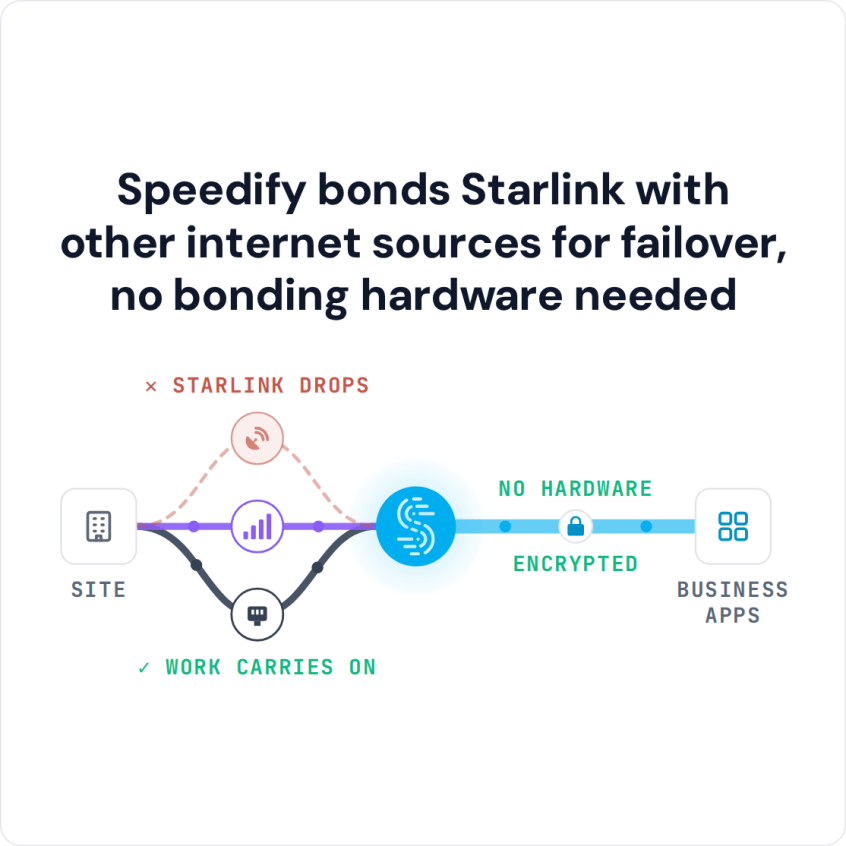
Speedify uses Starlink together with 4G/5G cellular, Ethernet or Wi-Fi at the same time, so the call keeps running on the other internet connection while Starlink recovers. Without a second internet connection, Speedify works as an encrypted VPN and cannot stop Starlink from dropping the call. Contact the Speedify team to plan your setup.
Speedify bonds Starlink with other internet sources for failover, no bonding hardware needed
Watch now
How Speedify combines internet connections on any hardware
Get started with Speedify for your business
Speedify offers three commercial paths. They work together, and most enterprise customers use two or more.
01
Speedify Teams
Speedify on every supported OS for every team member
Centralized dashboard for billing, user provisioning, and usage analytics
CSV import/export and a RESTful management API
02
Speedify for Routers
License for supported OpenWrt routers
Powered by Speedify hardware lineup ready to deploy out of the box
Miri, GL.iNet and other partner models
Covers every device on the network, with no per-device install
03
Embed Speedify into your product
A · DIY
Build it yourself with the Speedify SDK.
Integrate Speedify into your iOS, Android, Windows, macOS, Linux or QNX product. Full developer documentation, sample code and supported integration paths. Your team owns the build, and the Speedify SDK handles combining the internet connections.
B · CUSTOM ENGINEERING
Have the Speedify team build it for you.
First, Check the Starlink App to See Why Your Video Calls Drop
Open the Starlink app (App Store or Google Play) or go to dishy.starlink.com while you’re on Starlink Wi-Fi. Look at the outage history and the obstruction map. If the outages line up with your dropped calls and the map shows something in the way, move the Starlink dish or clear the view first.
If your Starlink dish is offline for long stretches, it’s a different problem: see why your Starlink isn’t working. If calls are slow and blurry rather than dropping, see 11 fixes for slow Starlink.
Why a Starlink Internet Connection Drops During Video Calls
Short Starlink drops aren’t a fault in your equipment. Most of them come from how Starlink’s satellite internet works, and knowing the cause tells you the fix.
Satellite switches. Your Starlink dish follows satellites as they cross the sky and switches to a new one about every 15 seconds. Each switch is quick, but it can leave a brief gap. You won’t notice it while browsing. On a video call, internet phone call or company VPN connection, that gap can be a glitch in the sound or a frozen picture.
Something blocking the Starlink dish. Starlink needs a clear view of the sky. Trees, buildings, equipment, or a mount that has shifted can cause drops that are frequent and hard to predict. The obstruction map in the Starlink app shows where the view is blocked, but clearing it isn’t always possible.
Weather. Heavy rain, thick snow and dense cloud can weaken the Starlink signal, and in bad storms drop it for a while. Starlink dishes can melt snow off themselves, but heavy rain and snow still slow them down.
A busy Starlink network. At busy times, more people near you share the same satellites. Starlink’s Priority plans are served first, but a busy network still means lower speeds and sudden delays that feel like drops on a live call.
Starlink equipment. Software updates on the Starlink dish, cable problems, Starlink router restarts and broken hardware can take Starlink offline for seconds or minutes.
How Speedify Keeps Video Calls Running When Starlink Drops
Speedify’s technology for combining internet connections uses Starlink and at least one more internet connection: 4G/5G cellular, a wired Ethernet line or a second Starlink dish. All your traffic travels through one encrypted Speedify connection, and Speedify spreads it across every internet connection based on how well each one is working right now. The call reaches the internet from the Speedify server, so its public IP address stays the same when Starlink drops and Zoom or Teams has no reason to reconnect.
When Starlink starts losing data or goes offline, Speedify sends the affected traffic over your other internet connections straight away, before any call or app times out:
- An internet phone call over Speedify doesn’t go silent during a satellite switch, because the data that would have been lost goes over 4G/5G cellular instead.
- A video meeting over Speedify doesn’t freeze when bad weather drops Starlink, because Speedify has already moved that traffic to your wired line or cellular.
- A company VPN on a laptop that gets its internet from a Speedify router, or from another computer sharing its Speedify connection, doesn’t reset when the Starlink router restarts, because Speedify keeps that internet connection up over 4G/5G cellular.
That’s the difference from a router that switches from Starlink to cellular when Starlink drops: the router’s switch restarts every open call and session. Speedify moves the traffic mid-stream, so calls and sessions keep going. For the most important calls, Speedify’s Streaming mode puts calls and live video first.
Speedify needs that second internet connection. With one Starlink dish and nothing else, Speedify can’t add speed or stop drops.
Which Second Internet Connection Works Best with Starlink for Video Calls
- 4G/5G cellular. The most practical choice for most businesses. Cellular doesn’t depend on satellites, so satellite switches, weather and obstructions don’t affect it the same way. A cellular hotspot or cellular router adds a second path. When both work, Speedify uses Starlink and 4G/5G cellular at the same time, so your team gets faster uploads and downloads as well as protection from drops.
- A second Starlink dish. Two Starlink dishes with Speedify cover a failed Starlink dish and cut down drops from obstructions, because a tree that blocks one dish’s view may not block the other’s. Both add speed at the same time. Every Starlink dish switches satellites on the same 15-second schedule, though, so a second dish does not cover the short gap at each switch. The right choice where there’s no 4G/5G cellular coverage.
- A wired line. If your business already has fiber or cable, use Starlink as its failover, or use both together with Speedify, so your calls don’t depend on either one alone. The same setup helps stop VoIP calls dropping on business internet.
- Three internet connections at once. If you can’t afford any downtime, Speedify uses Starlink, 4G/5G cellular and a wired line together, and losing any one of them doesn’t take you offline.
How to Stop Starlink Drops from Cutting Off Business Video Calls with Speedify
Option 1: Speedify App on Each Device
- Connect your device to your Starlink internet connection by Wi-Fi or Ethernet cable.
- Connect the same device to a second internet connection: a 4G/5G cellular hotspot, a second Wi-Fi network, or a wired Ethernet line.
- Install the Speedify app. Speedify runs on Windows, macOS, Linux, iOS and Android.
- Speedify finds both internet connections and starts using them together on its own. Starlink drops no longer reach your calls.
- For a team, set connection priorities and data limits in the Speedify app on each device, or push Speedify settings to every team device through the Speedify Teams API.
Option 2: Speedify on a Router
- Connect your Starlink dish and your other internet connections to a router that runs Speedify on OpenWrt. The Miri X510 router powered by Speedify is made for exactly this.
- Speedify uses all the internet connections on the router, so every device on your network is protected from Starlink drops with nothing to install on each one.
- Set connection priorities and check Starlink and your other internet connections in the Speedify for Routers dashboard.
Which Businesses Should Use Speedify to Keep Video Calls Running on Starlink
- Businesses that run internet phone systems over Starlink. Internet calls react badly to lost data and sudden delays, so short Starlink drops break up the sound. Speedify sends call traffic over the steadiest internet connection at every moment.
- Teams on video meetings over Starlink. Frozen pictures and dropped meetings cost time and look bad in front of clients. Speedify keeps meetings running through Starlink drops by moving the traffic to your second internet connection mid-call.
- Remote offices that must stay on a company VPN. If your devices must stay on a VPN, a Starlink drop that resets it stops work. With those devices getting their internet from a Speedify router, or from a computer sharing its Speedify connection, the VPN stays up when Starlink drops, because traffic moves to the second internet connection.
- Teams that work in cloud apps all day. Starlink drops that time out remote desktop sessions or live data feeds force people to log back in. Speedify keeps those sessions open.
- Any business that has learned to live with Starlink drops. Many teams on Starlink have built habits around the drops: waiting before redialing, waiting for the VPN to come back, moving big uploads to later. Speedify makes those habits unnecessary.
Speedify Plans for Business Video Calls over Starlink
Speedify Teams gives your IT team one account for the whole business: the Teams dashboard handles team members, billing and usage statistics, and the Speedify Teams API pushes Speedify settings to every team device. Speedify Teams costs $89.99 per user per year.
If you need a fixed IP address, port forwarding or a server nobody else shares, Speedify Dedicated Servers are available as a managed option. If your data has to stay on your own equipment, Speedify Self-Hosted Servers run Speedify’s server side on your own servers.
The Speedify app runs on Windows, macOS, Linux, iOS, Android and supported OpenWrt routers. To protect a whole network from Starlink drops, the Miri X510 router powered by Speedify is the ready-made hardware option.
Speedify Business Solutions
Speedify Teams
Speedify for Routers

Speedify Embedded Solutions and Integrations
Add Speedify to your own app or hardware with the Speedify SDK. Your product then combines internet connections, fails over automatically when one drops, and encrypts the traffic, using the same technology as the Speedify app.