
Speedify Keeps Your Business Online When Starlink Drops by Switching to Your Backup Internet Connection
Starlink failover means your business internet switches automatically to a second internet connection, like 4G/5G cellular, a wired line or a second Starlink dish, when Starlink drops. Speedify makes that switch in software, in the middle of whatever your team is doing, so video calls, internet phone calls and cloud apps stay connected.
Speedify can also use Starlink and the second internet connection at the same time for more speed. Contact the Speedify team to plan your setup.
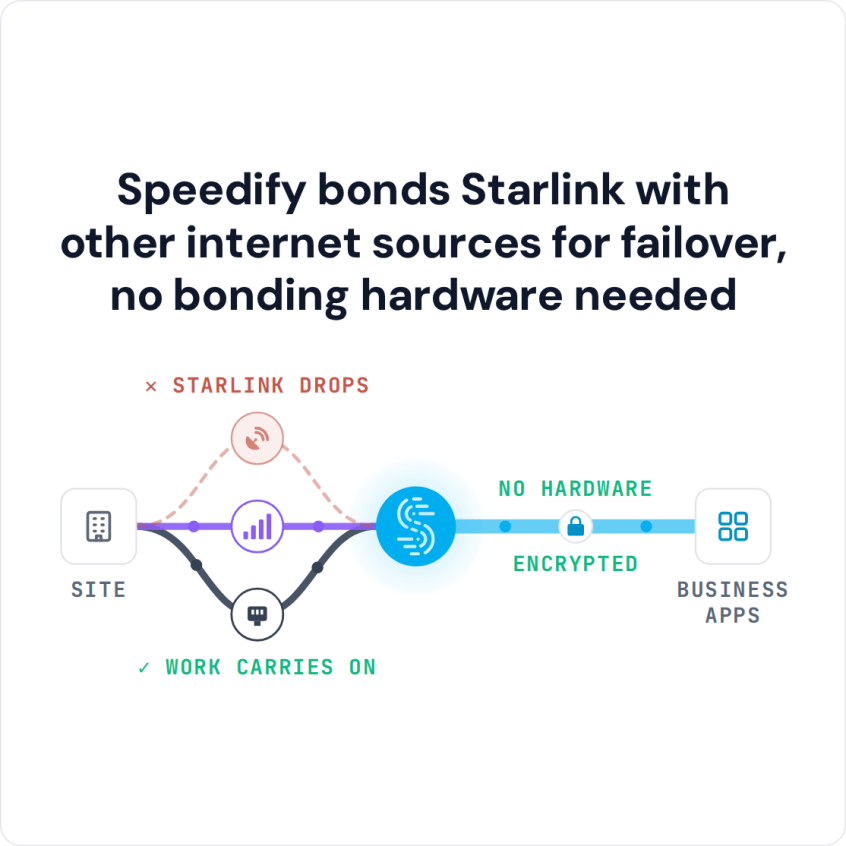
Speedify bonds Starlink with other internet sources for failover, no bonding hardware needed
Watch now
How Speedify's channel bonding technology works on any hardware
Get started with Speedify for your business
Speedify offers three commercial paths. They're not exclusive — most enterprise customers combine two or more.
01
Speedify Teams
Speedify on every supported OS for every team member
Centralized dashboard for billing, user provisioning, and usage analytics
CSV import/export and a RESTful management API
02
Speedify for Routers
License for supported OpenWrt routers
Powered by Speedify hardware lineup ready to deploy out of the box
Miri, GL.iNET, and other partner models
Whole-LAN bonding without per-device install
03
Embed Speedify into your product
A · DIY
Build it yourself with the Speedify SDK.
Integrate Speedify into your iOS, Android, Windows, macOS, Linux, or QNX product. Full developer documentation, sample code, and supported integration paths. You own the build, we provide the bonding stack.
B · CUSTOM ENGINEERING
Have us build it for you.
Why One Starlink Dish Isn’t Enough for a Business That Can’t Go Offline
Starlink has changed internet access for remote offices, field teams, construction sites, ships and any business too far from fiber or cable. Starlink says downloads are usually 45 to 280 Mbps, with a delay of 25 to 60 milliseconds on land, which is enough to run most businesses on Starlink as the main internet connection.
But drops still happen, because of how satellite internet works:
- Your Starlink dish switches satellites about every 15 seconds. Each switch can cause a short drop that interrupts internet phone calls and video meetings.
- Heavy rain, snow or thick cloud can weaken the Starlink signal or drop it for a while.
- Trees, equipment or a dish that has shifted on its mount can block the view of the sky and cause drops that are hard to predict.
- When many people nearby use Starlink at once, speeds fall. Priority plans are served first, but they still share the network.
- If your Starlink dish or Starlink router fails, the whole office can be offline until a replacement arrives.
For remote clinics, financial services, factories, offshore platforms or any team that runs on cloud apps, a single Starlink dish is the one thing that can take everyone offline.
How Speedify’s Starlink Failover Keeps Calls and Apps Connected
Speedify’s technology for combining internet connections watches all your internet connections at the same time (Starlink and other satellite, 4G/5G cellular, Wi-Fi and Ethernet) and spreads your traffic across them based on how well each one is working.
All of your traffic travels through Speedify’s encrypted connection to Speedify’s servers, over every internet connection at once. When Starlink weakens or drops, the data that was on Starlink moves to your other internet connections straight away. Your apps keep the same connection to Speedify’s servers the whole time, so a Zoom call stays connected, a file upload keeps going, and a company VPN connection doesn’t break.
Speedify needs that second internet connection. With one Starlink dish and nothing else, Speedify can’t add speed or stop drops.
Four Starlink Failover Setups with Speedify
- Starlink plus 4G/5G cellular. The most common business setup. Starlink carries most of the traffic, and if Starlink drops, 4G/5G cellular takes over. When both are working, Speedify uses both at once for faster uploads and downloads. This works on any device running the Speedify app, or for the whole network on a router that runs Speedify. To compare the two as main internet connections, see Starlink vs. 5G for business internet.
- Two or more Starlink dishes. If one Starlink dish loses its signal, the other keeps going. When both work, Speedify spreads your traffic across them, so your team gets close to the combined speed of both. This is the right setup where 4G/5G cellular coverage is missing or weak.
- Starlink as the backup for fiber or cable. If you already have a wired main line, Speedify keeps Starlink ready and sends most of your traffic over the wired line. When the wired line weakens or drops, Speedify moves your traffic to Starlink automatically.
- Starlink plus Ethernet plus 4G/5G cellular. For the most protection, Speedify uses three or more internet connections at the same time. Offshore platforms, emergency services and operations where downtime puts people or money at risk often use this setup.
Speedify vs. a Router That Switches Between Starlink and Cellular
Most business routers, like those from Cisco Meraki and Ubiquiti, can switch to a second internet connection when the first one goes down. That’s better than nothing, but everything open on the first internet connection has to start over.
When a router switches from Starlink to 4G/5G cellular, internet phone calls drop and have to be redialed, video meetings disconnect, remote desktop sessions close and company VPN connections reconnect. Everyone on your network notices every switch. With Speedify, apps never see the underlying internet connection change, so they don’t notice either.
Speedify also gives you more control over how each internet connection is used. In Speedify Teams, you set each internet connection’s priority (Always, Secondary, Backup or Never) and its data limit. For example, set Ethernet and Starlink to Always, and set a metered 4G/5G cellular connection to Backup with a data limit, so it’s only used when the others drop. You manage it all from the Speedify Teams dashboard, with no router settings to touch.
How to Set Up Speedify Starlink Failover for Your Business
Option 1: Install Speedify on Each Device
This is the fastest way to protect individual team members.
- Connect your Windows PC, Mac, Linux computer, iPhone or Android phone to your Starlink internet connection by Wi-Fi or Ethernet cable.
- Connect the same device to a second internet connection: a 4G/5G cellular hotspot, the Wi-Fi of a cellular router, or a wired Ethernet line.
- Install the Speedify app. Speedify runs on Windows, macOS, Linux, iOS and Android.
- Speedify finds both internet connections on its own and starts using them. Nothing else needs setting up for basic protection.
- On a Speedify Teams plan, add the device to your Speedify Teams account and set connection priorities and data limits from the dashboard.
Option 2: Run Speedify on a Supported Router
To protect every device on the network without installing anything on each one, run Speedify on a router.
- Connect your Starlink dish and your second internet connection (4G/5G cellular, a wired Ethernet line or a second Starlink dish) to a router that runs Speedify on OpenWrt. The Miri X510 is a router made to run Speedify, for exactly this job.
- Speedify uses all the internet connections plugged into the router, so every device on your business network is protected automatically.
- In the Speedify for Routers dashboard, set connection priorities, watch usage and set data limits.
A router setup covers any number of devices, including ones that can’t run the Speedify app, like cameras, screens and printers.
Which Businesses Need Speedify Starlink Failover
- Remote offices and field teams. Without fiber or cable, Starlink is the main internet connection. Adding 4G/5G cellular or a second Starlink dish with Speedify keeps the team online through Starlink outages.
- Offshore platforms and ships. Out of cellular range, operations often pair Starlink with a second satellite service. Speedify uses both and moves traffic between them without interrupting work.
- Emergency services and disaster response. Teams working where local networks are down need an internet connection that survives bad conditions. Speedify combines Starlink with 4G/5G cellular and Ethernet to give them that.
- Remote healthcare and online doctor visits. Speedify keeps video appointments running through Starlink outages, with no need to restart the session.
- Live broadcast and event production. A dropped internet connection during a live stream is visible to everyone watching. Speedify uses Starlink with 4G/5G cellular backup so the stream continues.
Speedify Plans for Business Starlink Failover
Speedify Teams gives your IT team one dashboard to manage Starlink failover across the whole business: which internet connections each device uses, connection priorities and data limits, and adding or removing team members. Speedify Teams costs $89.99 per user per year, with a 5-user minimum.
If you need a fixed IP address, port forwarding or a server nobody else shares, Speedify Dedicated Servers are available as a managed option. If your data has to stay on your own servers, Speedify Self-Hosted Servers run Speedify’s server side on your own equipment.
The Speedify app works on Windows, macOS, Linux, iOS, Android and supported OpenWrt routers. For Starlink failover across a whole network, the Miri X510 router powered by Speedify is the ready-made hardware option.
Speedify Business Solutions
Speedify Teams
Speedify for Routers

Speedify Embedded Solutions and Integrations
Embed Speedify software into your app or hardware products and leverage the core channel bonding technology of Speedify in new and interesting ways.