

How to Work Remotely and Stay Connected with Better Internet
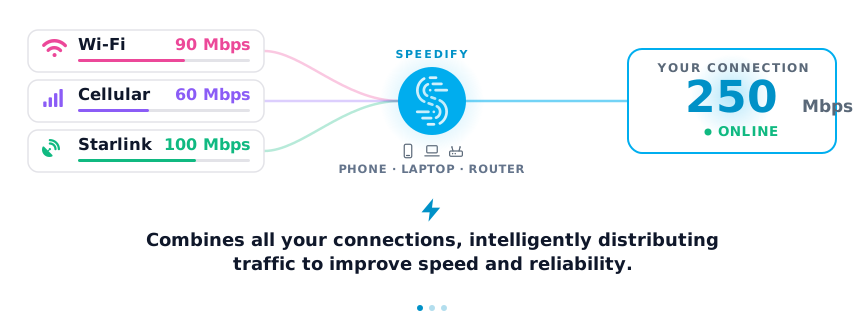
Remote work depends on upload and download speeds that stay fast enough for video calls and big file transfers, even when one connection gets congested. Speedify is an app that combines two or more internet connections at once (like home Wi-Fi and a phone’s 4G/5G cellular) into one connection, adding their speed together and keeping work online if one drops. The tips below show how to get faster, steadier internet wherever remote work happens. For a rural example, see remote work in Maine with two internet providers.
Speedify keeps you working when the home connection gives out
How do I use WiFi and 4G/5G cellular at the same time with Speedify?
Pick your two internet connections and your device below and we'll take you to the step-by-step setup guide.


1. Test Your Internet Speed Against What an HD Video Call Needs
Start by testing your speeds to see how your internet is performing. Tools like Speedtest by Ookla or M-Lab show the speeds you get right now, and a full HD video call needs around 3 Mbps of total bandwidth, so that is the minimum to look for. Speedify and Pingify also show live stats for each of your connections.
Take your baseline test over Ethernet, or as close to your router as you can. Then move further out through your house or workspace to see where the speeds start to drop off.
You’ll want to check out upload speed, download speed, and ping to see how much latency you have in your connection. Use one device at first, making sure others aren’t connected, and then you can add in others to see how they affect your speed. You’ll easily be able to tell whether you aren’t getting speeds near what you’ve been promised by your provider, and having all of the information will help you diagnose any root causes.
2. Use All Your Internet Connections at Once
When one internet connection drops during a video conference, a second connection that is already carrying traffic keeps the call going.
Speedify encrypts your traffic like a VPN and can use Wi-Fi, Ethernet, a public hotspot, 4G/5G cellular, Starlink and satellite internet all at once.
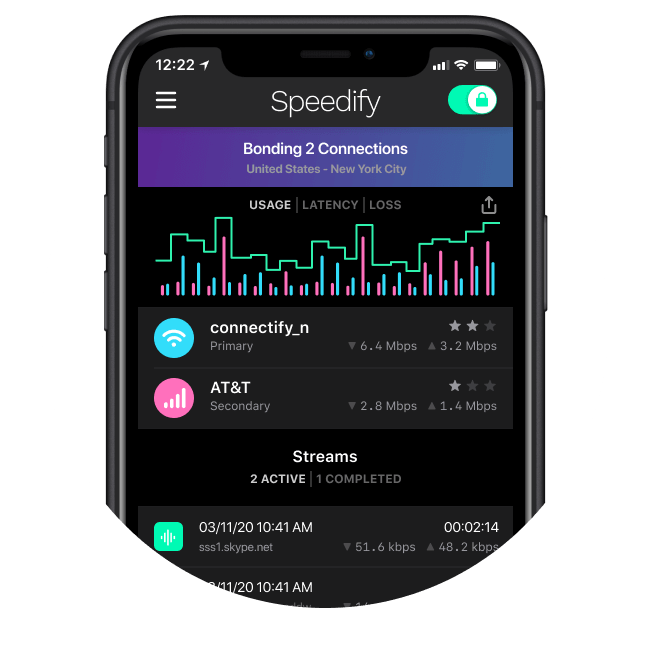
Combining connections gives you faster uploads and downloads and clearer video and audio on calls. Speedify also recognizes live traffic such as video calls and VoIP and prioritizes live streams, so the bandwidth goes to the call first, not to background downloads.

3. Get the Fastest Internet Provider You Can Afford
Internet providers differ. One can be fast in one part of town and slow in another, and the last mile connection to your building varies even more.
If your speeds are as expected but not delivering what you need, then you’ll need to investigate going up a tier or two to gain extra speed and performance. It may be more costly, but could be worthwhile if it saves you the time and energy you would spend dealing with a slow connection while working remotely.
If your speeds are consistently worse than expected, talk to your provider to see if there’s an unknown issue that may be slowing down your connection. Then if all else fails, talk to your neighbors to see which providers they’re using and how happy they are with their speeds. Try out a competing provider if your speed tests are disappointing and your remote work connectivity is affected by disconnects. Before paying for a pricier plan, see how to cut your internet bill.
5G home internet is now an alternative to fixed broadband in many cities, and satellite providers such as Starlink serve people outside cities who have limited broadband. Either one also works as a second internet connection that Speedify combines with your main line.
4. Check Whether an Outage Is Your ISP or Your Equipment
Even the best providers go down sometimes, and the first job is to tell whether the problem is your internet provider or your own network.
To check, open your provider’s website over another internet connection, such as your phone’s 4G/5G cellular, and look for outage reports. Providers usually post them in your account section or as a notice on the website, for example Comcast Xfinity.
If there are no reported outages but you are experiencing one, your provider may not know about it yet or may still be investigating. In that case, search X (formerly Twitter) for “[internet provider] outage” to see whether other customers report the same issue.
If your internet itself seems to be working, but you aren’t able to access a specific website or cloud provider, Downforeveryoneorjustme.com and Downdetector are useful resources that will tell you if a website is offline. If you’re affected but nobody else is, there may be issues with your network or provider for you to investigate.
5. Prioritize Your Work Traffic
When other people in the house stream Netflix, watch YouTube or play video games during your work hours, that traffic competes with yours, especially on a slow connection or a crowded Wi-Fi network. You can make your internet more reliable by sending their traffic through a different Wi-Fi band than yours in your router settings.
Routers typically operate using both the 2.4 GHz and 5 GHz frequency bands. Often times your router can split those bands into separate networks, if activated in your router’s settings. By enabling it, you can use one Wi-Fi band for your work-related traffic and other traffic will go through the other band. While 5 GHz can be faster, 2.4 GHz offers better range, which should factor into your decision about which to use for work.
Most newer routers will allow you to create a guest network, which you can typically use to limit the maximum amount of speed that separate network consumes and even the hours it can be used. Meaning you can share it with your kids without worrying about them taking necessary bandwidth away from your work.
Quality of Service features within your router may give you an additional layer of control, by enabling you to choose which traffic a router should prioritize, such as video calling as a higher priority than gaming traffic. Speedify does something similar on your own computer: it detects live traffic like Zoom, Microsoft Teams and Google Meet and gives it priority.
6. Plan Your Internet Usage
You may not always be able to plan when you need to hop on a video conference, but you can plan almost everything else you do online.
The internet is most congested during several peak hours that now can stretch from lunchtime to around 9:30 p.m. If a download or your family’s Netflix fix can wait until off-peak hours, then you’ll have more bandwidth for work during the hours when you need to be online and working.
When you’re outside of home, you have less control over what others are doing on networks you’re connected to. However, you’re still able to control your own activities and choose not to use bandwidth you may need for other tasks. And it’s even easier if you have a tool like Speedify that helps your most important traffic remain unaffected by spreading out the risk of network congestion.
7. Strengthen Your Wi-Fi Signal
Speedify will help you add your connections together and optimize traffic. If you’re at home, you can add to your internet performance by ensuring that your Wi-Fi signal is strong wherever you use it. Router placement is one of the checks in how to optimize your home office internet.
The Wi-Fi version matters too. A newer standard (Wi-Fi 6 or Wi-Fi 7) on both the router and the laptop handles more devices at once and keeps speeds steadier on a busy network than Wi-Fi 5 or older. Both ends need to support it: a Wi-Fi 6 router gives an older laptop little or no gain.
A single router may not be enough in a large space, for example when you work on a different floor with several walls and ceilings in the way. Range extenders are an option and are usually inexpensive. If you shop for one, consider one made by the company that made your router: setup is usually faster and the two are more likely to work well together.
Another option is to use a laptop or desktop as an extender using Connectify Hotspot, which gives you the benefits of an extender without buying new hardware.
Combining a strong Wi-Fi signal with a second internet connection in Speedify keeps work traffic moving even on a congested network.
Remote Work Connectivity Checklist: Faster Uploads and Fewer Dropouts
To work productively from home, test your speeds, combine your internet connections with Speedify, give work traffic priority and fix weak Wi-Fi. Speedify runs on Windows, macOS, iOS, Android and Linux.
Speedify
Get started with Speedify today.
Speedify combines Wi-Fi, 4G/5G cellular, Ethernet, Starlink and satellite into one faster, more reliable internet connection. Free to try: 5 GB a month with a free account. No credit card required.
🚀 Speed
Faster uploads and downloads, because Speedify uses all your internet connections at once.
📶 Stability
If one internet connection drops, Speedify moves your traffic to the others in milliseconds.
🔒 Security
AES-256 encryption on every internet connection, on any network you join.



15M+ downloads worldwide. 75K+ five-star reviews on iOS and Android.