
Combine Starlink with Wi-Fi, 4G/5G Cellular or DSL in Speedify to Fix Netflix Buffering
Netflix and other videos keep buffering on Starlink when your Starlink internet connection slows down or has short dropouts: when something blocks your Starlink dish’s view of the sky, when your Wi-Fi signal is weak, or when your Starlink dish switches satellites. The same causes apply to Netflix on a Starlink Mini.
You can fix most of these yourself. For the rest, use Starlink together with a second internet connection that doesn’t depend on satellites, like 4G/5G cellular or a DSL line, and Speedify keeps Netflix playing when Starlink dips.
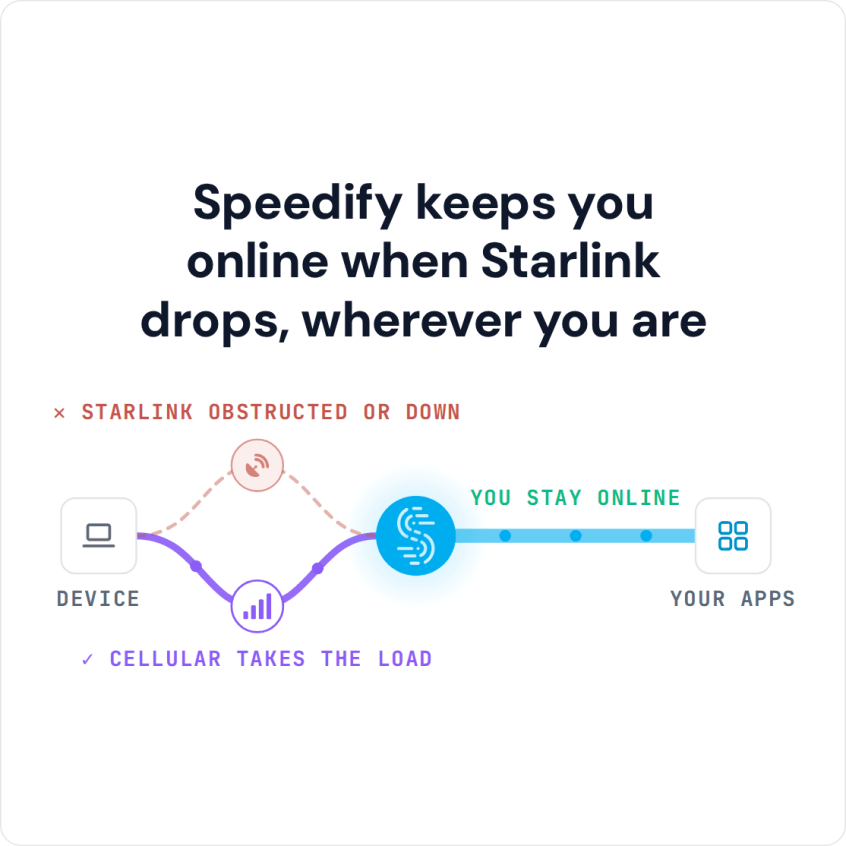
Speedify keeps you online when Starlink drops, wherever you are
Starlink Internet Connection Drops Happen to Everyone
Speedify measures thousands of Starlink users in more than 140 countries. In September 2026, fixed Starlink dishes went offline for about 38 minutes a day on average, and Starlink dishes on RVs and boats for about 46 minutes a day.
All Starlink dishes also see short dropouts roughly every 15 seconds as the Starlink internet connection switches from one moving satellite to the next. Even a perfectly installed Starlink dish goes offline, and about 7 in 10 Starlink users on Speedify use Starlink together with a second internet connection, like 4G/5G cellular.
Why Netflix Keeps Buffering on Starlink
Netflix loads a little of the video ahead of what you’re watching. A short dropout is often covered by that, but a long slowdown, or several dropouts in a row, uses it up, and Netflix stops to buffer. An online game has no buffer at all, which is why a stream survives a Starlink dropout and a game doesn’t. On Starlink, the slowdowns and dropouts usually come from:
- Satellite switches. Your Starlink dish switches satellites about every 15 seconds, and every switch can cause a short dropout.
- A partly blocked view of the sky. A tree or a roof edge off to the side can block the view as the satellites move overhead, even if nothing covers the Starlink dish itself.
- Weak Wi-Fi at the TV. A TV or streaming stick in a room far from the Starlink router gets a weak Wi-Fi signal, even when Starlink itself is fine.
- A busy Starlink network in the evening. Evening is when most people watch, and when the most people near you use Starlink at the same time.
- Several streams at once. Netflix uses up to 1 GB an hour in standard quality, 3 GB in HD and 7 GB in Ultra HD, per screen. Two or three Ultra HD streams plus downloads on the same Starlink internet connection add up fast.
How to Stop Netflix Buffering on Starlink
Step 1: Check the Starlink App for Obstructions or an Outage. The obstruction map shows whether anything blocks your Starlink dish’s view of the sky. If the Starlink app shows your Starlink dish offline, see what each Starlink status means.
Step 2: Connect Your TV or Streaming Device to the Starlink Router with an Ethernet Cable. A cable takes weak Wi-Fi off the list of causes. If you can’t run a cable, move the Starlink router closer to the TV.
Step 3: Lower the Netflix Video Quality at Busy Times. In your Netflix account, the playback settings for your profile let you choose lower data use per screen. A lower quality needs less speed, so it buffers less on a busy evening.
Step 4: Pause Downloads and Other Streams While You Watch. Game updates, cloud backups and other screens all share the same Starlink internet connection.
For all 11 fixes to a slow Starlink internet connection, step by step, see why is my Starlink so slow.
Stop Netflix Buffering on Starlink with a Second Internet Connection and Speedify
The short dropouts from satellite switches stay, whatever you change. For those, use Starlink together with a second internet connection: 4G/5G cellular or an old DSL line, whatever you have. A second Starlink dish switches satellites on the same 15-second schedule as the first, so it doesn’t cover these dropouts.
Speedify is an app that sends your internet traffic over all of your internet connections at the same time, even a single Netflix stream, so a short dropout on Starlink doesn’t stop the video, and the stream can use the speed of both. Its Streaming mode puts streams and calls first, and if one internet connection drops completely, Speedify switches your traffic to the others on its own. Speedify needs that second internet connection: with Starlink alone, it can’t add speed or cover the dropouts.
Speedify runs on computers, phones and tablets, but not on smart TVs, Apple TV or game consoles. To use it for Netflix on a TV, run Speedify on a router that works with Speedify and connect the TV to that router. On a laptop, phone or tablet, download Speedify and install the app. For Apple TV, see how to fix Apple TV buffering on Starlink.
Speedify
Get started with Speedify today.
Combine Wi-Fi, 4G/5G cellular, Ethernet, Starlink, and more into one faster, steadier connection. Free to try — no credit card required.
🚀 Speed
Faster uploads and downloads by bonding all your connections at once.
📶 Stability
Automatic failover in under a second when any connection drops.
🔒 Security
AES-256 encryption on every connection, on every network you join.



15M+ downloads worldwide. 75K+ five-star reviews on iOS and Android.