

You Can Combine Multiple Internet Connections Together – Like Starlink, Wi-Fi, 4G, 5G, and DSL – with Speedify, to Fix Google Meet Network Issues
If Google Meet keeps kicking you out, look at how your device reaches the internet before blaming Google. Laptops shifting between Wi-Fi networks, and houses where several people stream at once, both produce exactly this – a call that ends without warning.
Speedify is an app that carries a Google Meet call over Wi-Fi, 4G/5G cellular data, wired Ethernet, Starlink and other internet connections together. Keep reading to see which Google Meet faults get reported most, and how using Speedify keeps your own meetings and your team’s meetings running to the end. The same applies to GoToMeeting calls on a slow connection.
Speedify keeps your call running when the connection under it fails.
We Tested Google Meet on a Weak Wi-Fi Connection, With and Without Speedify
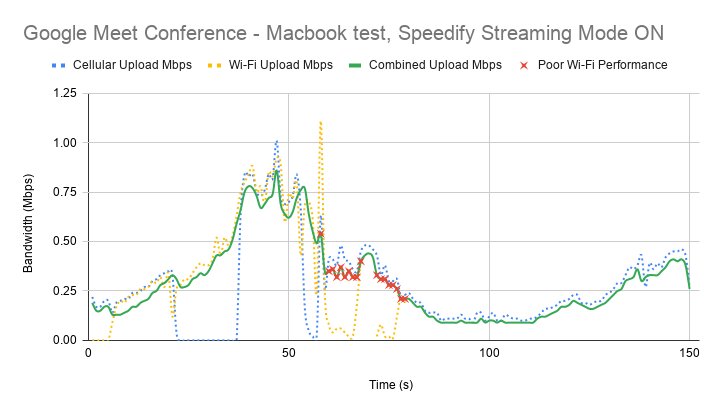
We ran Google Meet calls on a MacBook and on an Android phone, walking to the edge of the Wi-Fi range each time to force packet loss and a drop. Without Speedify the picture stuttered, then the video feed cut out, then the audio went, and the call took a long while to move over to cellular on its own.
With Speedify running in Streaming Mode, the same walk did not break the call. On the MacBook the video did not stutter at all. The graph below shows Wi-Fi and cellular carrying the call together, with cellular taking over as Wi-Fi fails. Each red x marks a moment when packet loss on the Wi-Fi connection went above 5%.
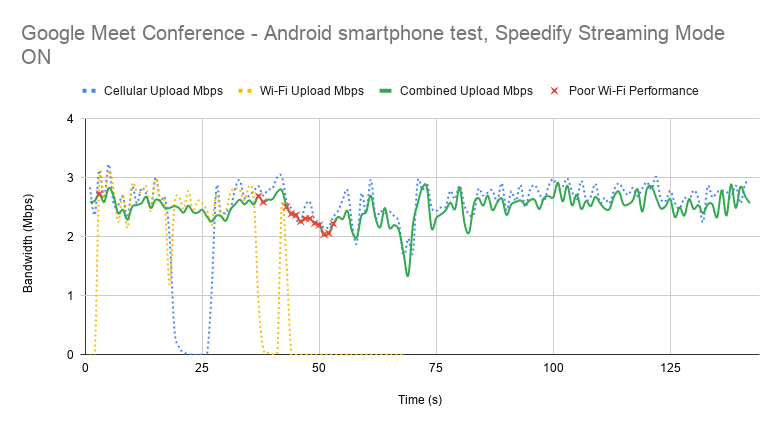
The Android test behaved the same way. Cellular stops being used while Wi-Fi is strong and comes straight back as soon as Speedify sees Wi-Fi turn flaky, holding the call steady at around 2.5 Mbps throughout.
Here’s the average data from testing on both platforms:
macOS | Android | |||||
Bandwidth (Mbps) | Average | Minimum | Maximum | Average | Minimum | Maximum |
Overall | 0.40 | 0.09 | 1.07 | 2.12 | 0.71 | 3.28 |
Known Issues with Google Meet
Take a look on the Google Support website for Meet; the most common issues are:
- Unreliable communications
- Call problems
- Sync issues
The most common cause of Google Meet network issues is actually the Internet you’re using. When you have a slow or unreliable Internet connection, Meet isn’t able to work properly. Sometimes, you may not even realize that you have a Google Meet connection issue until you try and use the service. And it’s most annoying when it happens during an important business call.
Google Meet uses a significant amount of bandwidth, especially for video calls. Your device is sending a complex set of data packets to the device of the person you are trying to talk to, their device is sending packets of data to you.
If your Wi-Fi connection has a momentary blip or your cellular connection fluctuates, some of the flow of those packets gets interrupted. It can take a few moments for the data to catch up.
This results in Google Meet VoIP calls where the audio cuts in and out, where the video lags, and where the audio and video don’t sync properly. It can also lead to Google Meet dropped calls.
Avoid Google Meet Network Issues Easily: Get Fast, Reliable and Secure Internet
As mentioned above, Google Meet will perform as good as your Internet can perform. At this time, whether you’re using a laptop, a desktop computer or a mobile device, it only uses one connection at a time. Even though you may be connected to both WiFi and cellular data on your smartphone, it’ll use only one of them. So, the solution for fast, reliable and secure Internet is simple: use a secure channel bonding service for your organization, like Speedify for Teams.
Speedify for Teams improves the performance of Google Meet for your business. That’s because it improves your Internet connection. The Speedify app works by monitoring the quality of your Internet connections in the background and can bond all available connections simultaneously in a single “pipe”. This improves your bandwidth and connection reliability, fixing Google Meet connection issues and leading to a smoother conversation.
If you are moving between Wi-Fi networks, or your Wi-Fi or cellular network suddenly go out, you stay connected because Speedify for Teams intelligently and automatically reroutes your data until you are connected again to both networks. Best of all, you don’t notice anything because Speedify takes care of it all in the background.
How Speedify for Teams VPN Provides Better Internet for your Google Meet Needs
With Speedify for Teams VPN, you don’t have to trade security for Internet speed. It allows you to have both. The channel bonding technology can use multiple Internet connections at the same time. This provides faster, more stable Internet, and doesn’t slow down your connection like the other VPNs will do.
Plus, with Speedify for Teams you can also get:
- Dedicated VPN servers – they provide speed, reliability, port forwarding, and static IP addresses. Users with dedicated VPN servers will also experience more consistent speeds, as no one else is on your server.
- Teams dashboard to manage billing, add and remove users, monitor usage statistics and view performance analytics if you have a dedicated server.
- Management API – Speedify for Teams API is a REST application programming interface that uses HTTP requests and provides responses in a JSON format and using HTTP status codes. You can create and remove users from your team, and check how much users are actually using their accounts.
- Support for virtually any device running Windows, macOS, Linux, iOS and Android.
If you are tired of poor quality Google Meet calls and an unstable Meet app, fix your connection issues now and get Speedify for Teams today!
Speedify
Get started with Speedify today.
Combine Wi-Fi, 4G/5G cellular, Ethernet, Starlink, and more into one faster, steadier connection. Free to try — no credit card required.
🚀 Speed
Faster uploads and downloads by bonding all your connections at once.
📶 Stability
Automatic failover in under a second when any connection drops.
🔒 Security
AES-256 encryption on every connection, on every network you join.



15M+ downloads worldwide. 75K+ five-star reviews on iOS and Android.