
Don’t Rely on a Mobile Hotspot Which Isn’t Connected. Use Speedify to Combine Starlink, Wi-Fi, 4G, 5G, and Wired Broadband at Once
Hotspot connected but no internet means only half of a mobile hotspot is working. Two separate connections are involved: the local Wi-Fi the hotspot broadcasts, which is working, and the cellular internet behind it, which is not. One bar of signal, a used-up hotspot allowance, a carrier outage or a slow fallback to an older network all look identical from your laptop.
Speedify is an app that runs your internet over a mobile hotspot plus Wi-Fi, Ethernet, Starlink and 4G/5G cellular at the same time. That needs a second internet connection next to the hotspot: with the hotspot alone, Speedify works as an encrypted VPN and cannot bring back a hotspot that has no internet. This article separates the hotspot’s own Wi-Fi from the cellular internet behind it, gives you the checks for each, and shows what Speedify prevents: a dead hotspot taking your work offline.
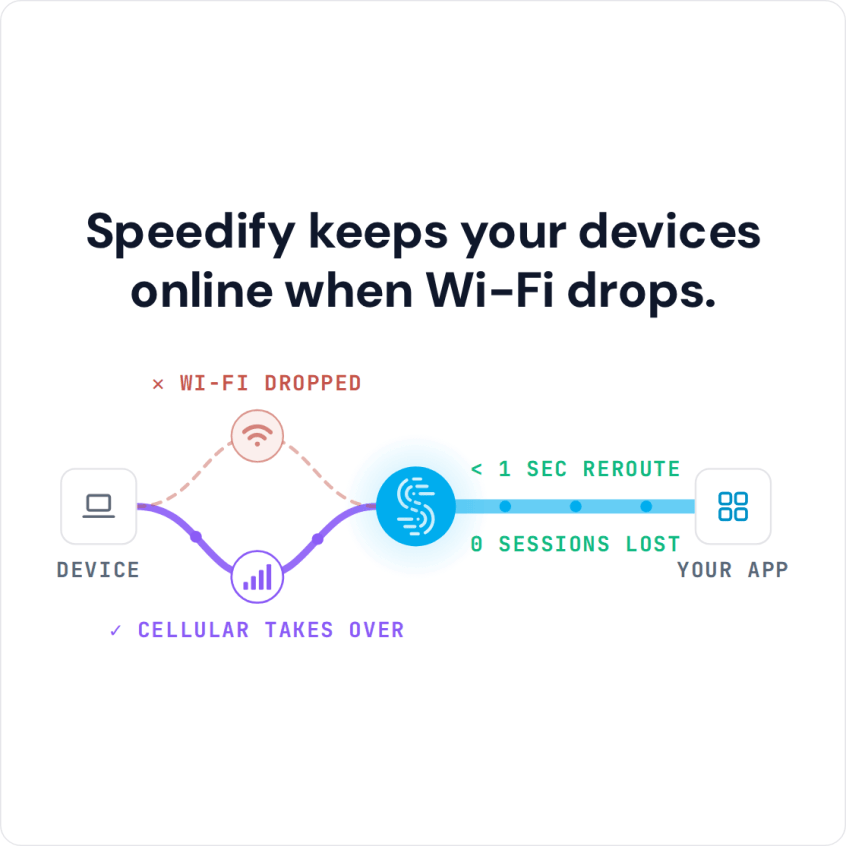
Speedify keeps your devices online when Wi-Fi drops.
Mobile Hotspot Connected but No Internet: Why This Happens
When you use the internet through a mobile hotspot, the connection comes from the hotspot’s cellular connection, shared over Wi-Fi with your laptop and other devices. So two parts are involved:
- The mobile hotspot: a Wi-Fi network created locally by a dedicated hotspot device or by your phone or tablet.
- The cellular internet: the network provided by your carrier.
So if your mobile hotspot is connected but you have no internet, the problem is usually on the cellular side:
- Very poor network coverage (one bar of signal, for example).
- Slow cellular speeds, such as a fallback to 3G.
- A network outage or maintenance work by the carrier.
Your plan may also have run out of hotspot data, or not include hotspot use at all: carriers often cap or slow hotspot data separately from phone data. On Android, the phone then shows “Tethering has no internet”.
How to Fix a Hotspot That Says No Internet
Here is what you can do to troubleshoot your internet connection when a mobile hotspot gives you no internet:
- Make sure cellular data is turned on and working on the phone or hotspot device. Check that a dedicated hotspot (MiFi) device has the right access point (APN) settings for your carrier. Some phones let you turn on the hotspot with cellular data off, but the hotspot needs cellular data to reach the internet.
- Get the best cellular signal you can. With only one or two bars, move the hotspot to a spot with better reception, such as near a window; aim for at least three bars on 4G or 5G.
- Get your mobile hotspot closer to the devices you’re connecting to. Try to use the devices you’re connecting to the mobile hotspot as close to it as possible, to avoid speed drops and packet loss.
- Restart your mobile hotspot (MiFi, smartphone, tablet, etc.). Sometimes that’s all you need.
- If other devices on the same hotspot have internet, restart the computer or device that shows the “No Internet access” error, and on Windows check for updated drivers for your Wi-Fi adapter.
- Forget the Wi-Fi network your mobile hotspot creates on the device with the problem, then join it again. Saved network settings can go stale and cause the connected-but-no-internet error.
- Check for an outage in your area on your carrier’s service status page or on sites such as downdetector.com.
If one of those fixed it, the problem can still come back next time. If you have other internet connections available along with your mobile hotspot, Speedify can combine all your available connections at the same time.
Speedify Helps Avoid Cellular Internet Connectivity Problems
Speedify combines all of your internet connections to keep you online when it matters most, with speed, stability and security. As long as you are connected to more than one internet source, Speedify’s automatic failover protection moves your traffic to the working connection when the hotspot loses its internet, and keeps the same public IP address, so calls and logged-in sessions carry on.
The video above shows one combination that gives you reliable internet, but you can combine any internet connections on a Windows PC, Mac, Linux computer or router, and Wi-Fi and 4G/5G cellular on an Android phone or iPhone. See the Speedify YouTube channel for more.
Having a reliable Internet connection is especially important when being disconnected can impact your real time online activities:
- Working remotely: an unstable connection means dropped online meetings and video conferences, and falling out of touch with your colleagues.
- Live streaming: Speedify prioritizes live streams over other types of internet traffic, so your Twitch, YouTube or other streams are protected first.
- Online gaming: you should not lose a game because of an internet glitch. Speedify keeps the game connected when one connection drops, and in Redundant Mode, Speedify sends each packet over every connection and uses the copy that arrives first, so your ping follows whichever connection is faster at that moment.
Whenever you can, use more than one internet connection at once to avoid the mobile hotspot connected but no internet error. With a nearby public Wi-Fi hotspot or a second cellular connection (preferably from a different carrier) next to your hotspot, Speedify keeps you online when one of them has no internet.
Speedify
Get started with Speedify today.
Speedify combines Wi-Fi, 4G/5G cellular, Ethernet, Starlink and satellite into one faster, more reliable internet connection. Free to try: 5 GB a month with a free account. No credit card required.
🚀 Speed
Faster uploads and downloads, because Speedify uses all your internet connections at once.
📶 Stability
If one internet connection drops, Speedify moves your traffic to the others in milliseconds.
🔒 Security
AES-256 encryption on every internet connection, on any network you join.



15M+ downloads worldwide. 75K+ five-star reviews on iOS and Android.