
Snapchat Connectivity Issues – Killing the Joy of Sharing Snaps
Snapchat not working on mobile data, stuck on verifying device, or saying there is a problem connecting to the server means Snapchat cannot reach its own service. A phone setting that stops Snapchat from using cellular data, or a shaky internet connection, is the usual reason rather than your account. Losing a streak you have kept up for months to a dropped signal stings more than most faults.
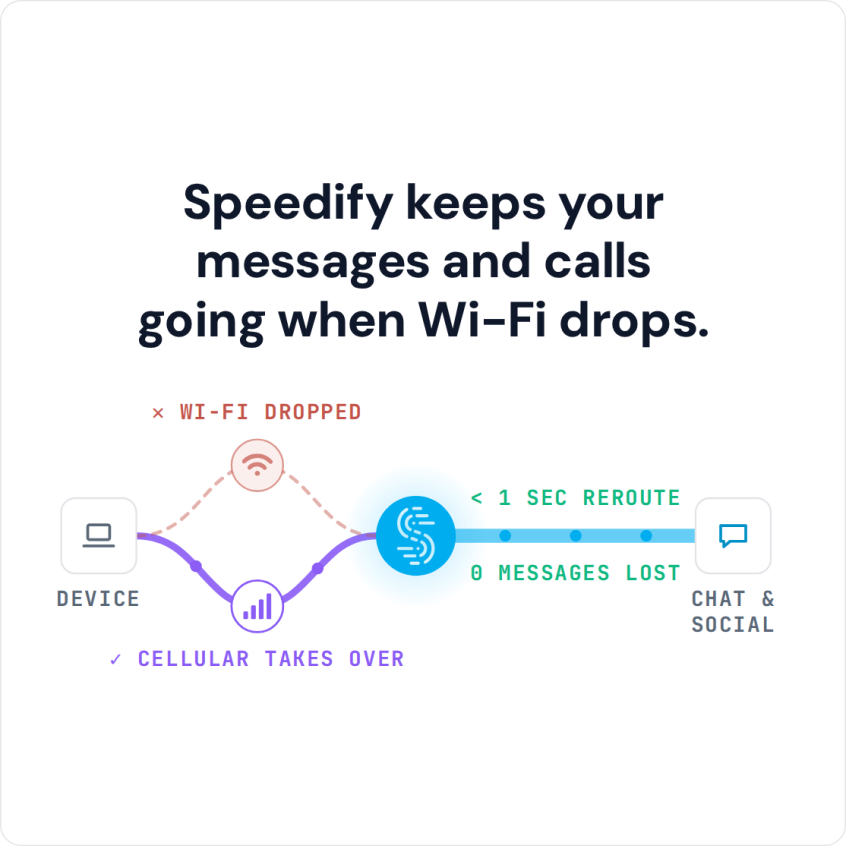
Speedify is an app that combines Wi-Fi, 4G/5G cellular, Ethernet, Starlink and satellite internet connections and encrypts your traffic like a VPN. On a phone it keeps Wi-Fi and 4G/5G cellular working at the same time, so a drop on one does not stop Snapchat. On a single connection, Speedify works as an encrypted VPN and cannot stop that connection from dropping. Below: the quick fixes, how to report a lost streak, and what Speedify adds.
If Snapchat crashes or will not connect, try these fixes first:
- Restart the device
- Clear the cache of Snapchat
- Clear the Google Play Store cache
- Reinstall the app
If Snapchat works on Wi-Fi but not on mobile data, check that your phone lets Snapchat use cellular data: on iPhone, open Settings > Cellular (Mobile Data in the UK) and make sure Snapchat is switched on; on Android, open the app’s mobile data settings and allow background data. Also check that Low Data Mode or Data Saver is off, that your plan has data left, and that Snapchat is not down for everyone on a status site such as Downdetector.
Those steps fix most errors. One error is specific to Snapchat streaks.
Snapchat streaks are regular conversations that you have with your friends. In your friends list, you can see a flame icon with a number: the number of days in a row you and that friend have sent each other snaps. That is your streak with that friend.
See below how Speedify helps you avoid Snapchat connectivity issues, and how to report a streak you lost to one.
How to Report a Lost Snapchat Streak
Streaks take weeks or months to build, and a connection error can still end one.
A streak is maintained only if two users send each other a minimum of one snap in the last 24 hours. The idea behind streaks is to make people use Snapchat as much as they can.
If you’ve lost your streak with your friends, you can report it on the Snapchat website. Here are the steps to follow.
- Go to the Contact us page
- Select “My Snapstreaks have disappeared”
- Here, you’ll be able to file a report. In the column for extra information, write “Connectivity issues”
Keep in mind that filing a complaint may or may not get your issue resolved.
Fix Snapchat Connection Issues with Speedify
Some Snapchat connection issues come from app errors, which the steps above fix. The rest come from the internet connection: on the move you use either your 4G/5G cellular or the local coffee shop’s Wi-Fi, and both can drop.
Public Wi-Fi networks are usually slow. To boost your browsing speeds, you can combine multiple networks and get the advantage of two connections at once.
Speedify also encrypts your traffic, which protects you from hackers and snoopers. Speedify is an encrypted VPN that combines internet connections, so besides encryption you get a steadier internet connection when two or more are available.
A VPN normally adds a step for your data, which is why other VPNs slow down your connection, and Speedify can be a little slower too on a single connection. With Wi-Fi and 4G/5G cellular together, Speedify adds the capacity of the second connection, which helps when Snapchat lags.
How Speedify Improves Your Snapchat Internet Reliability and Bandwidth
Your phone has two internet connections available: 4G/5G cellular and Wi-Fi. Speedify uses both at the same time. You can also set a data cap for cellular in the app, so you get better speeds and still stay inside the data allowance on your plan.
When you are connected to a public Wi-Fi network, Speedify detects if the connection is poor and moves your traffic to 4G/5G cellular until the Wi-Fi is good again.
Speedify’s packet loss fix mechanism also resends lost data, which can steady a Wi-Fi connection that loses packets. With a second connection in Redundant Mode, your ping also follows whichever connection is faster at that moment.
To keep Snapchat connected, download Speedify and create a free account: the free tier includes 5 GB per month.
Speedify
Get started with Speedify today.
Speedify combines Wi-Fi, 4G/5G cellular, Ethernet, Starlink and satellite into one faster, more reliable internet connection. Free to try: 5 GB a month with a free account. No credit card required.
🚀 Speed
Faster uploads and downloads, because Speedify uses all your internet connections at once.
📶 Stability
If one internet connection drops, Speedify moves your traffic to the others in milliseconds.
🔒 Security
AES-256 encryption on every internet connection, on any network you join.



15M+ downloads worldwide. 75K+ five-star reviews on iOS and Android.