
Speedify’s Starlink Control Center Monitors Your Starlink Dish and Uses It Together with Another Internet Connection for Faster Upload and Download Speeds
To monitor your Starlink internet connection, open Statistics in the Starlink app, or type dishy.starlink.com or 192.168.100.1 into a web browser on your Starlink Wi-Fi. You’ll see your speed, ping, uptime, recent outages and how much of your Starlink dish’s view of the sky is blocked, which together show why your internet slows down or drops.
Speedify, an app that uses all of your internet connections at the same time, including Starlink plus 4G/5G cellular, cable or another Starlink dish, monitors every Starlink dish you use with it, live, and shows Starlink dish alerts in the app. Below: which Starlink numbers to watch, what Speedify adds, and how Speedify keeps you online when your Starlink internet connection struggles.
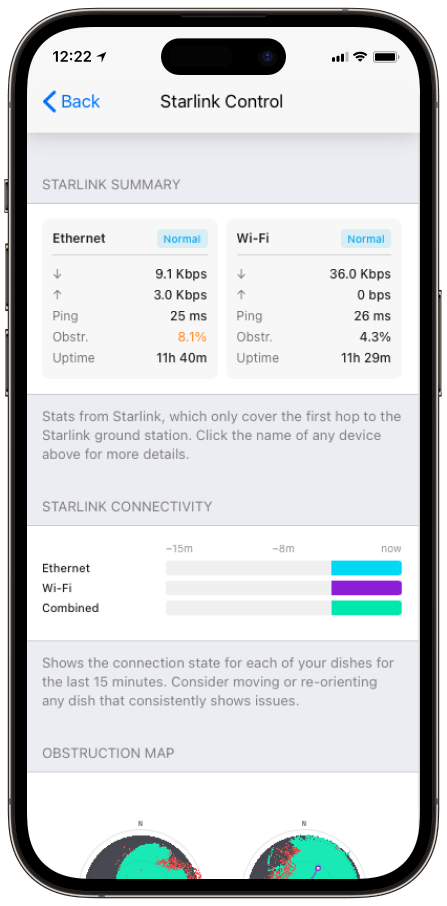
Monitor your Starlink dish performance inside Speedify.
Starlink Internet Connection Dropouts Happen to Everyone
Speedify measures thousands of Starlink users in more than 150 countries. From 29 September to 12 October 2026, fixed Starlink dishes went offline for about 37 minutes a day on average, and Starlink dishes on RVs and boats for about 61 minutes a day.
Starlink also switches each dish to a new satellite every 15 seconds, and a switch can cause a short dropout. Even a perfectly installed Starlink dish goes offline, and about 7 in 10 Starlink users on Speedify use Starlink together with a second internet connection, like 4G/5G cellular.
Where the Starlink App Shows Your Starlink Statistics, and Which Ones to Watch
Starlink shows its own statistics in the Starlink app under Statistics, and in a web browser at dishy.starlink.com or 192.168.100.1 while you’re on your Starlink Wi-Fi. For more detail, open Advanced, then Debug Data, in the Starlink app. The numbers worth watching:
- Download and upload speed. Your live speed in each direction. Sudden dips point to a busy Starlink network, weather, or something blocking the view.
- Ping and Ping Drop Rate. Ping is the delay between you and the internet, usually 25 to 60 milliseconds on land. Ping drop rate is how many pings get lost. Gamers and people on video calls feel both. The ping the Starlink dish reports covers only the trip to the Starlink ground station; on the Speedify Starlink Index, the typical Starlink user sees 85 ms end to end.
- Uptime and outages. How long your Starlink dish has stayed online, and a list of recent drops with their likely causes. On the Speedify Starlink Index, from 29 September to 12 October 2026, Starlink dishes were online 96.77% of the time, about 46 minutes a day offline. For how a typical day of Starlink outages looks across thousands of Starlink dishes, see is Starlink down, or is your dish down.
- Obstruction. How much of your Starlink dish’s view of the sky is blocked. Even a small blocked area causes short drops.
- Starlink dish alerts. Warnings like a stuck motor, a pole that isn’t straight, or a Starlink dish that’s overheating, which explain a weaker Starlink internet connection. To find which Starlink dish has the problem, use Speedify’s Starlink setup analysis report.
The Starlink app only shows these statistics, and only for one Starlink dish at a time. That’s where Speedify adds something the Starlink app doesn’t.
How Speedify’s Starlink Control Center Monitors Your Starlink Dish
Speedify’s Starlink Control Center reads the same data from your Starlink dish and shows it in a live Starlink Summary card: status, download and upload speed, ping, how much of the view is blocked, and how long the Starlink dish has stayed online. Speedify also shows Starlink dish alerts right in the app, like a stuck motor, a pole that isn’t straight or an overheating Starlink dish. An alert shows up within about 15 seconds of a problem, and stays up while the problem lasts.
Speedify shows your Starlink dish’s obstruction map too, and if you use more than one Starlink dish, Speedify shows all of them side by side, which the Starlink app can’t do because every Starlink dish uses the same 192.168.100.1 address. To cover your whole network, use a router that works with Speedify, and for more on the numbers, see how to monitor Starlink stats with Speedify. Speedify also adds up the same Starlink dish data across thousands of Starlink dishes for the Speedify Starlink Index. Read how Speedify measures Starlink to see what the Starlink dish data shows at that scale.
What Starlink Can See of Your Internet Activity, and How Speedify Keeps It Private
Starlink’s Help Center says Starlink counts how much data your Starlink dish uses, but doesn’t monitor the types of data or where your internet traffic goes. Starlink’s privacy policy lists what Starlink collects from your service: the speed delivered to you over time, connection status, latency, obstruction data, your Starlink equipment’s location and orientation, Wi-Fi quality, information about the devices on your Wi-Fi, and the public IP addresses assigned to you. Your browsing history isn’t on that list. Starlink keeps account information for the life of the account plus 2 years, and shares information with law enforcement when the law requires it.
Starlink still carries all of your internet traffic, so like any internet provider, Starlink’s network can see which websites and services your devices connect to, even when the pages themselves are encrypted. Speedify encrypts your traffic by default on every internet connection it uses, including Starlink, with AES-256 or ChaCha encryption, and sends it through a Speedify server. Starlink then sees only an encrypted connection to a Speedify server, not the sites you visit. The exception is a service you set to bypass Speedify, such as a streaming service that blocks VPNs: that traffic goes straight over your internet connection.
How Speedify Speeds Up Starlink Uploads and Keeps Calls Going Through Drops
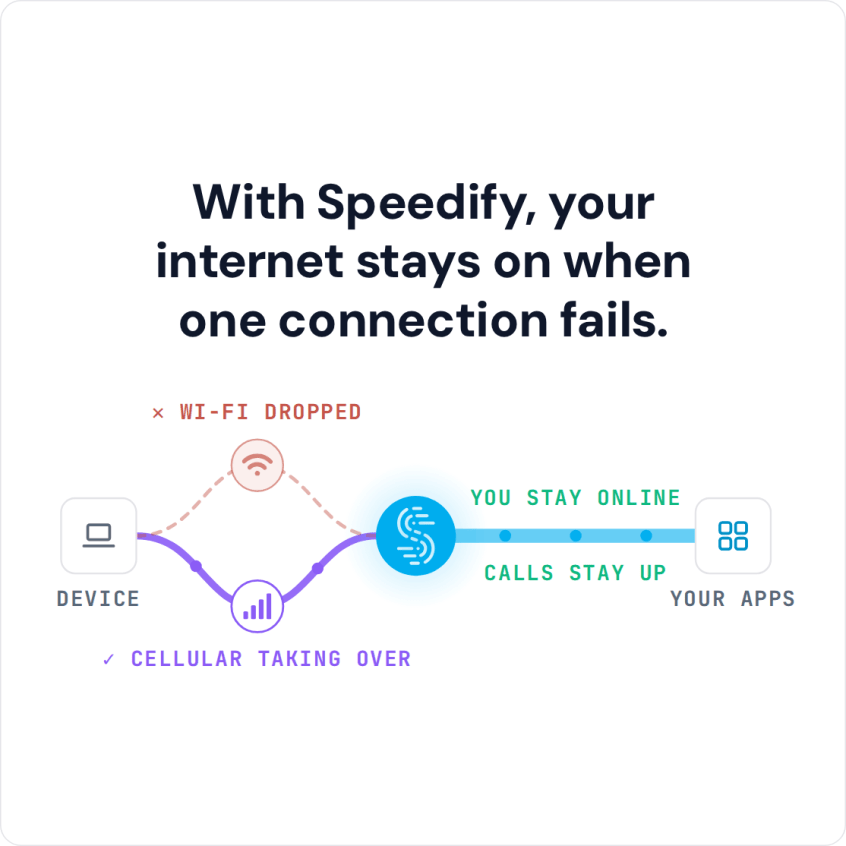
Watching stats tells you what’s wrong. It doesn’t fix a slow upload or a dropped call. Speedify does, by using your Starlink internet connection together with another internet connection at the same time: 4G/5G cellular, a wired Ethernet line, or a second Starlink dish. Speedify sends your traffic over both, so downloads and uploads get nearly the combined speed of both, and switches your traffic to the other internet connection the moment your Starlink dish drops, without cutting off a call or a file transfer. With Starlink alone, Speedify can monitor it but can’t make it faster or cover drops: it needs that second internet connection.
Who Gets the Most from Monitoring Starlink in Speedify
People who work from home. If you check ping before a video call, you want to know your internet will hold. Watching ping and obstruction in Speedify, with a cellular connection added, means a bad moment on your Starlink dish no longer ends the call.
Live streamers. A creator checks uptime and obstruction before going live. Speedify shows both live, and uses a second internet connection so a drop in the middle of a stream doesn’t cut the broadcast.
Businesses with several Starlink dishes. A business running several Starlink dishes watches every one of them in Speedify, and uses them together for faster downloads and uploads, and to keep working when one Starlink dish drops. That is the core of a high performance Starlink setup for business.
For businesses: if you run Starlink at remote sites and need them to stay online, Contact Us to plan a Speedify setup that uses every Starlink dish and cellular connection at each site.
For individuals: Download Speedify to monitor your Starlink dish and use it together with 4G/5G cellular at home.
Speedify Turns Starlink Monitoring into Faster, More Reliable Internet
Knowing your Starlink statistics is useful. Acting on them is better. Speedify’s Starlink Control Center shows your Starlink dish’s status, speed, ping, obstruction and uptime live, then uses your Starlink internet connection together with another one, so the problems you’re watching stop taking you offline.
Speedify
Get started with Speedify today.
Speedify combines Wi-Fi, 4G/5G cellular, Ethernet, Starlink and satellite into one faster, more reliable internet connection. Free to try: 5 GB a month with a free account. No credit card required.
🚀 Speed
Faster uploads and downloads, because Speedify uses all your internet connections at once.
📶 Stability
If one internet connection drops, Speedify moves your traffic to the others in milliseconds.
🔒 Security
AES-256 encryption on every internet connection, on any network you join.



15M+ downloads worldwide. 75K+ five-star reviews on iOS and Android.