
Fix Issues with Citrix Workspace: Check Your Internet Connection
When Citrix Workspace is not working, because it will not launch or it opens and then hangs on a grey screen, the fault is usually the internet connection carrying it rather than the app itself. Starting a session needs an uninterrupted stretch of data, and a weak Wi-Fi signal or a network that drops for two seconds is enough to leave Citrix Workspace stuck.
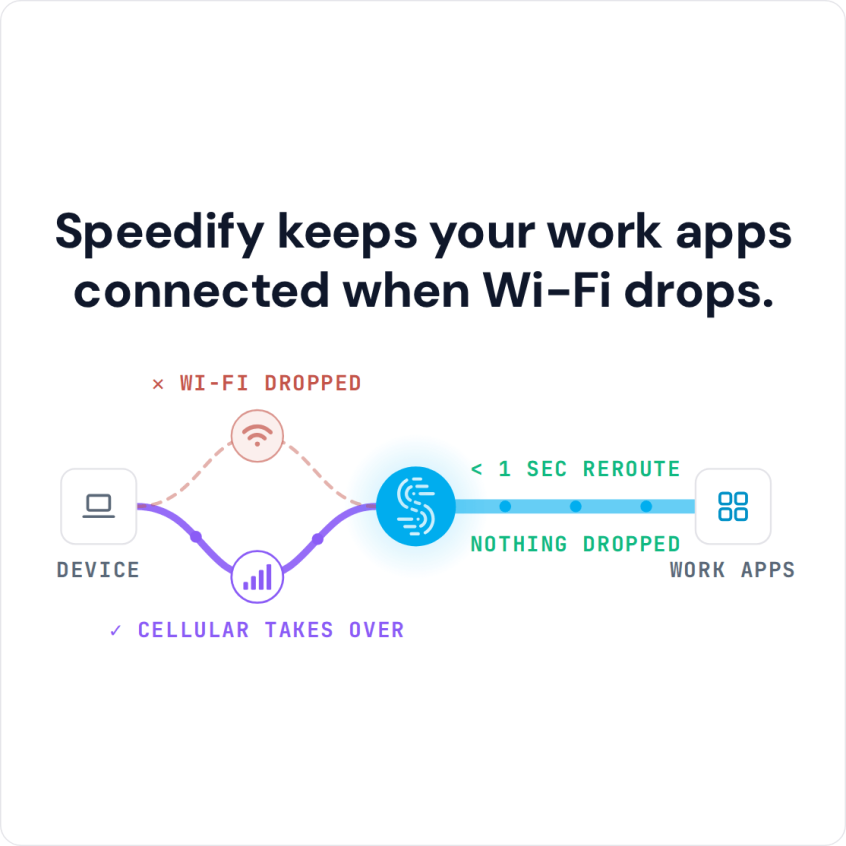
Speedify is an app that combines Wi-Fi, 4G/5G cellular, Ethernet, Starlink and satellite internet connections, so if one of them falters the others carry Citrix Workspace, and your public IP address stays the same, so the session does not see a new address. That needs two or more internet connections; on a single connection, Speedify works as an encrypted VPN and cannot stop that connection from dropping.
What you get here is the reason Citrix Workspace fails to start, the checks to run, and what using Speedify changes.
Citrix Connection Issues and Other Reasons Citrix Workspace Stops Working
The most common cause why Citrix Workspace (formerly Citrix Receiver) is not working is actually the Internet connection you’re using. When you have a slow, or unreliable Internet connection, Citrix Workspace isn’t able to work properly. Sometimes, you may not even realize that you have a connection issue until you try and use the service. And it’s most annoying when it happens during tasks running.
Reliable network connectivity is essential when using Citrix Workspace to access virtual apps, virtual desktops, and Unified Communications applications (VoIP). If your Wi-Fi connection has a momentary blip or your cellular connection fluctuates (for remote workers), some of the flow of those packets gets interrupted. It can take a few moments for the data to catch up.
The result is Citrix Workspace not working, more time spent troubleshooting and less work done.
Not every Citrix problem is your connection. Update the Citrix Workspace app to the current version, restart your computer, and ask your IT team whether the company’s Citrix servers are down or your account has a problem. If Citrix works on one network and not on another, the network is the cause.
Some employers do not allow work apps to connect through a VPN. Check your company’s rules before you use Speedify with Citrix. If the company blocks VPN traffic, Speedify’s Bypass setting (Settings > Bypass) can send a chosen service’s traffic directly from your device, outside the encrypted tunnel.
Fix Citrix Workspace Connection Issues with a Second Internet Connection
As mentioned above, Citrix Workspace performs only as well as your internet connection. Whether you’re using a laptop, a desktop computer or a mobile device, your device uses one connection at a time: even when your smartphone is connected to both Wi-Fi and 4G/5G cellular, it uses only one of them. The fix is to combine them with Speedify, for you or your organization.
The Speedify app monitors the quality of your internet connections in the background and can combine all available connections simultaneously in a single “pipe”. That adds bandwidth and gives Citrix Workspace a second path, so a drop on one connection no longer ends the session.
If you move between Wi-Fi networks, or your Wi-Fi or cellular connection suddenly goes out, Speedify automatically reroutes your data over the connection that still works until the other one is back. It all happens in the background, so you do not have to restart the Citrix session yourself.
How to Keep Citrix Workspace Connected with Speedify
- Download Speedify on the computer you run Citrix Workspace on (Windows or macOS).
- Open Speedify and create a free account (the free tier includes 5 GB per month), or sign in.
- Add a second internet connection next to your Wi-Fi, such as Ethernet or a phone tethered with a USB cable (an iPhone works on both Windows and macOS; an Android phone on Windows and often on a Mac).
- Connect. Speedify uses both connections at once and moves your traffic to the working one when one drops.
- Open Citrix Workspace and start your session as usual.
How Speedify Provides Better Secure Internet for You
With Speedify you don’t have to trade security for internet speed and reliability. Because Speedify combines multiple internet connections at the same time, with two or more connections it doesn’t slow down your connection like the other VPNs can.
How Speedify for Teams Keeps an Organization’s Citrix Sessions Secure and Connected
Speedify for Teams brings the same setup to a whole organization: each team member’s Speedify app uses their own combined connections, so every Citrix session has a second path and the encryption doesn’t slow down your connection.
With Speedify for Teams you can also get:
- Dedicated VPN servers: they provide speed, reliability, port forwarding and static IP addresses, and because no one else is on your server, speeds are more consistent.
- Teams dashboard to manage billing, add and remove users, monitor usage statistics and view performance analytics if you have a dedicated server.
- Management API : the Speedify for Teams API is a REST interface that uses HTTP requests and returns JSON. You can create and remove users on your team, push Speedify settings and check how much each user is actually using.
- Support for virtually any device running Windows, macOS, Linux, iOS and Android.
When Citrix Workspace is not working, check your connection first. If the connection is what keeps dropping, Speedify with a second internet connection keeps the session going.
Connectify Inc. is a Citrix Ready partner. Speedify is available in the Citrix Ready Marketplace.
Speedify
Get started with Speedify today.
Speedify combines Wi-Fi, 4G/5G cellular, Ethernet, Starlink and satellite into one faster, more reliable internet connection. Free to try: 5 GB a month with a free account. No credit card required.
🚀 Speed
Faster uploads and downloads, because Speedify uses all your internet connections at once.
📶 Stability
If one internet connection drops, Speedify moves your traffic to the others in milliseconds.
🔒 Security
AES-256 encryption on every internet connection, on any network you join.



15M+ downloads worldwide. 75K+ five-star reviews on iOS and Android.