
How to Troubleshoot VPN Problems
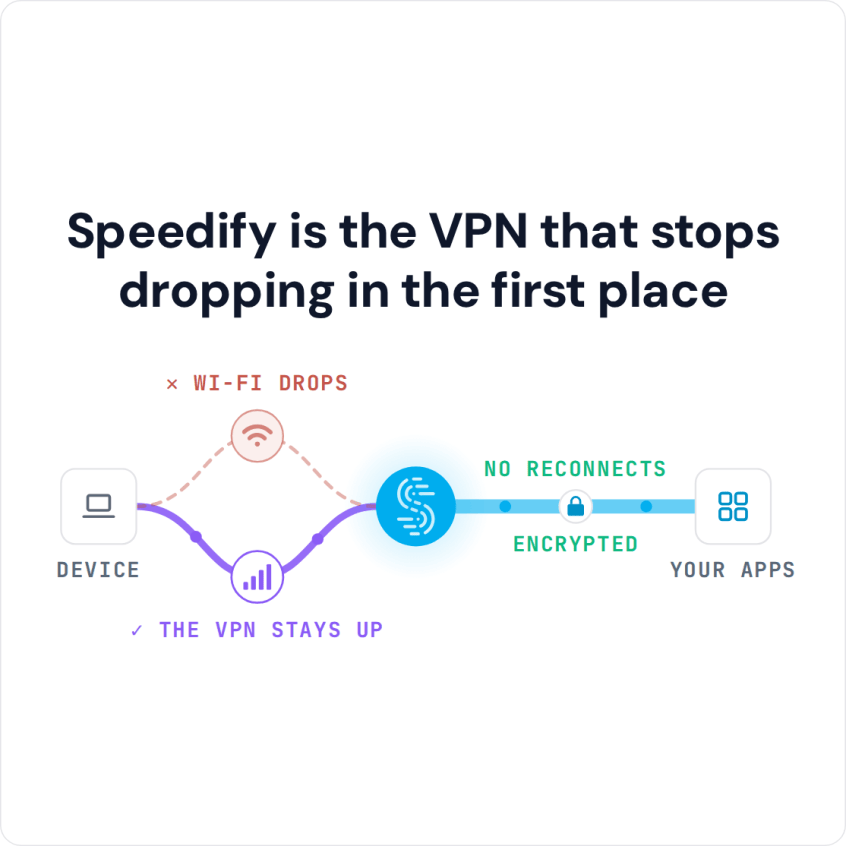
When a VPN is not working, the fix depends on the symptom: a VPN that will not connect, runs slowly, keeps disconnecting, gets blocked by a streaming service or leaks DNS requests. Many of these trace back to the same weak spot: the VPN rides on a single internet connection, so a weak Wi-Fi signal or a busy cell tower takes the VPN down with it.
Speedify is an app that encrypts your traffic like a VPN and carries it over Wi-Fi, 4G/5G cellular, Ethernet, Starlink and satellite internet connections at the same time, so one weak internet connection cannot end the session. Those gains need two or more internet connections; on a single connection, Speedify works as an encrypted VPN and can be a little slower.
This guide covers the VPN failures people hit most (a VPN that will not connect, slow speeds, repeated dropouts, blocked streaming and privacy leaks), the fix for each, and where Speedify helps. If your VPN stopped working today, you are not the only one: start with the section that matches what you see.
Most Common VPN Issues Overview
These are the VPN problems people run into most often:
Connection Issues: the VPN won’t connect, disconnects often, or stays unstable enough to break browsing and streaming.
Speed Problems: internet speeds drop sharply when connected to VPN servers, making streaming and downloading frustrating.
Streaming and App Compatibility: services like Netflix, Hulu or BBC iPlayer block VPN traffic, or specific apps do not work properly with the VPN on.
Device-Specific Issues: the VPN works on one device but not another, or has compatibility problems with routers, smart TVs or mobile devices.
Privacy and Security Concerns: DNS leaks, IP address exposure, or doubts about whether the VPN is actually protecting your data.
The sections below take each problem in turn, starting with a VPN that will not connect.
VPN Won’t Connect
Why This Happens
Connection failures are the most frustrating VPN problems. They typically occur due to firewall interference, outdated software, server overload, or network configuration conflicts. Your internet service provider (ISP) might also be actively blocking VPN traffic, which is becoming more common.
Step-by-Step Solutions to Fix VPN Connecting Issues
- Check your internet connection first: Before blaming your VPN, ensure your regular internet connection is working. Try browsing without the VPN active. If your internet isn’t working, fix that issue first. These fixes for a PC with no internet are a good place to start.
- Try different server locations: Server overload is a common culprit. Switch to a different server location within your VPN app. Choose servers that are geographically closer to you, as they typically have better performance and availability.
- Update your VPN software apps: Outdated VPN applications often have connection bugs that newer versions have fixed. Check your app store or the VPN provider’s website for updates. Always restart your device after updating.
- Change VPN protocols: Most modern VPN apps offer multiple connection protocols. Try switching between OpenVPN, IKEv2, WireGuard or any proprietary protocol the VPN software uses. Each protocol handles network restrictions differently, and one might work better with your specific network setup.
- Disable firewall and antivirus temporarily: Windows Defender, third-party antivirus software, or firewall programs sometimes block VPN connections. Temporarily disable these programs to test if they’re causing the issue. If this fixes the problem, add your VPN app to the exception list.
- Restart network components: Power cycle your modem, router, and device. Unplug them for 30 seconds, then reconnect in this order: modem first, then router, then your device. This clears network conflicts that might prevent VPN connections.
- Check account status and subscription: Ensure your VPN subscription is active and you haven’t exceeded device limits. Log into your VPN provider’s website to verify your account status.
Slow VPN Speeds
Understanding VPN Speed Loss
All VPNs cause some speed reduction because your data takes a longer route through VPN servers and requires encryption processing. On a nearby server, a good VPN service should cost only a small share of your speed; a large drop points to one of the causes below.
Optimization Solutions for Slow VPNs
- Choose nearby servers: The farther the server, the slower the VPN. Connect to servers in your country or neighboring countries. A server 500 miles away will typically be much faster than one 5,000 miles away.
- Test different protocols: WireGuard typically offers the fastest speeds among traditional VPNs, followed by IKEv2, then OpenVPN. However, the fastest protocol varies by network, so test each option during peak usage hours.
- Use wired connections when possible: Wi-Fi adds another layer of potential speed loss. For activities requiring maximum speed (like large downloads or 4K streaming), use an Ethernet cable connection to your router.
- Close bandwidth-heavy applications: Background applications like cloud backup services, automatic updates, or other devices streaming video can consume bandwidth that affects your VPN performance. Close unnecessary programs and pause background downloads.
- Adjust VPN settings: Many VPN apps have speed optimization features: turn off unnecessary features like ad blocking or malware protection if you don’t need them, disable IPv6 traffic if your network doesn’t support it properly and use split tunneling to route only sensitive traffic through the VPN
- Change DNS servers: Your VPN might be using slow DNS servers. Try a faster public DNS service such as Cloudflare (1.1.1.1) or Google (8.8.8.8) in your VPN app settings. In Speedify, the choice is under menu > Privacy > DNS Service, with Quad9, Cloudflare, OpenDNS and AdGuard built in, or Custom for any other address.
- Use a VPN that combines internet connections: Speedify uses all available internet connections at the same time, such as Wi-Fi plus a phone’s 4G/5G cellular, for faster downloads and uploads and a more reliable connection. With only one connection, it cannot add speed.
VPN Keeps Disconnecting
Common Causes of VPN Disconnections
Frequent VPN disconnections often result from power management settings, network switching, server instability, or aggressive network monitoring by your ISP.
Comprehensive Fixes when VPN Disconnects
- Enable auto-reconnect features: Most VPN apps have automatic reconnection options. Enable these features and set them to reconnect immediately when disconnection occurs. This prevents gaps in your privacy protection.
- Disable network adapter power saving: Network adapters that enter power-saving mode can cause VPN disconnections. Access your network adapter settings and disable any power-saving features.
- Configure kill switch properly: A kill switch blocks internet access when your VPN disconnects, protecting your privacy. Make sure it is turned on in your VPN app. Speedify’s Internet Kill Switch is in Speedify Mobile 6.1 and later (Settings > Privacy).
- Use OpenVPN over TCP: If you’re experiencing frequent disconnections, switch to OpenVPN over TCP instead of UDP. TCP is more reliable for unstable connections, though slightly slower.
- Check background applications: Some applications, particularly those that manage network connections, can interfere with VPN stability. Close network managers, connectivity tools and any other VPN app: two VPNs cannot reliably run side by side on the same device, because each one tries to route all of your traffic.
- Use a VPN that combines internet connections: a VPN that can combine multiple internet connections together at once (Starlink, Wi-Fi, 4G/5G cellular, DSL and others) stays connected as long as at least one of those connections is still live. Speedify also keeps the same public IP address when one connection drops, so you don’t need to log in again or refresh the page.
Netflix and Video Streaming Issues
Why Streaming Services Block VPNs
Netflix, Hulu, Amazon Prime and other streaming platforms block many VPN server IP addresses to enforce their content licensing agreements, and their terms set the regional rules for what you can watch. The problem is that turning the VPN off to watch leaves the rest of your internet traffic unprotected.
How to Stream with a VPN Running
- Send the streaming app outside the tunnel: a VPN with split tunneling functionalities sends the streaming app’s traffic directly from your device while keeping all other traffic protected in the VPN tunnel. In Speedify this is called Bypass (Settings > Bypass); when Speedify detects a known VPN-blocking service, the app offers to add it. Secure DNS (DNS over HTTPS) in your browser can stop Bypass from working.
- Clear browser cache and cookies: if a streaming site still shows an error after you add it to Bypass or turn the VPN off, clear its cache and cookies, or open it in a private browsing window.
- Contact customer support: if a streaming app still fails with the VPN on, ask your VPN’s support team which settings work with that app.
DNS Leaks and Privacy Concerns
Understanding DNS Leaks
A DNS leak occurs when your device sends DNS queries through your ISP’s servers instead of your VPN’s secure DNS servers. This means your ISP can see which websites you’re visiting, even while connected to a VPN.
Testing and Fixing DNS Leaks
- Test for DNS leaks: Visit dnsleaktest.com or ipleak.net while connected to your VPN. These services will show you which DNS servers are handling your requests. You should only see your VPN provider’s DNS servers or the servers you’ve manually configured.
- Configure custom DNS servers: Manually set your DNS servers to secure options like:
Cloudflare: 1.1.1.1 and 1.0.0.1,
Quad9: 9.9.9.9 and 149.112.112.112
or Your VPN provider’s DNS servers - Disable IPv6: IPv6 can cause DNS leaks because many VPNs don’t handle IPv6 traffic properly. Disable IPv6 in your network settings or choose a VPN that offers full IPv6 support.
- Use VPN’s built-in DNS protection: Enable DNS leak protection in your VPN app settings. This feature forces all DNS queries through your VPN’s secure servers.
- Flush DNS cache: Clear your DNS cache to ensure you’re using the new DNS servers:
Windows: Open Command Prompt as administrator and run “ipconfig /flushdns”
Mac: Run “sudo dscacheutil -flushcache” in Terminal
Linux: Run “sudo systemctl restart systemd-resolved”
VPN Not Working on Specific Devices
Device-Specific Troubleshooting
Different devices have unique VPN challenges due to their operating systems, hardware limitations, or network configurations.
Windows Issues and Solutions
Registry problems: Sometimes Windows registry entries conflict with VPN software. Use your VPN provider’s official removal tool if available, then reinstall the software completely.
TAP adapter issues: VPN software installs virtual network adapters. If these become corrupted, uninstall and reinstall your VPN software, or manually remove TAP adapters from Device Manager.
Windows update conflicts: Major Windows updates sometimes break VPN compatibility. Check your VPN provider’s website for Windows-specific updates or compatibility patches.
Mac-Specific Solutions
System extensions: macOS requires approval for VPN system extensions. Go to System Settings > Privacy & Security (System Preferences > Security & Privacy > General on older macOS) and approve any blocked extensions from your VPN provider.
Keychain access: VPN certificates stored in Keychain can become corrupted. Open Keychain Access, find VPN-related certificates, delete them, and reinstall your VPN software.
Network location: Create a new Network Location in macOS Network preferences specifically for VPN use. This can resolve conflicts with other network configurations.
Mobile Device Troubleshooting
iOS issues: Ensure your VPN app has permission to add VPN configurations (Settings > General > VPN & Device Management). Delete old VPN profiles before installing new ones.
Android problems: Check that your VPN app isn’t being killed by battery optimization. Add your VPN app to the “don’t optimize” list in battery settings.
Router configuration: For devices that can’t run VPN software directly, configure your router with VPN settings to protect all connected devices.
Gaming and P2P Issues with VPNs
Gaming-Specific Problems
Online gaming with VPNs presents unique challenges due to increased latency, potential port blocking, and strict anti-cheat systems.
Gaming Optimization Tips When Running VPNs
- Choose gaming-optimized servers: Many premium VPN providers offer specialized gaming servers with optimized routing and reduced latency. These servers are specifically configured for real-time applications.
- Use split tunneling: Route only sensitive traffic through your VPN while allowing games to connect directly. This reduces latency while maintaining privacy for web browsing and other activities.
- Enable UPnP and port forwarding: Some games require specific ports to be open. Enable UPnP in your router settings or manually configure port forwarding for your games. Check your VPN provider’s documentation for gaming port requirements.
- Disable QoS interference: Quality of Service (QoS) settings on your router might conflict with VPN traffic prioritization. Temporarily disable QoS to test if it improves gaming performance.
P2P-Specific Problems
Peer-to-peer downloads, including torrenting, are legal for files you have the right to share, but copyright law in most countries covers what you download, and many VPN providers allow torrenting only on some of their servers. If torrents crawl over your VPN, see how to speed up torrenting with a VPN.
P2P and Torrenting Solutions
- Use P2P-friendly servers: Not all VPN servers allow torrenting. Use servers specifically designated for P2P traffic to avoid connection blocks or speed throttling.
- Bind your torrent client: Configure your torrent client to only use your VPN’s network adapter. This prevents torrenting if your VPN disconnects, protecting your real IP address.
- Check port forwarding availability: Some VPN providers offer port forwarding, which can improve torrent speeds by allowing incoming connections. Enable this feature if available.
Why Is My VPN Not Working Suddenly?
Sudden VPN failures typically result from software updates, server maintenance, network changes, or ISP blocking. Try different servers first, then check for app updates. If problems persist, your ISP might have implemented new VPN blocking measures.
How Can I Make My VPN Faster?
Connect to nearby servers, use wired connections instead of Wi-Fi, close bandwidth-heavy applications and try different VPN protocols. If you have two or more internet connections, a VPN that combines them, such as Speedify, adds their speed together.
Why Does My VPN Keep Disconnecting on Mobile?
Mobile VPN disconnections often occur due to aggressive power management, network switching between Wi-Fi and 4G/5G cellular, or background app restrictions. Disable battery optimization for your VPN app and turn on always-on VPN in your device settings. You can also use a VPN that combines Wi-Fi with 4G/5G cellular, like Speedify.
Can I Use a VPN on My Router?
Yes, configuring your router with VPN settings protects all connected devices automatically. This is especially useful for devices that can’t run VPN software directly, like smart TVs, game consoles, or IoT devices. Speedify runs on routers with OpenWrt 23.05 or later, on GL.iNet firmware for listed models and on Powered by Speedify routers such as the Miri X510; routers need a Router License, and there is no free tier on routers.
Why Is My VPN Not Working with Public Wi-Fi?
Public Wi-Fi networks often block VPN traffic or use captive portals that interfere with VPN connections. Try connecting to the Wi-Fi first, completing any login requirements, then activating your VPN. Use different protocols if standard connections fail. Or use a VPN that can recognize captive portals and connect directly to the login page.
How Do I Fix VPN Authentication Errors?
Authentication errors typically mean incorrect login credentials, expired subscriptions, or account issues. Verify your username and password, check your subscription status, and ensure you haven’t exceeded device connection limits.
Why Won’t My VPN Work with My Antivirus?
Antivirus software sometimes identifies VPN traffic as suspicious and blocks connections. Add your VPN application to your antivirus exception list, or temporarily disable real-time protection to test if this resolves the issue.
Work VPN Not Connecting While Speedify Is Running
Speedify and another VPN, including a company VPN client such as Cisco or GlobalProtect, cannot reliably run side by side on the same device, because each one tries to route all of your traffic. Quit one of them, or run Speedify on a second device or a supported router, share that connection, and run the company VPN on the work computer on top of it. Speedify does not replace a company VPN, so check with your IT team first.
Remote Access VPN Not Working: Checks for Staff Outside the Office
A remote access VPN is the company VPN that staff outside the office use to reach company systems. When it will not connect, check in this order: that your internet works with the VPN off, that your username and password are correct, and whether another VPN server helps, if the client offers one. Then update the client, restart the device, and ask your IT team for deeper debugging.
Speedify does not replace a remote access VPN. If the remote session drops whenever your home Wi-Fi does, the setup above helps: Speedify on a router or second device combines Wi-Fi with a phone’s 4G/5G cellular and keeps the same public IP address when one connection drops, so the company VPN running on top of it stays up.
Advanced Troubleshooting for VPN Issues
Network analysis tools
For persistent issues that basic troubleshooting can’t resolve, use network analysis tools to identify the root cause.
- Command line diagnostics: Use ping, traceroute, and nslookup commands to test network connectivity and identify where connections are failing. These tools help pinpoint whether issues are local, with your ISP, or with VPN servers.
- Wireshark analysis: Advanced users can use Wireshark to analyze network traffic and identify exactly what’s happening during connection attempts. This is particularly useful for diagnosing protocol-specific issues.
- MTU size adjustment: Maximum Transmission Unit (MTU) size mismatches can cause connection problems. Try reducing your MTU size to 1200 or 1300 if you experience connection drops or slow speeds.
Professional network configuration
- DDNS configuration: If you’re running servers or need consistent access to your home network, configure Dynamic DNS to work with your VPN setup.
- Multi-Hop VPN setup: For maximum security, configure connections through multiple VPN servers. This adds complexity but provides additional privacy layers.
- Custom OpenVPN configuration: Create custom OpenVPN configuration files with specific cipher settings, compression options, and routing rules tailored to your network environment.
Enterprise and Business Solutions
- Site-to-Site VPNs: Business users might need to configure site-to-site VPN connections between offices. This requires router configuration and often professional IT support.
- Load balancing: Distribute VPN connections across multiple servers or providers to improve reliability and speed for business applications.
- Compliance requirements: Ensure your VPN configuration meets industry-specific compliance requirements like HIPAA, GDPR, or SOX regulations.
Summary: How to Fix VPN Issues
Start with the symptom you see. A VPN that will not connect: check your internet connection, firewall and server choice. A slow VPN: pick a nearby server and try another protocol. A VPN that keeps dropping: turn off power saving and turn on auto-reconnect. A streaming service that blocks the VPN: use split tunneling, called Bypass in Speedify.
If your VPN drops whenever your Wi-Fi does, Speedify keeps the session up by adding a second internet connection, such as your phone’s 4G/5G cellular, and keeps the same public IP address when one connection drops. On a single connection, Speedify works as an encrypted VPN like any other.
Speedify
Get started with Speedify today.
Speedify combines Wi-Fi, 4G/5G cellular, Ethernet, Starlink and satellite into one faster, more reliable internet connection. Free to try: 5 GB a month with a free account. No credit card required.
🚀 Speed
Faster uploads and downloads, because Speedify uses all your internet connections at once.
📶 Stability
If one internet connection drops, Speedify moves your traffic to the others in milliseconds.
🔒 Security
AES-256 encryption on every internet connection, on any network you join.



15M+ downloads worldwide. 75K+ five-star reviews on iOS and Android.