

Fix Connectivity Issues while Using 8×8 Virtual Office
On an 8×8 call, the customer hears every third word. You can hear them perfectly. That asymmetry is almost always your upload, and a home connection’s upload is the first thing to give way when anything else on the network gets busy.
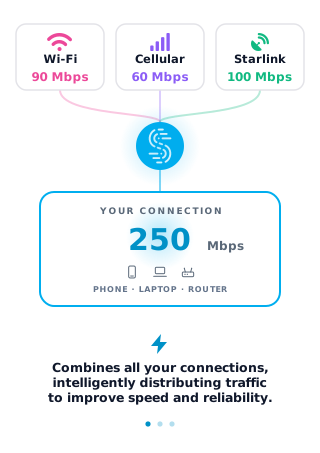
Speedify is an app for your computer, phone or tablet that uses two internet connections at once, such as home Wi-Fi and your phone’s 4G/5G cellular, and keeps a call running on whichever one is holding up, which is what a voice call needs more than raw speed. On a single connection, Speedify works as an encrypted VPN and cannot stop that connection from dropping. Read below for what causes 8×8 call quality problems at home and how to fix them.
Why 8×8 Calls Break Up or Drop on Home Internet
If you’re working from home on 8×8 Virtual Office, you need a fast and stable Internet for best results. Unfortunately, things can go wrong when you’re least expecting:
- your home ISP can do maintenance work, so the Internet might slow to a crawl, if not disconnect altogether.
- your Wi-Fi router and/or modem can have temporary issues.
- if you’re on 4G/5G cellular, there might be an issue with the cell tower, or you might have used up your plan’s high-speed data.
Whatever the cause, a call that breaks up in front of a customer is hard to recover from. The checks below help you find which part of your connection is failing.
8×8 Latency and VoIP Speed Test: What to Check at Home
A voice call needs little bandwidth, but it needs it steadily, in both directions. When you run a VoIP speed test before an 8×8 call, look past the download figure at upload speed, latency (ping), jitter and packet loss: high jitter or steady packet loss is what makes a caller hear every third word.
Run the test on the same device and network you take calls on, once with nothing else running and once while the household is busy. If the results fall apart under load, the fix is more upload or a second internet connection, not a faster download plan.
Getting Stable and Fast Internet when Working from Home Using 8×8 Virtual Office
You might think that restarting your Wi-Fi router / modem could help. It can, but for how long? Calling your ISP could also help in reporting an issue, but how long will it take them to fix the problem? And can they guarantee that it won’t happen again?
Solution 1: Get a dedicated (business) plan from your ISP. Of course, if you have the budget and your ISP can offer that. But that can be costly and you’d still be dependent on one Internet service provider.
Solution 2: Get an extra Internet connection from a different ISP. Preferably from a different source type, meaning that if you already have cable Internet, try to get a cellular plan. Or if you have satellite Internet, at least go for DSL. Oh, and you have to think about a fast solution to switch between these connections, should one of them fail. Otherwise, you’ll still be disconnected from those video conferences…
Solution 3: Use Speedify. Speedify can combine two or more Internet connections together at the same time, so as long as one of those connections is up and running, you’ll stay online.
How to Keep 8×8 Calls Online with Speedify
- Download Speedify on the computer or phone you take 8×8 calls on (Windows, macOS, iOS or Android).
- Open Speedify and create a free account (the free tier includes 5 GB per month), or sign in.
- Give it a second internet connection: on a phone, keep Wi-Fi on and turn on cellular data; on a computer, add Ethernet or a phone tethered with a USB cable (an iPhone works on Windows and Mac; an Android phone on Windows and often on a Mac).
- Connect. Speedify uses both connections at once and moves traffic to the working one when one drops.
- Open 8×8 and take your calls as usual.
Keep 8×8 Calls Stable When One Connection Drops with Speedify
Speedify is not just load balancing: Speedify uses all of your connections at the same time. When one connection degrades or drops, Speedify moves traffic to the working connection, and because your traffic still leaves through the same Speedify server, the 8×8 call keeps the same public IP address and does not have to reconnect.
What about data security while working from home? When working remotely, you are accessing company data. Speedify also works like a VPN and encrypts traffic going in and out of your device, so others on the same network cannot read it. If you take 8×8 calls for an employer, check its rules first: some contact center employers do not allow VPNs, and Speedify looks like one to them. Bypass (Settings > Bypass) can send 8×8 traffic outside the encrypted tunnel if your employer requires it.
Speedify works alongside 8×8 Virtual Office on your computer or phone. It’s available for individual use on up to 5 devices on all major platforms (Windows, macOS, Android, iOS, Linux). But there’s also Speedify for Teams, with more add-ons, such as dedicated servers.
Speedify
Get started with Speedify today.
Speedify combines Wi-Fi, 4G/5G cellular, Ethernet, Starlink and satellite into one faster, more reliable internet connection. Free to try: 5 GB a month with a free account. No credit card required.
🚀 Speed
Faster uploads and downloads, because Speedify uses all your internet connections at once.
📶 Stability
If one internet connection drops, Speedify moves your traffic to the others in milliseconds.
🔒 Security
AES-256 encryption on every internet connection, on any network you join.


15M+ downloads worldwide. 75K+ five-star reviews on iOS and Android.