
How to Go Live IRL on Facebook Using Streamlabs
Whether you want to have more options for your live stream than using the native Facebook app or you want to stream to multiple platforms, Streamlabs is a great solution for streaming IRL to Facebook Live.
Read below more on how to live stream to Facebook Live with Streamlabs and avoid any software or Internet connectivity issues.
Use Speedify to increase your upload and download speeds: combine internet connection sources like Wi-Fi, 4G, 5G, Starlink and wired broadband

Combine Wi-Fi, 4G, 5G, Starlink and wired broadband to fix slow upload and download speeds
Speedify is the only app that seamlessly combines all of your connections, including Wi-Fi, 4G, 5G, Ethernet, and Starlink, into one stronger connection to keep you online and secure.
In most cases, Speedify will automatically detect and start using any available Internet connections on your device while intelligently distributing your online traffic between them for optimal performance. If you need help we have quick start guides available for most common set ups.

Combine personal hotspots for better upload and download speeds
Speedify's Pair & Share feature enables you to connect to multiple hotspots at the same time and wirelessly share LTE, 4G, and 5G cellular connections back and forth between multiple Speedify users on the same local network to create a faster, more reliable connection for everyone.
For the first time, it's possible to share cellular data between multiple devices, including PCs, Macs, iPhones and Androids. Use multiple phones as hotspots for internet access and get increased bandwidth and mobile failover for all paired devices.
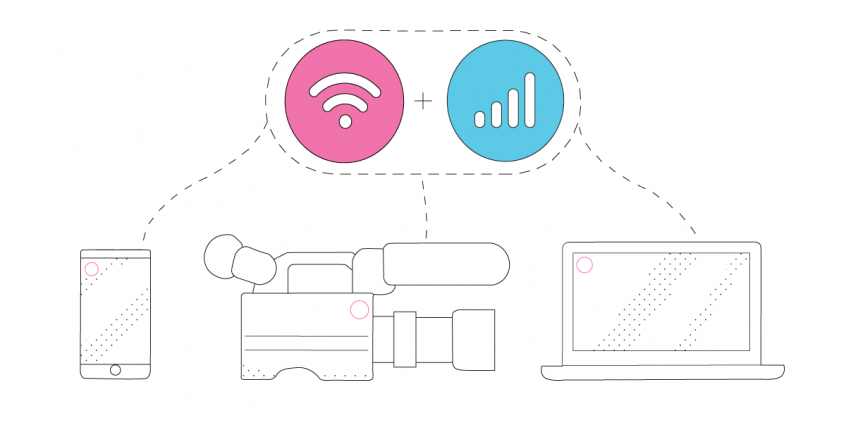
Use Speedify to combine...
Combine these connections on:



Requirements for Streamlabs IRL Live Streaming to Facebook Live
Here's a checklist to live stream IRL to Facebook using Streamlabs:
- camera - dedicated (like a GoPro, for example), the computer webcam, or your smartphone's camera.
- streaming device - computer or smartphone
- Streamlabs streaming software
- stable Internet connection - you should have at least 2 connections available from different providers. For example - your home Internet / public Wi-Fi and an additional smartphone with a cellular data plan. The idea is to use two connections together at once with Speedify to hit your target bitrate and avoid flaky Internet problems while streaming IRL to Facebook Live with Streamlabs.
Additional accessories, such as an external battery pack, dedicated microphones, extra lighting, etc. may be required depending on where you'll be streaming from.
4 Steps on How to Start Live Streaming to Facebook with Streamlabs
STEP 1 - CONNECT ALL AVAILABLE INTERNET SOURCES TO YOUR STREAMING DEVICE
Internet connectivity is what makes or breaks a successful IRL live stream. That's why it's important to get it right and use all available connections at once - it will help you avoid issues if one of your connections becomes unstable or even drops.
Use one or multiple of the following on your streaming device:
- wired Ethernet connection - computer only
- Wi-Fi hotspot
- cellular data
- tethered smartphone
- external USB 5G / 4G LTE cellular adapter - computer only
STEP 2 - GET STABLE INTERNET BY BONDING YOUR CONNECTIONS WITH SPEEDIFY
If you don't have a Speedify subscription yet, you can get it from our website store, the Apple App Store or the Google Play Store.
Run Speedify and log into your account. All the active Internet sources you connected at step 1 should be recognized by Speedify. All you have to do now is choose a server to connect to - the fastest server options usually works best.
STEP 3 - CONFIGURE Streamlabs
Follow the instructions on the Streamlabs website to get started for your Facebook Live streaming from either a mobile device or a computer.
Here's a great explainer video you can check out as well.
STEP 4 - FINAL CHECK, GO LIVE
Before going live with your stream, make sure:
- you are in the Streamlabs Studio and are able to see the video you want to broadcast in the preview window
- audio is working
- Speedify is running, and it combines the Internet sources you're connected to.
Whenever you're ready, just start the IRL live stream and broadcast to your Facebook audience.
The good thing about Speedify is that it prioritizes your IRL live streams over other Internet traffic. Thus, you are avoiding issues such as low quality, choppy and laggy videos, buffering and even disconnects from the streaming server.
Best Practice for Streamlabs Live Streaming IRL to Facebook: Use Speedify for Fast and Stable Internet
Whenever you're streaming IRL to Facebook Live, you should be focusing on your content. You shouldn't have to worry about the Internet connectivity, your video quality or whether you're lagging, buffering or dropping from the live stream.
This is where Speedify comes to the rescue. It is the only app that can combine multiple internet sources into one bonded super-connection for more stable and secure live streaming, video calling, online gaming and web browsing.
With Speedify, your IRL live streams will be prioritized over other types of traffic on your streaming device. You can be sure your Facebook Live streams get the bandwidth and stability they need to provide the best video quality even if your computer or phone decides it's time to update its apps or run a backup job.
We'd like to hear more about your experiences with live streaming IRL on Facebook using Streamlabs - reach out to us on Twitter, Facebook or Instagram with your feedback!


Speed
Stability
Security
Speedify devs love talking tech on YouTube, Tiktok, and Instagram!
Alex Gizis and the Speedify devs discuss and explain technology including Starlink satellites, Wi-Fi 7 routers, Apple networking features, fiber optics, broadband internet, 5G mobile networks, AI, networking protocols, and much more. Follow Speedify on YouTube, TikTok, Instagram, and LinkedIn!
Alex and the Speedify team are always exploring the latest in networking and security technology—like 5G, 6G, WiFi 7, laser and satellite internet—and sharing it in new discussion content across YouTube, TikTok, Instagram, and LinkedIn every week.
Got a tech question? Let's go deeper! Pop into Speedify Office Hours live every Wednesday at 10 AM Eastern. Speedify CEO Alex Gizis and our network engineers are standing by to break down your questions about networks, tech updates, and Speedify features.
