
Speedify Uses a Tethered iPhone as Backup for Starlink on Windows to Keep You Online
Yes, a Windows PC can use Starlink and a tethered iPhone at the same time. Plug your iPhone into your Windows PC with a USB cable, turn on Personal Hotspot, and Speedify uses your iPhone’s 4G/5G cellular together with your Starlink internet connection. If Starlink drops in the middle of a call or an upload, Speedify switches your traffic to the iPhone automatically, so it keeps going.
If you’re on Starlink and carry an iPhone, you already own a second internet connection. The USB cable also charges your iPhone while your PC uses it.
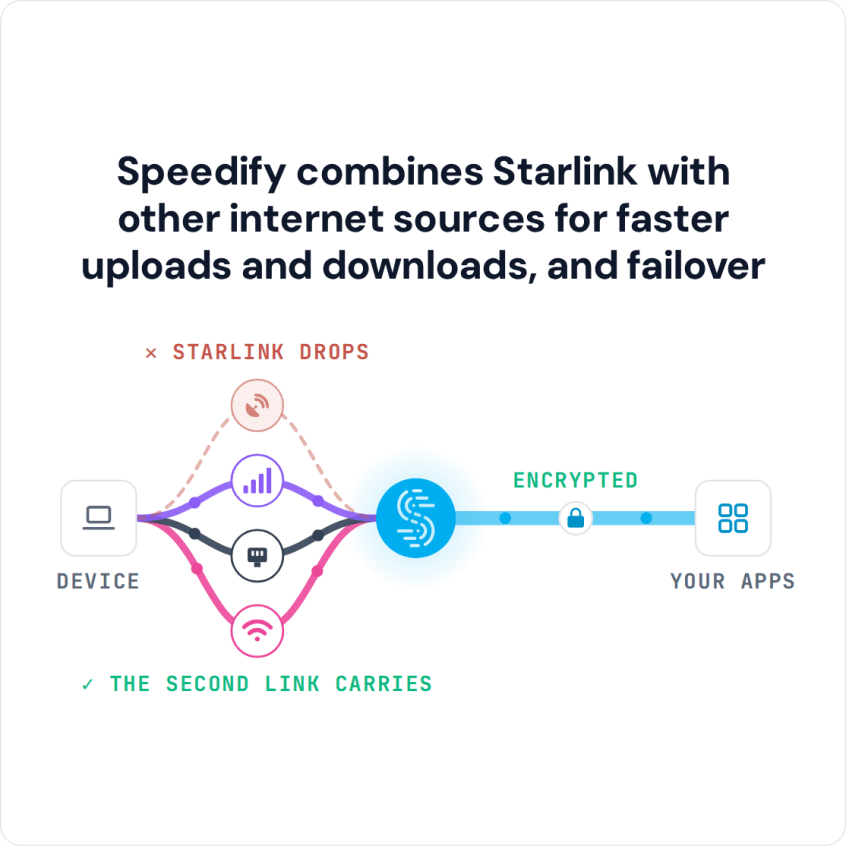
Speedify combines Starlink with other internet sources for faster uploads and downloads, and failover
Starlink Internet Connection Dropouts Happen to Everyone
Speedify measures thousands of Starlink users in more than 150 countries. From 29 September to 12 October 2026, fixed Starlink dishes went offline for about 37 minutes a day on average, and Starlink dishes on RVs and boats for about 61 minutes a day.
Starlink also switches each dish to a new satellite every 15 seconds, and a switch can cause a short dropout. Even a perfectly installed Starlink dish goes offline, and about 7 in 10 Starlink users on Speedify use Starlink together with a second internet connection, like 4G/5G cellular.
Why an iPhone Is a Good Failover Connection for Starlink on Windows
Starlink reaches you from satellites, and your iPhone’s 4G/5G cellular comes from cell towers on the ground. What slows Starlink down, like bad weather, something blocking your Starlink dish’s view of the sky, a busy Starlink network in the evening, or the short dropout each time your Starlink dish switches satellites (about every 15 seconds), doesn’t affect your iPhone’s cellular signal. A cell tower outage doesn’t affect Starlink.
USB tethering turns your iPhone into a second internet connection for your PC right away. You don’t need to buy anything, as long as your iPhone’s data plan includes Personal Hotspot.
How Speedify Uses Starlink and a Tethered iPhone Together on Windows
Once your PC is on Starlink Wi-Fi and on your iPhone’s USB connection, Speedify finds both internet connections and checks how fast and steady each one is, all the time.
When both are working well, Speedify sends your traffic over both, so you get the download and upload speed of both together. When one weakens or drops, Speedify moves all your traffic to the other one, and your calls, video meetings and file transfers keep going. Speedify needs that second internet connection: with Starlink alone, Speedify can’t add download and upload speed or cover dropouts.
Speedify also encrypts all your internet traffic on Starlink and on your iPhone’s connection.
How to Use Starlink and a Tethered iPhone Together on Windows with Speedify
Step 1: Turn On Personal Hotspot and Connect Your iPhone to Your PC with a USB Cable
On your iPhone, go to Settings > Personal Hotspot and turn on Allow Others to Join. Connect your iPhone to your Windows PC with a USB or USB-C cable, and tap Trust on the iPhone if it asks. Windows adds the iPhone as a network connection. If it doesn’t show up, install Apple’s Apple Devices app or iTunes from the Microsoft Store, which adds the iPhone driver Windows needs. To add an Android phone as well, see combining a tethered Android and iPhone on Windows.
Step 2: Connect Your PC to Your Starlink Wi-Fi Network
On your Windows PC, go to Settings > Network & Internet > Wi-Fi and connect to your Starlink Wi-Fi network. Check that Starlink Wi-Fi and the iPhone connection both show as connected in your network settings. Using an Android phone instead? See Starlink with a tethered Android on Windows.
Step 3: Download and Run Speedify on Your PC
Download Speedify and install it on your Windows PC, then open it. Speedify finds both internet connections on its own.
You choose how Speedify uses your iPhone’s cellular connection: click the iPhone connection in Speedify and set its priority. Always uses it all the time, for the most speed. Secondary uses it when Starlink is too slow. Backup uses it only when Starlink drops, which saves the most data. You can also set a data limit for it.
Speedify Also Shows Your Starlink Dish Status on Windows
Speedify shows real-time Starlink dish alerts in the app on your Windows PC. If your Starlink dish has a stuck motor, a tilted mast or is overheating, Speedify shows an alert, so you see what’s wrong with your Starlink dish in the same app that keeps you online.
Other Internet Connections Speedify Can Use with Starlink on Windows
A tethered iPhone is the quickest second internet connection, but Speedify uses any mix of internet connections your PC can reach at the same time:
- An Android phone: connect it with a USB cable and turn on USB tethering in its settings. It works the same way as an iPhone. On a Mac, see how to combine Starlink and an Android phone.
- A USB cellular modem: a 4G/5G modem plugged into your PC gives you cellular without using your phone.
- Cable or DSL: if you kept your cable or DSL service after getting Starlink, Speedify uses both instead of leaving one idle. Cable and DSL don’t depend on satellites, so they don’t slow down for the reasons Starlink does.
- A wired Ethernet line: plug your PC into a cable or fiber router with an Ethernet cable, and connect to Starlink over Wi-Fi.
- A second Wi-Fi network: your PC’s Wi-Fi joins one network at a time. Plug in a USB Wi-Fi adapter to join Starlink Wi-Fi and a second Wi-Fi network, like a cable or DSL router or an office network, at the same time.
When a Second Starlink Dish Makes Sense on a Windows PC
One Starlink dish is enough for most people. A second Starlink dish at the same place gives you a second, separate Starlink internet connection, with its own Starlink router. Without Speedify, your PC uses one Starlink dish at a time and the second sits idle. With Speedify, your PC uses both, for the speed of both together, and keeps going on one Starlink dish when something blocks the other.
Speedify still works best with internet connections of different kinds, like Starlink plus cellular, because they rarely fail for the same reason. See how to manage two Starlink dishes at once with Speedify.
Speedify
Get started with Speedify today.
Speedify combines Wi-Fi, 4G/5G cellular, Ethernet, Starlink and satellite into one faster, more reliable internet connection. Free to try: 5 GB a month with a free account. No credit card required.
🚀 Speed
Faster uploads and downloads, because Speedify uses all your internet connections at once.
📶 Stability
If one internet connection drops, Speedify moves your traffic to the others in milliseconds.
🔒 Security
AES-256 encryption on every internet connection, on any network you join.



15M+ downloads worldwide. 75K+ five-star reviews on iOS and Android.