

Speedify Combines Two Starlink Dishes on Ubuntu Linux for Faster Upload and Download Speeds
This guide explains what you need to connect two Starlink dishes to an Ubuntu machine, how Speedify manages both Starlinks, and how to get set up in three steps.
Embed Speedify software for the next generation of routers, networking appliances, and smart devices
Speedify Teams
Get faster uploads and downloads and a more reliable internet connection for all the people and devices in your business using the Speedify software app or Powered by Speedify routers.
Speedify for Routers
Power your OpenWRT, GL.iNET, or Miri router with Speedify and combine Wi-Fi, Ethernet, 4G, 5G, Starlink and other satellite internet connections together.

Speedify Embedded Solutions and Integrations
Embed Speedify software into your app or hardware products and leverage the core channel bonding technology of Speedify.

Quick answer
Should you get a backup connection for Starlink?
Yes. Starlink goes down every day — an always-on dish averages about 34 minutes of downtime daily from routine satellite handoffs. A second connection keeps you online when Starlink drops.
What’s the best backup connection for Starlink?
A 4G/5G cellular hotspot or SIM is the most practical backup for most Starlink users — it works anywhere Starlink works, requires no installation, and uses a different network so outages rarely overlap. Cable or DSL broadband is a strong option if you have it at a fixed location. A second Starlink dish is also possible if you need maximum throughput.
How do you use two internet connections at once with Starlink?
Speedify combines Starlink with any other connection — cellular, cable, Wi-Fi, or a second dish — into one bonded connection. Speedify runs on your phone, laptop, or router. When Starlink drops, Speedify moves your traffic to the backup instantly, so calls don’t cut out and downloads don’t stall. Speedify is free to try.
71% of Speedify’s Starlink users already run a second connection. Try Speedify free →
Speedify Starlink Index — real-world performance from 6,209 Starlink users: 2.4% downtime, about 34 minutes a day for always-on connections
Starlink goes down every day.
Here’s what that actually looks like.
Speedify passively monitors every connection it bonds. These figures come from 6,209 Starlink users over 14 days — compared in real time against the other connections on the same devices. No speed tests, no lab conditions.
Daily downtime
~34 min
2.4% of connected time unreachable
Median latency
60 ms
p90 spikes to 257 ms
Avg packet loss
0.17%
vs 0.08% on T-Mobile
71% ran at least one other connection simultaneously — 4,381 of 6,209 users. Cellular is the most common backup.
What Running Two Starlink Dishes on Ubuntu Actually Gives You
Two Starlink dishes at one location means two separate satellite internet connections, each with its own router and IP address. Ubuntu can recognize multiple network interfaces simultaneously. Without bonding software, however, your outbound traffic defaults to one connection. You get no speed gain from the second dish and no automatic failover when the first drops.
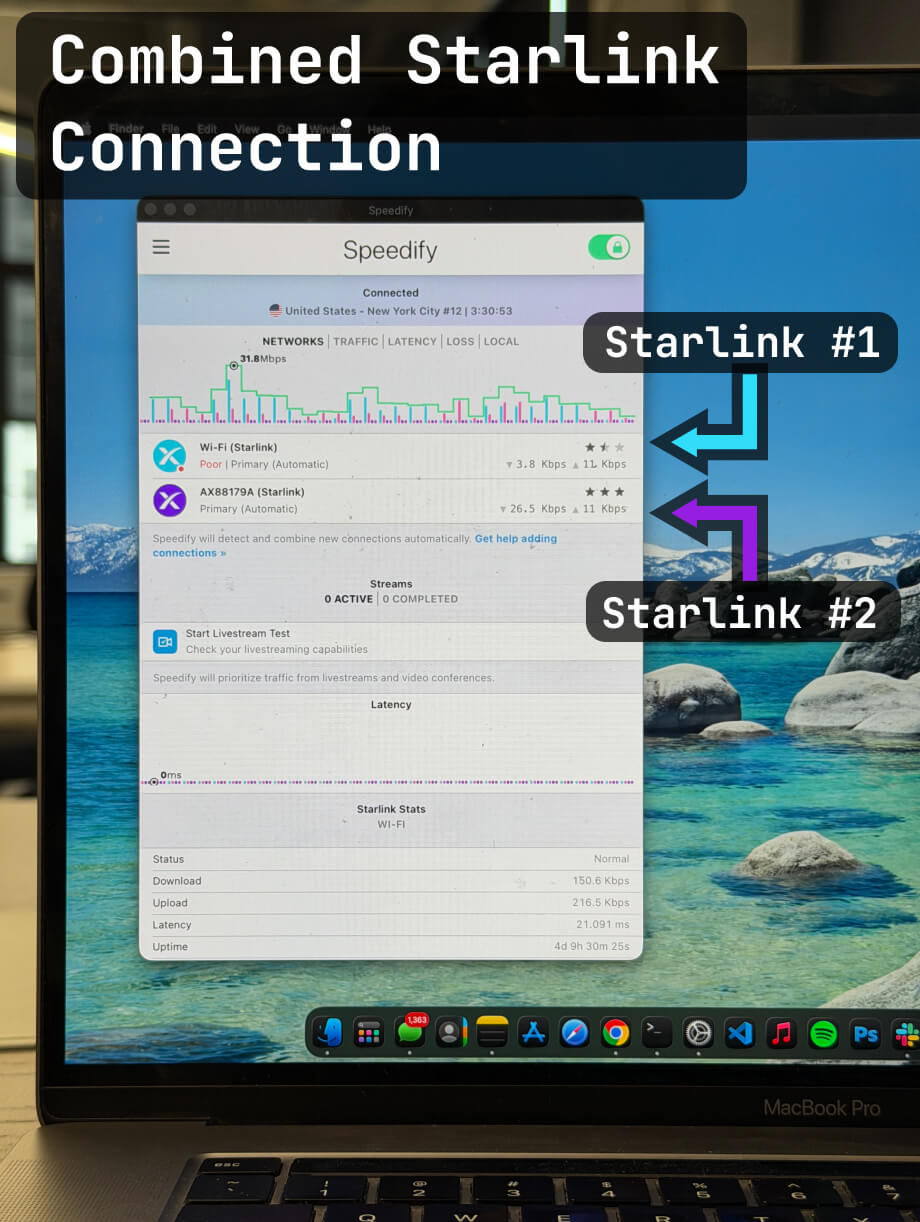
Speedify changes this. With both Starlink connections active and visible as separate interfaces on your Ubuntu machine, Speedify bonds both and distributes your traffic across them simultaneously. Both dishes contribute to your combined upload and download capacity. When one dish degrades or drops, Speedify moves all traffic to the working dish at the packet level without interrupting active sessions.
Note: Two dishes on separate Starlink accounts draw from different satellite infrastructure pools and are less likely to experience simultaneous congestion or throttling than two dishes on the same account.
How Speedify Manages Two Starlink Dishes on Ubuntu Linux
Speedify monitors both Starlink connections continuously, measuring latency, packet loss, and available bandwidth on each. When both are performing well, Speedify uses both simultaneously and delivers up to 95% of their combined upload and download capacity. When one connection degrades or drops, Speedify shifts all traffic to the healthy dish at the packet level. SSH sessions, downloads, and VoIP calls are not interrupted.
Speedify also encrypts all your internet traffic across both Starlink connections, protecting your data on every path.
How to Combine Two Starlink Dishes on Ubuntu Linux with Speedify
Step 1: Connect Your Ubuntu Machine to the First Starlink Dish
Connect to the first Starlink router via Ethernet cable or Wi-Fi. Run ip link or check Network Manager to confirm the connection is active and assigned an IP address.
Step 2: Connect Your Ubuntu Machine to the Second Starlink Dish
Connect to the second Starlink router via a second Ethernet port or a USB Wi-Fi adapter. Confirm the second connection also appears as a separate active interface with an assigned IP address in your network settings.
Step 3: Download and Run Speedify
Download Speedify for Linux and install it on your Ubuntu machine. Speedify will detect both Starlink connections and begin bonding them automatically. No manual routing configuration is required.
Speedify handles both connections in the background from that point: combining them for faster upload and download speeds, monitoring both paths, failing over instantly if either dish drops, and encrypting all traffic.

NEW!
Miri X510 Bonding Router
POWERED BY SPEEDIFY
Bond up to 7 Links Simultaneously
Combine wired, Wi-Fi, 5G, and LTE connections plus Pair & Share with other Speedify users.
Battery-powered Portability
Who Should Combine Two Starlink Dishes on Ubuntu Linux with Speedify
- Linux engineers and developers working at locations with two Starlink dishes who want the combined upload and download capacity of both on their Ubuntu machine
- System administrators managing Ubuntu servers or workstations at dual-Starlink sites who need software-based bonding and automatic failover
- Researchers and data scientists running Ubuntu at satellite-dependent locations where higher combined throughput and redundancy are both required
- Businesses deploying Ubuntu machines at remote sites with two Starlink dishes who want both connections actively used rather than one kept as a manual fallback
- IT architects designing high-availability satellite internet infrastructure on Ubuntu who need packet-level bonding across multiple Starlink connections
Speedify Is Used on Millions of Devices Worldwide
Speedify has powered stronger Internet for millions of consumers since 2014
15M
Millions of Speedify downloads worldwide, and growing every day5⭐️
More than 75,000 5-star reviews for Speedify in the iOS and Android app stores82
Points of Speedify presence in datacenters around the globe500TB
Hundreds of terabytes of fast, secure data streamed every week via SpeedifySpeedify Partners
Speedify partners with these amazing organizations to deliver better internet and next-generation networking technology to their customers and employees.


Speedify Monitors Both Starlink Dishes on Ubuntu Linux
Speedify displays real-time Starlink dish alerts for each connected dish in the app on your Ubuntu machine. If either dish detects a stuck actuator motor, a non-vertical mast, or a thermal throttle condition, Speedify surfaces the alert in the dashboard. Alerts appear when the condition has been active for at least 15 seconds and clear once resolved.
Speedify gives you a single application to manage both Starlink connections and monitor both dishes on Ubuntu.
Speedify Business Solutions
Speedify Teams
Speedify for Routers
Speedify Embedded Solutions and Integrations
Embed Speedify software into your app or hardware products and leverage the core channel bonding technology of Speedify in new and interesting ways.