

Zoom Connection Unstable? Fix It: Join Multiple Internet Connections Together – Like Starlink, Wi-Fi, 4G, 5G, and DSL – with Speedify
Mid-sentence, Zoom flashes the warning that your internet connection is unstable, and then the audio begins cutting in and out. Zoom shows that message when data stops arriving evenly – usually because you are too far from the Wi-Fi router, sitting in poor cellular coverage, or sharing a home network with someone streaming.
Speedify is an app that spreads your internet traffic over Wi-Fi, 4G/5G cellular data, wired Ethernet, Starlink and other internet connections at the same time, so an uneven internet connection stops being your problem. Keep reading to learn what triggers the unstable warning, how to clear it, and how using Speedify keeps it from coming back.
Speedify keeps your call running when the connection under it fails.
Zoom, Teams, and Meet all end the call when the connection goes, and rejoining costs you the thread of the meeting. Speedify bonds your Wi-Fi with any second connection, often 4G/5G cellular, and hands the call over mid-session. Nobody has to rejoin.
Zoom Connection Unstable – What Are the Causes?
First of all – the symptoms of an unstable connection in the context of using Zoom include one or more of the following:
- latency
- frozen screen
- poor quality audio and video
- meeting getting disconnected
If you’re connecting to Zoom from work on an enterprise Internet connection, most probably the tech support team is already scrambling to fix it. It doesn’t hurt to give them a nudge anyway.
When you get an unstable connection on Zoom while at home or on the go, then you’ll have to refer to your Internet infrastructure and your ISP. Here are the most popular causes:
- You’re too far away from the Wi-Fi router
- You have poor / slow cellular coverage
- Your network hardware needs an update or a restart
- There are temporary ISP infrastructure issues
- There are peering issues with Zoom servers
How to Fix and Avoid Zoom Connection Unstable Errors
First – is Zoom fully functional? Check out their service status page to confirm.
Then, test your online speed. Is it fast enough for Zoom video conferencing? You’ll need at least 2 Mbps upload and 2 Mbps download.
Assuming that nothing is wrong with the Zoom service itself, here’s the quickest way to troubleshoot and fix Zoom connection unstable errors:
- Move closer to the Wi-Fi router or, better yet, use a wired Ethernet connection if possible.
- Move around till you get better cellular coverage, if no other connections are available.
- Restart your modem, router and device you’re running Zoom on – computer, smartphone. You may also update your router’s firmware, if that’s available.
- Check if your ISP is having temporary issues. They should have a status page or at least a social media account to communicate that.
- If you have 2 or more Internet connections available around – use them at once. Most likely, you have cellular data available on your smartphone, so you can combine that with your home Internet. You’ll need a channel bonding app like Speedify for that. Speedify is the only app that can combine multiple internet sources into one bonded super-connection for more stable and secure live streaming, video calling, and web browsing.
Proven Fact: Speedify Makes Zoom Meetings Better
We recently tested Zoom on a laptop and on a smartphone while running Speedify, simulating bad Internet conditions. The results showed that Speedify was able to keep the average Zoom video call bandwidth on both devices in good range around the target bandwidth. And this happened both in situations where the connections were good and when one of them went bad.
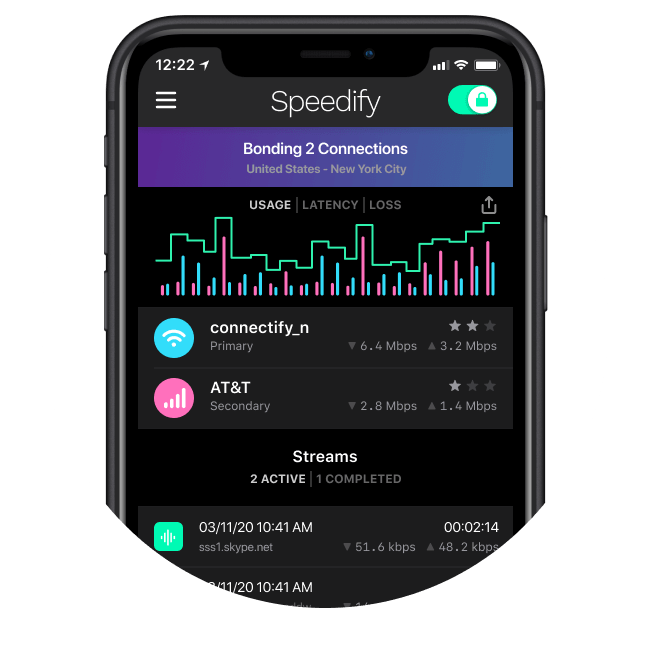
So how does Speedify achieve that? Well, it uses a technology called channel bonding that allows your to use multiple Internet connections at once. On your smartphone – it’s the Wi-Fi and cellular data that can be bonded. On a computer, there’s more flexibility about the number and type of connections.
Speedify also routes data when something happens to one of your connections. When you stumble upon a bad Wi-Fi hotspot, or your connection suddenly goes out, you will stay connected. Speedify intelligently and automatically reroutes your data through the other available connection(s) until you are connected again to both networks. Best of all, you don’t notice anything because Speedify works seamlessly.
The beauty of it is that Speedify does more than just manage your Internet connections. It is also a fast bonding VPN. It encrypts all of the data you send and receive from your device. This helps keep your private information and conversations secure from digital eavesdroppers and cyber thieves.
Speedify doesn’t just make your Zoom connection unstable issues dissapear. It also makes the Zoom app more stable and secure, and improves your overall Internet experience.
Connectivity is the key to productive remote work
If you want to be more productive, start considering how you will achieve blazing fast internet connections with superb network quality, and find the right devices, equipment and tools that will help you collaborate, video conference and take work anywhere.
Our Next Normal blog series will help you do that, by providing you with the tips, tricks and technologies that will help you optimize your remote work experience to become a WFH Superstar.
Together, we can make the Next Normal better than the old.
Speedify
Get started with Speedify today.
Combine Wi-Fi, 4G/5G cellular, Ethernet, Starlink, and more into one faster, steadier connection. Free to try — no credit card required.
🚀 Speed
Faster uploads and downloads by bonding all your connections at once.
📶 Stability
Automatic failover in under a second when any connection drops.
🔒 Security
AES-256 encryption on every connection, on every network you join.



15M+ downloads worldwide. 75K+ five-star reviews on iOS and Android.