
Live Broadcasting with Slow and Unreliable Internet
Bad internet does not usually announce itself as a blackout. It shows up as a weak upload (the flow of video leaving your computer), so viewers get blurry, stuttering video while everything looks fine on your screen. That is why your upload speed matters more than your download speed.
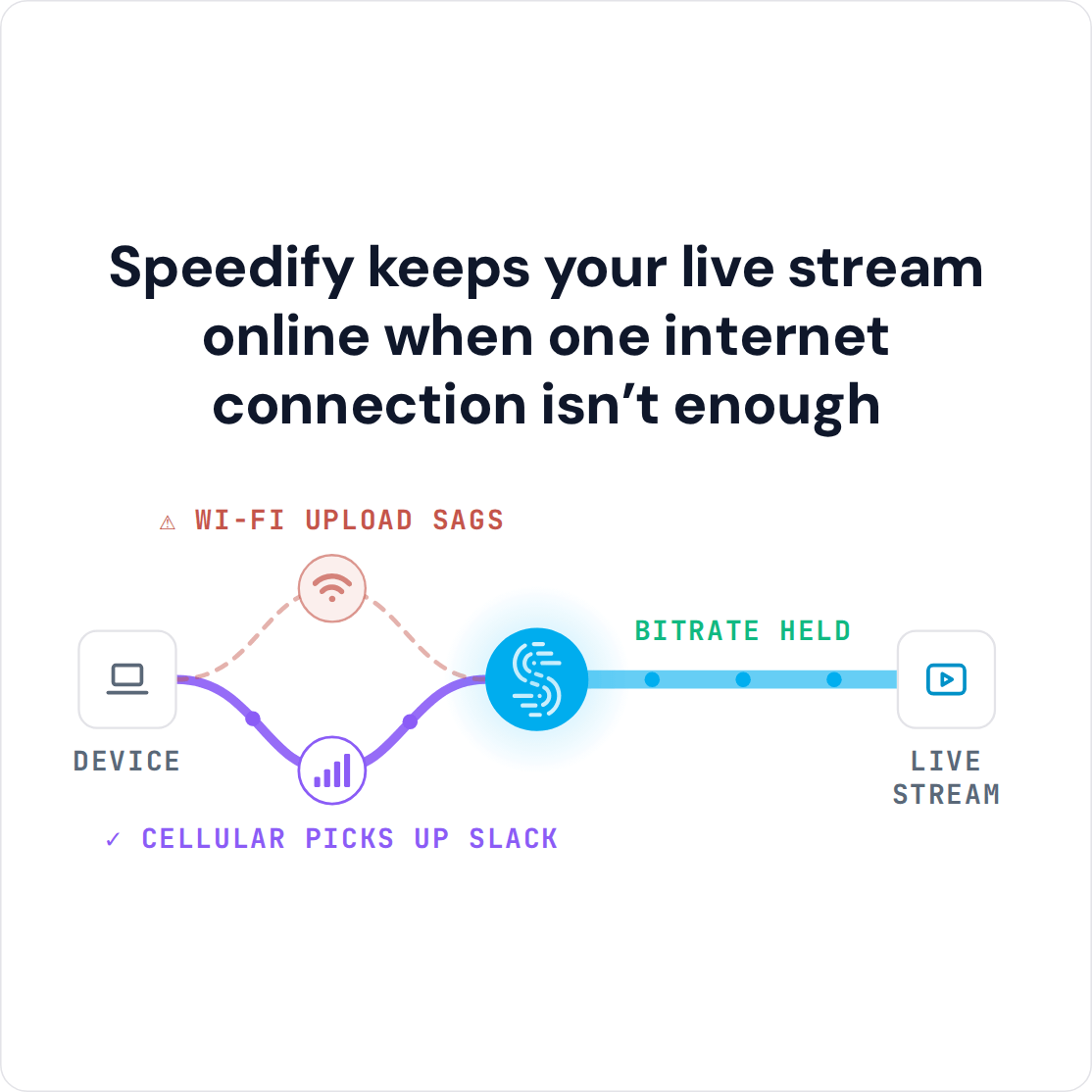
Speedify is an app that spreads your traffic across Wi-Fi, 4G/5G cellular, wired Ethernet, Starlink and other internet connections at once, adding their upload speeds together and covering for whichever one weakens. With only one connection, Speedify works as an encrypted VPN and cannot stop that connection from dropping or add upload speed. This article explains the upload speed a live stream needs, how fiber, cable, DSL, cellular and satellite compare, five practical tips, and what using Speedify adds.
Upload Speed Needed for Live Streaming
Bad internet for live streaming means one of two problems:
- Internet speed: the available bandwidth from your ISP is insufficient to broadcast live at the quality you want.
- Internet reliability: the connection keeps disconnecting.
Internet speed is measured by the download / upload pair of parameters. When service providers advertise their plans, they most likely share the download speed. That is important in general for activities such as:
- web browsing
- watching videos online, including streaming videos on platforms such as Netflix, Hulu, BBC, etc.
- file transfers.
When you’re into live streaming, the most important indicator for you is the upload speed the ISP can provide. Here are the recommended Internet upload speeds for live streaming on major platforms:
|
Resolution |
Twitch | YouTube | Facebook Live |
| HD 720p 30fps | 3 Mbps | 3 – 8 Mbps | 1.5 to 4 Mbps |
| HD 720p 60fps | 4.5 Mbps | 3 – 8 Mbps | 2.25 – 6 Mbps |
| FHD 1080p 30fps | 4.5 Mbps | 5 – 14 Mbps | 3 – 6 Mbps |
| FHD 1080p 60fps | 6 Mbps | 6 – 17 Mbps | 4.5 – 9 Mbps |
| QHD 1440p 30fps | 7 – 21 Mbps | ||
| QHD 1440p 60fps | 8 – 34 Mbps | ||
| 4k 2160p 30fps | 11 – 42 Mbps | ||
| 4k 2160p 60fps | 14 – 50 Mbps |
Just remember that these speeds are for live streaming only. As you will be using the same Internet connection for other stuff as well during your live streams (browsing, chatting, streaming videos), add at least 50% to the recommended upload speed above, just to be sure.
Live Streaming Latency: Why It Matters
In the context of live broadcasts, latency is the delay between when a video frame is captured and when that frame is displayed to the viewer. Latency happens as any live video broadcast requires processing, sending video over the Internet and viewing devices decoding and displaying the video.
What you want is to minimize the latency, as it will help you interact with your viewers in a closer “real-time” fashion. Professional live streaming latencies can range from 30 seconds to over one minute (source) and are influenced by the amount of video that is typically buffered. Low latency live streaming is now standard on major platforms such as Twitch and YouTube, and it delivers the video within a few seconds: YouTube says most viewers of a low-latency stream see less than 10 seconds of delay.
And if you’re looking for real-time video streaming (for auctions, AR/VR, day trading, live events, gaming, sports, trivia, etc.), you can even get latencies of under 1 second, typically 100-500 ms.
How to minimize live streaming latency:
- Choose the right platform / streaming software and make sure they support low latency streaming.
- Make sure your Internet connection latency is minimal as well, so it doesn’t have a significant effect on the overall latency. Anything under 100 ms between you and the live streaming server is OK; the less, the better.
Fiber, Cable, DSL, Cellular or Satellite: Which Internet Works Best for Live Streaming
Which one works best depends on where you want to live stream from and what services you have available to you. Below is a brief general guide on connection types and their upload speeds / latency performance. You can get an idea of what to shoot for in order to get the best internet for live streaming. Please confirm with the Internet service providers in your area the available upload speed and typical latencies.
| Connection type | Typical upload speed | Typical latency | Recommended resolution for live streaming |
| Fiber Optic | 250 – 1,000 Mbps | Lowest | Up to 4k @ 60 fps |
| Cable | 10 to 100+ Mbps, depends on plan | Low | 1080p, 1440p or 4K, depending on your plan’s upload |
| DSL | 1 – 10 Mbps | Low | Up to 1080p @ 30 fps |
| 4G/5G cellular | Variable, depends on signal | Low | Up to 1440p @ 30 fps |
| Starlink satellite | Variable, typically 10 to 30 Mbps | Low | Up to 1080p @ 30 fps |
| Geostationary satellite | A few Mbps | Highest | Up to 720p @ 30 fps |
Learn more about Fiber vs. cable vs. DSL.
See typical cellular upload speeds.
Check out user reports of Starlink speeds.
5 Tips on How to Live Stream with Bad Internet
With these tips, and a second connection combined with Speedify, you may not need to lower your resolution and frame rate. Here are some tips in order to broadcast anywhere with the best video quality you can have:
- Make sure your ISP doesn’t throttle your upload traffic / streaming traffic.
- Check for data caps in the contract. As you’re live streaming, you’re using a lot of traffic. When you hit those caps, the download / upload speeds could significantly drop.
- If possible, always use wired connections when live streaming. A cable removes wireless interference, a common source of packet loss.
- Make sure no other devices on your network use the Internet upload bandwidth. This includes computers or mobile devices running backups or video calls at the same time when you’re live streaming. If that is not enough, here is how to reach the upload speed for streaming.
- Use all available Internet connections at once. Apart from your home / studio connection, you can tether a phone over USB, plug in a USB cellular modem or get a second connection installed: these are all options you can take into account. You’ll also need an app that combines connections, like Speedify.
Combine Bad Connections into One Steadier Live Stream with Speedify
If you’re on a bad Internet connection for live streaming, combine several to get decent connectivity for live broadcasting. Speedify can combine multiple internet sources into one more stable and secure connection for live streaming, video calling, and web browsing. Speedify uses connection combining technology and advanced encryption to provide faster, more stable and secure Internet.
Here’s how Speedify helps content creators everywhere live stream even with bad Internet:
- evaluates your Internet connection and recommends a supported video quality for your live stream.
- prioritizes live streaming over other types of traffic.
- aggregates the upload speeds of the combined connections, which allows for live streaming at higher quality and higher framerates.
- in Redundant Mode, sends each packet over each connection (up to 3) and uses the first copy to arrive, so latency follows whichever connection is faster at that moment.
- minimizes packet loss by automatically resending lost network packets, which helps on wireless connections such as Wi-Fi and cellular.
With 4G/5G cellular set to Secondary priority, Speedify uses wired and Wi-Fi connections before cellular and other metered ones. And if one of your connections happens to drop, Speedify will move the live streaming traffic to the other working connection(s), in milliseconds according to Speedify.
Bottom line: with two or more internet connections, Speedify keeps a live stream going on bad Internet.
Speedify
Get started with Speedify today.
Speedify combines Wi-Fi, 4G/5G cellular, Ethernet, Starlink and satellite into one faster, more reliable internet connection. Free to try: 5 GB a month with a free account. No credit card required.
🚀 Speed
Faster uploads and downloads, because Speedify uses all your internet connections at once.
📶 Stability
If one internet connection drops, Speedify moves your traffic to the others in milliseconds.
🔒 Security
AES-256 encryption on every internet connection, on any network you join.



15M+ downloads worldwide. 75K+ five-star reviews on iOS and Android.