
You Can Combine Multiple Internet Connections Together – Like Starlink, Wi-Fi, 4G, 5G, and DSL – with Speedify, to Fix WhatsApp Calls Not Working
You tap the call button in WhatsApp and nothing happens, or the screen sits on Call on Hold and never connects. A voice or video call needs a steady two-way internet connection for its whole length, and a Wi-Fi network that keeps cutting out for a second at a time can stop the call from ever starting.
Speedify is an app that carries your internet over Wi-Fi and 4G/5G cellular data at once, so a gap in one internet connection does not end the call. What follows covers the reasons WhatsApp calls fail and how using Speedify gets them connecting again. That needs both connections turned on: on a single connection, Speedify works as an encrypted VPN and cannot stop that connection from dropping.
Why WhatsApp Video Calls Are Not Working or Not Connecting
The short answer: because you’re probably on a poor Wi-Fi network or out of cellular data coverage. To troubleshoot this objectively, your WhatsApp calls are not working because of these 3 main reasons:
- a Wi-Fi or cellular internet connection that is not reliable: it keeps disconnecting or is very slow
- router security / firewall settings
- out of date app installed on your smartphone.
And most probably it’s your Internet! WhatsApp calls require a good amount of bandwidth from your Internet connection to work properly.
When WhatsApp shows “Call failed”, the call could not be set up at all. Usually the internet connection on your side or the other person’s dropped or stalled while the call was connecting, or the network you are on blocks WhatsApp calls. Try the call again on another connection, for example 4G/5G cellular instead of Wi-Fi, to see whether your side is the problem.
Here are some solutions to get WhatsApp calls working again:
- check your Internet connection and speed
- restart your router / Internet source
- check your router’s security settings and firewall configurations for any blocked protocols or ports
- make sure your network allows WhatsApp traffic: campus and office networks may block it
- see if the WhatsApp service is down or not
- restart WhatsApp
- update WhatsApp and your operating system
- clear the WhatsApp cache
- reinstall WhatsApp
- restart your smartphone
When your Internet connection is too slow, you don’t have enough bandwidth for a VoIP HD audio call. Also, if the connection is flaky, you may be experiencing excessive packet loss. Both of these issues get worse when you are on the move, because mobile devices cannot always move between different Wi-Fi networks or cell towers without a gap, and that gap is enough to drop a WhatsApp call.
WhatsApp Calls Not Connecting: Get Faster and More Reliable Internet with Speedify
By default, mobile devices are designed to only use one Internet connection at a time: Wi-Fi or 4G/5G cellular. This happens even though both connections are active. What if you could use BOTH connections at once, for their combined speed and reliability?
Speedify combines internet connections and changes the way your mobile device connects to the Internet. Instead of just using one connection at a time, Speedify allows your smartphone or tablet to connect to the Internet over both Wi-Fi and 4G/5G cellular simultaneously. This increases your bandwidth and reliability, so a WhatsApp call keeps going when one connection weakens.
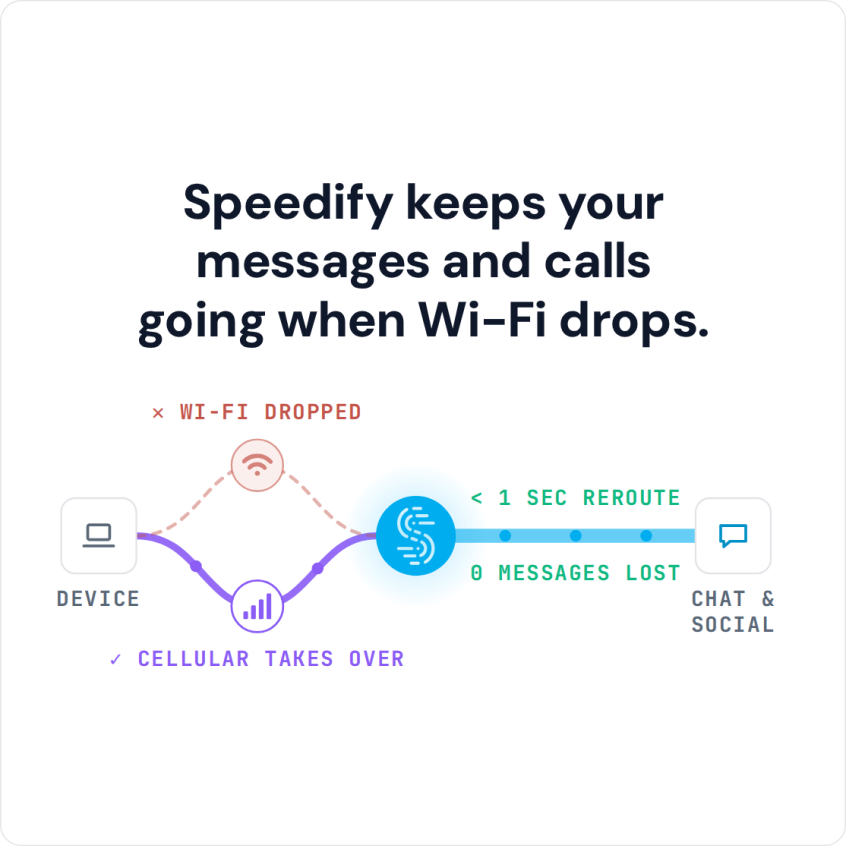
Speedify also monitors the quality of your Internet connections with its automatic failover protection capabilities. When Speedify detects that a signal is weak or that the network is too slow, Speedify reroutes the data through the other working connection. When the first connection is back online and reliable, Speedify begins using it again, automatically and in the background. That means fewer frozen WhatsApp calls.
With 4G/5G cellular set to Secondary priority, Speedify will send as much data as possible through Wi-Fi instead of over more expensive cellular data, which helps you avoid overage fees from your carrier.
Speedify Helps You Avoid WhatsApp Call Issues and Also Protects Your Online Privacy
In addition to delivering a faster Internet experience to your mobile device, Speedify uses advanced technology to quickly encrypt all the data sent to and from your device. Speedify keeps you safe from compromised Wi-Fi networks, snooping ISPs, and other threats.
You need to make sure WhatsApp calls work whenever you need them to work. That means having a fast and stable Internet connection. Hence, get started with Speedify as soon as possible!
Speedify Test: WhatsApp Video Calls at the Edge of Wi-Fi
Unless WhatsApp is having issues, WhatsApp performs well on a fast and stable internet connection. In the real world, you often do not get that luxury.
The testing procedure consists of 2 series of tests for WhatsApp video calls:
- Without Speedify;
- Speedify on with Enhanced Streaming enabled.
The Speedify team ran the tests on an Android smartphone and an iPhone, with Wi-Fi and cellular combined on both devices.
The evaluation is done both subjectively and objectively as follows:
- Screen capture and analysis of the WhatsApp video call quality;
- We walk towards the edge of the Wi-Fi network. This helps us simulate:
- insufficient bandwidth conditions, as we get away from the Wi-Fi router;
- unreliable connectivity at the edge of Wi-Fi with dead spots and packet loss;
- disconnecting Wi-Fi internet and how quick it switches to cellular.
For the Speedify tests, the team looked at bandwidth, latency and packet loss, and at how each changed on the walk away from the Wi-Fi router.
Testing Enhanced Streaming Mode on a WhatsApp Call on iPhone
The first test was a WhatsApp video call on an iPhone, running Speedify with Enhanced Streaming Mode. The video did not stutter. Here is how the bandwidth was distributed:
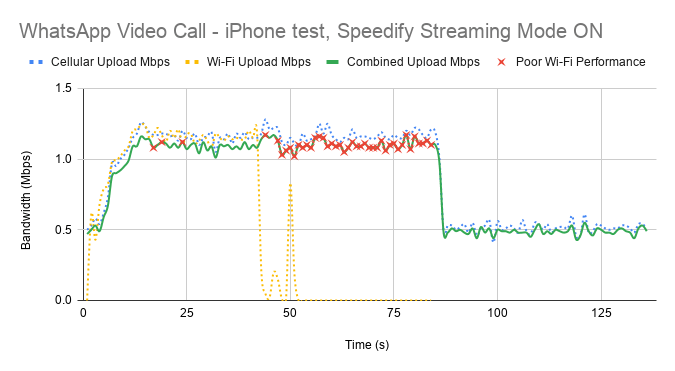
First of all, Speedify makes it possible to use both Wi-Fi and cellular at the same time. That’s why you see both connections being used together on the graph above. When Wi-Fi starts failing, cellular takes over with the help of Speedify. The general bandwidth is constant, switching from 1.2 Mbps to around 500 kbps when only cellular is used.
The little red x-es above mark the moments when packet loss over the Wi-Fi connection was very high (over 5%). Without Speedify, the call would have gone the way of the calls in the series without Speedify: buffering, then the call ending.
Testing Enhanced Streaming Mode on a WhatsApp Call on Android
The Android test with Speedify Enhanced Streaming Mode was similar to the iPhone one: the video quality was good and the call did not break.

As you can see, when Wi-Fi is good and strong enough, cellular stops being used. However, cellular kicks back in as soon as Speedify detects that Wi-Fi is flaky. Notice the steady bandwidth around 1 Mbps while there’s a “hint” of Wi-Fi. Then, it drops to 0.5 Mbps, as in the case of the iPhone, and Speedify keeps that fairly constant. Again, the red x-es mark the high Wi-Fi packet loss rate.
Here’s the raw average data from testing:
|
iOS |
Android |
|||||
|
Bandwidth (Mbps) |
Average |
Minimum |
Maximum |
Average |
Minimum |
Maximum |
|
Overall |
0.89 |
0.39 |
1.24 |
0.70 |
0.16 |
1.31 |
In both tests, Speedify kept the WhatsApp video call from dropping, thanks to the dynamic traffic prioritization of its Streaming Mode.
Speedify
Get started with Speedify today.
Speedify combines Wi-Fi, 4G/5G cellular, Ethernet, Starlink and satellite into one faster, more reliable internet connection. Free to try: 5 GB a month with a free account. No credit card required.
🚀 Speed
Faster uploads and downloads, because Speedify uses all your internet connections at once.
📶 Stability
If one internet connection drops, Speedify moves your traffic to the others in milliseconds.
🔒 Security
AES-256 encryption on every internet connection, on any network you join.



15M+ downloads worldwide. 75K+ five-star reviews on iOS and Android.