
Speedify Stops an iPhone from Disconnecting from Wi-Fi by Combining Wi-Fi and 4G/5G Cellular at Once
An iPhone that keeps disconnecting from Wi-Fi every few minutes is usually not broken. iOS watches the signal, and when it weakens at the edge of the router’s range the phone switches to 4G/5G cellular and back, which looks just like a disconnection. Low Power Mode and stored network details that no longer match the router do the same. The switch is more noticeable on a phone that gets propped up rather than held, which is the case for the iPhone Duo and its hands-free display.
Speedify is an app for iPhone that runs your internet over Wi-Fi and 4G/5G cellular at the same time, so a Wi-Fi dropout no longer takes the iPhone offline. That needs cellular data turned on next to Wi-Fi: with Wi-Fi alone, Speedify works as an encrypted VPN and cannot stop the Wi-Fi from dropping. This guide walks through the iOS and router fixes, plus what Speedify gives you: calls and downloads that keep running while the Wi-Fi sorts itself out.
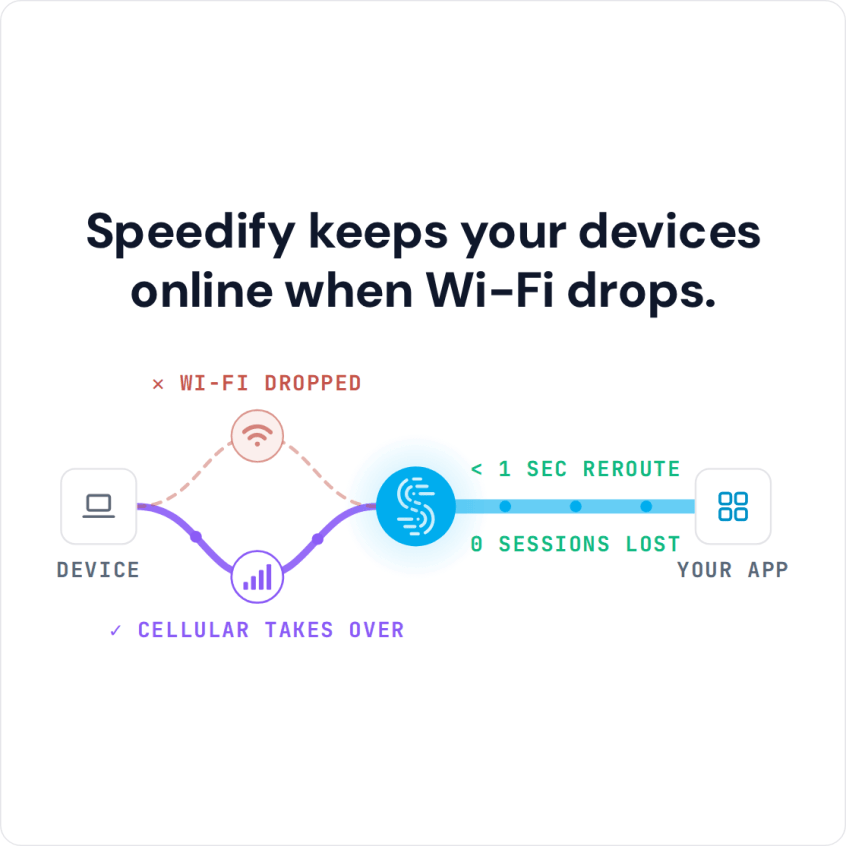
Speedify keeps your devices online when Wi-Fi drops.
Why an iPhone Keeps Disconnecting from Wi-Fi: The Most Common Causes
Before applying fixes, understanding the actual cause of repeated Wi-Fi drops on an iPhone produces faster results. These are the most common causes:
- iOS Wi-Fi assist and automatic switching: iOS includes a feature called Wi-Fi Assist that switches the iPhone to cellular when the Wi-Fi signal is weak. Wi-Fi Assist can make the iPhone appear to disconnect from Wi-Fi again and again when signal strength hovers near the threshold, which is the drop-reconnect loop many users see.
- iOS Low Power Mode: When Low Power Mode is active, iOS reduces background network activity and can make the iPhone’s Wi-Fi radio less aggressive about keeping a stable connection, particularly when the screen is off or the phone is idle.
- Saved Wi-Fi network profile corruption: iOS stores Wi-Fi credentials and network settings for each saved network. After an iOS update, a router firmware change or a router replacement, a saved network profile can become corrupted, so the iPhone connects, fails to authenticate fully and drops the connection repeatedly.
- DHCP lease conflicts: A stale or conflicting DHCP lease causes the router to stop routing traffic to the iPhone’s assigned IP address, resulting in disconnections that appear as Wi-Fi drops even when the Wi-Fi signal is strong.
- Router-side issues: Routers running outdated firmware, handling too many simultaneous connections or overheating can drop individual device connections intermittently.
- Wi-Fi channel congestion: In apartments, offices and dense residential areas, neighboring Wi-Fi networks competing for the same radio channels cause interference that drops iPhone connections, even when the router and iPhone are in the same room.
- 2.4 GHz band interference: The 2.4 GHz Wi-Fi band is shared with Bluetooth devices, microwave ovens, baby monitors and other household electronics. An iPhone on the 2.4 GHz band in a home with heavy radio interference disconnects more often than one on the 5 GHz or 6 GHz band.
- iOS software bugs: Major iOS updates occasionally introduce Wi-Fi regression bugs that cause widespread disconnection issues on specific iPhone models. These typically affect a subset of devices on the initial release of a new iOS version and are fixed in subsequent point releases.
- VPN or network extension conflicts: Third-party VPN apps and network extensions installed on an iPhone can conflict with iOS’s network stack and cause repeated Wi-Fi drops, particularly when the VPN app uses iOS’s Network Extension framework badly.
How to Fix an iPhone That Keeps Disconnecting from Wi-Fi: iOS Settings Fixes
Fix 1: Forget and Rejoin the Wi-Fi Network
Removing the saved Wi-Fi network and rejoining from scratch forces iOS to create a fresh connection with new authentication and DHCP settings. This resolves corrupted network profiles that cause repeated disconnect-reconnect cycles.
- Open Settings → Wi-Fi.
- Tap the information icon (ⓘ) next to the Wi-Fi network the iPhone keeps dropping.
- Tap Forget This Network and confirm.
- Reconnect to the Wi-Fi network by tapping it in the list and entering the password.
Fix 2: Disable Wi-Fi Assist
Wi-Fi Assist makes iOS switch from Wi-Fi to cellular when the Wi-Fi signal is weak, and back when the signal improves, which looks like repeated Wi-Fi disconnections. Turning Wi-Fi Assist off stops iOS from switching automatically and keeps the iPhone on Wi-Fi.
- Open Settings → Cellular (or Mobile Data).
- Scroll to the very bottom of the screen.
- Toggle Wi-Fi Assist off.
Fix 3: Disable Low Power Mode
Low Power Mode reduces background network activity to save battery, which can make the iPhone’s Wi-Fi connection unstable, particularly when the screen is off. Turning Low Power Mode off lets iOS keep a more consistent Wi-Fi connection.
- Open Settings → Battery.
- Toggle Low Power Mode off.
Fix 4: Renew the DHCP Lease
A stale DHCP lease causes routing failures that appear as Wi-Fi disconnections even when the iPhone is connected to the network. Renewing the lease forces the router to assign a fresh IP address and routing configuration to the iPhone.
- Open Settings → Wi-Fi.
- Tap the information icon (ⓘ) next to the connected Wi-Fi network.
- Tap Renew Lease and confirm.
Fix 5: Reset Network Settings
Resetting network settings on an iPhone clears all saved Wi-Fi passwords, cellular settings, VPN configurations and Bluetooth pairings, and removes any corrupted network configuration that is causing the Wi-Fi disconnections. This is a more thorough fix than forgetting and rejoining a single network.
- Open Settings → General → Transfer or Reset iPhone → Reset.
- Tap Reset Network Settings and enter the iPhone passcode when prompted.
- Confirm the reset. The iPhone will restart.
- After restart, reconnect to Wi-Fi networks and re-enter passwords.
Fix 6: Update iOS
If the iPhone started disconnecting from Wi-Fi after an iOS update, check for a subsequent point release that addresses the Wi-Fi regression. Apple regularly releases iOS updates that fix Wi-Fi bugs introduced in earlier versions. Open Settings → General → Software Update and install any available updates. The same check applies when an iPad keeps dropping its Wi-Fi.
Fix 7: Disable and Re-enable Wi-Fi
Toggling Wi-Fi off and back on from Settings (not from Control Center) forces iOS to fully restart the Wi-Fi radio and reconnect. This resolves transient software-layer issues that cause the iPhone to appear connected but fail to route traffic correctly.
- Open Settings → Wi-Fi.
- Toggle Wi-Fi off. Wait 10 seconds.
- Toggle Wi-Fi back on and allow the iPhone to reconnect.
Fix 8: Remove Conflicting VPN or Network Extension Apps
If a VPN app or network extension was installed around the time the iPhone started disconnecting from Wi-Fi, that app is a likely cause. Go to Settings → General → VPN & Device Management and turn off any active VPN configurations, then delete the VPN app for a while and test Wi-Fi stability. If the disconnections stop, the VPN app is the cause: look for an updated version or an alternative that works with your iOS version.
iPhone Won’t Stay Connected to Wi-Fi: Router Fixes
Fix 9: Restart the Router
A router that has been running without a restart for weeks or months accumulates stale connection tables and memory errors that cause individual devices to drop intermittently. Unplug the router’s power cable, wait 30 seconds, and plug it back in. Allow the router two minutes to fully restart before reconnecting the iPhone.
Fix 10: Move the iPhone Closer to the Router
Wi-Fi signal weakens with distance and physical obstructions. An iPhone near the edge of a router’s range connects intermittently and drops often. Moving the iPhone closer to the router, or moving the router to a more central, raised spot, reduces signal loss and steadies the connection.
Fix 11: Switch the iPhone to the 5 GHz Band
If the router broadcasts separate network names for the 2.4 GHz and 5 GHz bands, connect the iPhone explicitly to the 5 GHz network. The 5 GHz band is faster, less congested and less exposed to household interference than 2.4 GHz, so iPhones within range disconnect less often.
Fix 12: Change the Router’s Wi-Fi Channel
Channel congestion from neighboring networks causes interference that drops iPhone connections even when signal strength is strong. Log into the router’s admin interface and manually select a less congested channel. For 2.4 GHz, use channels 1, 6 or 11. For 5 GHz, more non-overlapping channels are available, with less interference in most homes.
Fix 13: Update Router Firmware
Router manufacturers release firmware updates that fix Wi-Fi stability bugs, improve compatibility with iOS Wi-Fi updates, and patch security vulnerabilities. Check the router’s admin interface or the manufacturer’s website for available firmware updates and apply them.
Common iPhone Wi-Fi Disconnection Scenarios and Their Causes
| Symptom | Most Likely Cause | Recommended Fix |
|---|---|---|
| iPhone drops Wi-Fi every few minutes and reconnects automatically | Corrupted network profile or DHCP lease conflict | Forget and rejoin network; renew DHCP lease |
| iPhone switches from Wi-Fi to cellular repeatedly | Wi-Fi Assist switching on weak signal | Disable Wi-Fi Assist (Fix 2) |
| iPhone loses Wi-Fi when screen turns off or phone is idle | Low Power Mode reducing Wi-Fi radio activity | Disable Low Power Mode (Fix 3) |
| iPhone drops Wi-Fi after an iOS update | iOS Wi-Fi regression bug | Install latest iOS point release; reset network settings |
| iPhone loses Wi-Fi while other devices stay connected | iPhone-specific network config issue or VPN conflict | Reset network settings; remove conflicting VPN app |
| iPhone drops Wi-Fi in a specific room or location | Weak signal due to distance or physical obstructions | Move closer to router; switch to 5 GHz band |
| iPhone disconnects from Wi-Fi during FaceTime or video calls | Sustained bandwidth usage exposing connection instability | Switch to 5 GHz band; use Speedify to combine Wi-Fi with 4G/5G cellular |
| iPhone drops Wi-Fi with no clear pattern | Wi-Fi channel congestion from neighboring networks | Change router Wi-Fi channel; restart router |
How Speedify Keeps an iPhone Connected When Wi-Fi Drops
All of the fixes above address specific causes of Wi-Fi disconnections on an iPhone. None of them removes the basic problem: an iPhone on Wi-Fi alone has no fallback when that connection drops, so every app loses its connection at once.
Speedify combines Wi-Fi and 4G/5G cellular on an iPhone at the same time. Both connections carry traffic, so the iPhone gets their combined speed, and if Wi-Fi drops for any reason, Speedify’s automatic failover technology moves all traffic to the 4G/5G cellular connection without dropping a FaceTime call, interrupting a message or stalling a download.
Speedify Keeps the iPhone Connected When Wi-Fi Drops: When the iPhone’s Wi-Fi disconnects, whether from a router reboot, a weak signal zone, a Wi-Fi Assist switch or anything else, Speedify moves all traffic to the 4G/5G cellular connection (Speedify says in milliseconds) and keeps the same public IP address. No manual switching, and calls and uploads carry on. You no longer need to keep turning your iPhone Wi-Fi off and on.
Speedify Combines Wi-Fi and 4G/5G Cellular for Higher Speeds: With Wi-Fi and 4G/5G cellular active at the same time, Speedify’s proprietary protocol gives the iPhone up to 95% of their combined speed (Speedify’s published figure). Wi-Fi and 4G/5G cellular are used together, not switched between, so the iPhone has more bandwidth than either connection alone.
Speedify Intelligently Distributes Traffic Across Both Connections: Speedify monitors the speed and latency of the Wi-Fi and 4G/5G cellular connections and distributes traffic in real time. When Wi-Fi performs well, Speedify uses more of it to save cellular data. When Wi-Fi slows down, Speedify shifts traffic to the 4G/5G cellular connection automatically.
Speedify Encrypts All iPhone Traffic Across Both Connections: Speedify is also a VPN that encrypts all traffic on both the Wi-Fi and 4G/5G cellular connections, protecting passwords, banking sessions, messages and personal data on every network the iPhone joins, including public Wi-Fi at airports, hotels and cafés.
How to Set Up Speedify to Keep an iPhone Online When Wi-Fi Drops
- Connect the iPhone to Wi-Fi as normal.
- Make sure cellular data is on: open Settings → Cellular and check that Cellular Data is turned on. Speedify uses the 4G/5G cellular connection as the second connection next to Wi-Fi.
- Download and install Speedify from the App Store (iOS 17 or later; Speedify is also available for Android, macOS, Windows, Linux and OpenWrt).
- Open Speedify and tap Connect. Speedify detects the Wi-Fi connection and the 4G/5G cellular connection and starts combining both. Both connections appear in the Speedify dashboard with real-time download speed, upload speed and latency for each.
- Optionally, set a cellular data limit in Speedify to manage 4G/5G data use. Speedify’s streaming optimization for FaceTime, video calls and live streams is on by default.
Speedify vs. iOS Wi-Fi Fixes: What Each Approach Actually Solves
| Approach | Stops Wi-Fi Disconnections? | Keeps iPhone Connected When Wi-Fi Fails? | Automatic Failover? | Faster Downloads and Uploads? | Encrypted Traffic? |
|---|---|---|---|---|---|
| Speedify (Wi-Fi + 4G/5G Cellular Combined) | ❌ No: Wi-Fi can still drop, but the iPhone stays online | ✅ Yes: traffic moves to 4G/5G cellular | ✅ Yes | ✅ Yes: combined speed | ✅ Yes |
| Forget and rejoin Wi-Fi network | ⚠️ Partial: fixes profile corruption only | ❌ No | ❌ No | ❌ No | ❌ No |
| Disable Wi-Fi Assist | ⚠️ Partial: stops auto-switching only | ❌ No | ❌ No | ❌ No | ❌ No |
| Reset network settings | ⚠️ Partial: fixes config corruption only | ❌ No | ❌ No | ❌ No | ❌ No |
| Switch to 5 GHz band | ⚠️ Partial: reduces interference-related drops | ❌ No | ❌ No | ✅ Yes: within Wi-Fi range | ❌ No |
| Update iOS | ⚠️ Partial: fixes OS-level bugs only | ❌ No | ❌ No | ❌ No | ❌ No |
| Other VPNs | ❌ No | ❌ No | ❌ No | ❌ No (often slower) | ✅ Yes |
Frequently Asked Questions About iPhone Wi-Fi Disconnecting
Why does my iPhone keep disconnecting from Wi-Fi but my other devices don’t?
If the iPhone disconnects from Wi-Fi while other devices stay connected, the issue is specific to the iPhone: most likely a corrupted network profile, a stale DHCP lease, Wi-Fi Assist switching or a VPN app conflict. Start with Fix 1 (forget and rejoin the network), Fix 2 (turn off Wi-Fi Assist) and Fix 4 (renew the DHCP lease).
Why does my iPhone lose Wi-Fi when the screen turns off?
Low Power Mode, or another battery-saving setting that reduces Wi-Fi activity when the screen dims, is the usual cause. Turn off Low Power Mode (Fix 3) first. If the drops continue, forget and rejoin the network (Fix 1) and check the router (Fixes 9 to 13).
Why does my iPhone keep switching between Wi-Fi and cellular data?
This is the expected behavior of Wi-Fi Assist: iOS detects a weak Wi-Fi signal and routes traffic through cellular instead. Turning off Wi-Fi Assist (Fix 2) stops the switching. Speedify works differently: rather than switching between Wi-Fi and cellular, Speedify uses both at the same time, so the iPhone stays online when one connection performs poorly.
Why does my iPhone disconnect from Wi-Fi during FaceTime calls?
FaceTime keeps a high, steady load on the connection that exposes instability you do not notice while browsing. If the iPhone disconnects from Wi-Fi during FaceTime or video calls in particular, the connection cannot carry that load, because of a weak signal, channel congestion or router limits. Speedify helps by combining Wi-Fi with 4G/5G cellular, which adds bandwidth and moves the call to the other connection if one drops.
Does Speedify work on iPhone without a Wi-Fi connection?
Yes. Speedify works on 4G/5G cellular alone when there is no Wi-Fi, as an encrypted VPN. The speed and reliability gains from combining connections need at least two active connections: with Wi-Fi and 4G/5G cellular both on, Speedify combines them for more speed and automatic failover.
Does Speedify drain iPhone battery?
Speedify uses the Wi-Fi and cellular radios at the same time, which uses more battery than one radio alone. When the iPhone is plugged in, that does not matter. A cellular data limit in Speedify controls how much traffic goes over cellular.
Does Speedify work on all iPhone models?
Speedify runs on iPhones with iOS 17 or later, which covers the iPhone XS, XR, SE (2nd generation) and every newer model. On an iPhone 16, Wi-Fi 7 can bring its own problems.
The iOS settings fixes in this guide address specific causes of Wi-Fi disconnections on an iPhone. Speedify handles what is left: with cellular data on next to Wi-Fi, FaceTime calls, messages, downloads and apps keep running when the Wi-Fi connection drops.
Download Speedify and keep your iPhone online when the Wi-Fi drops.
Speedify Ping Test: What Happens When an iPhone Walks Out of Wi-Fi Range
The test uses the free Ping Lite app on an iPhone to ping 8.8.8.8, a special “Anycast” address that reaches the closest Google DNS server. Google has servers all over the world, so this is an easy way to test your connection’s latency wherever you are.
For a baseline on a good connection, the tester stood next to the Wi-Fi router in the Speedify office, which was connected to a Comcast Xfinity 75 Mbps Business Internet connection. Ping Lite sends one message each second and times how long each response takes.
The result on good Wi-Fi:
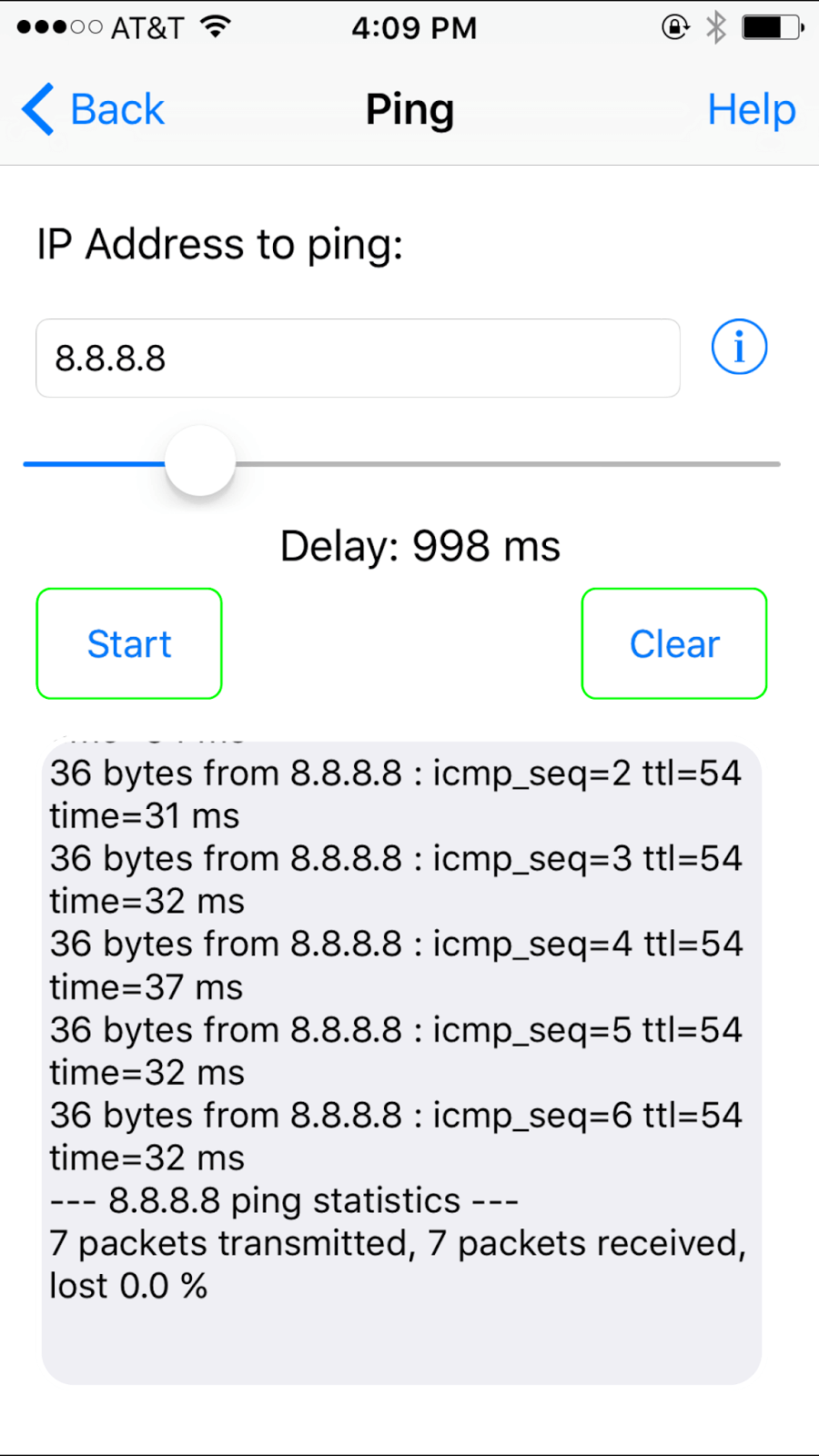
Every packet that gets sent is received, and response times are in the 30-40 ms range (that’s pretty good).
That is what decent Wi-Fi looks like on the iPhone. To see what happens when a phone moves out of Wi-Fi range, the tester then walked away from the router and out of the office while Ping Lite kept sending packets.
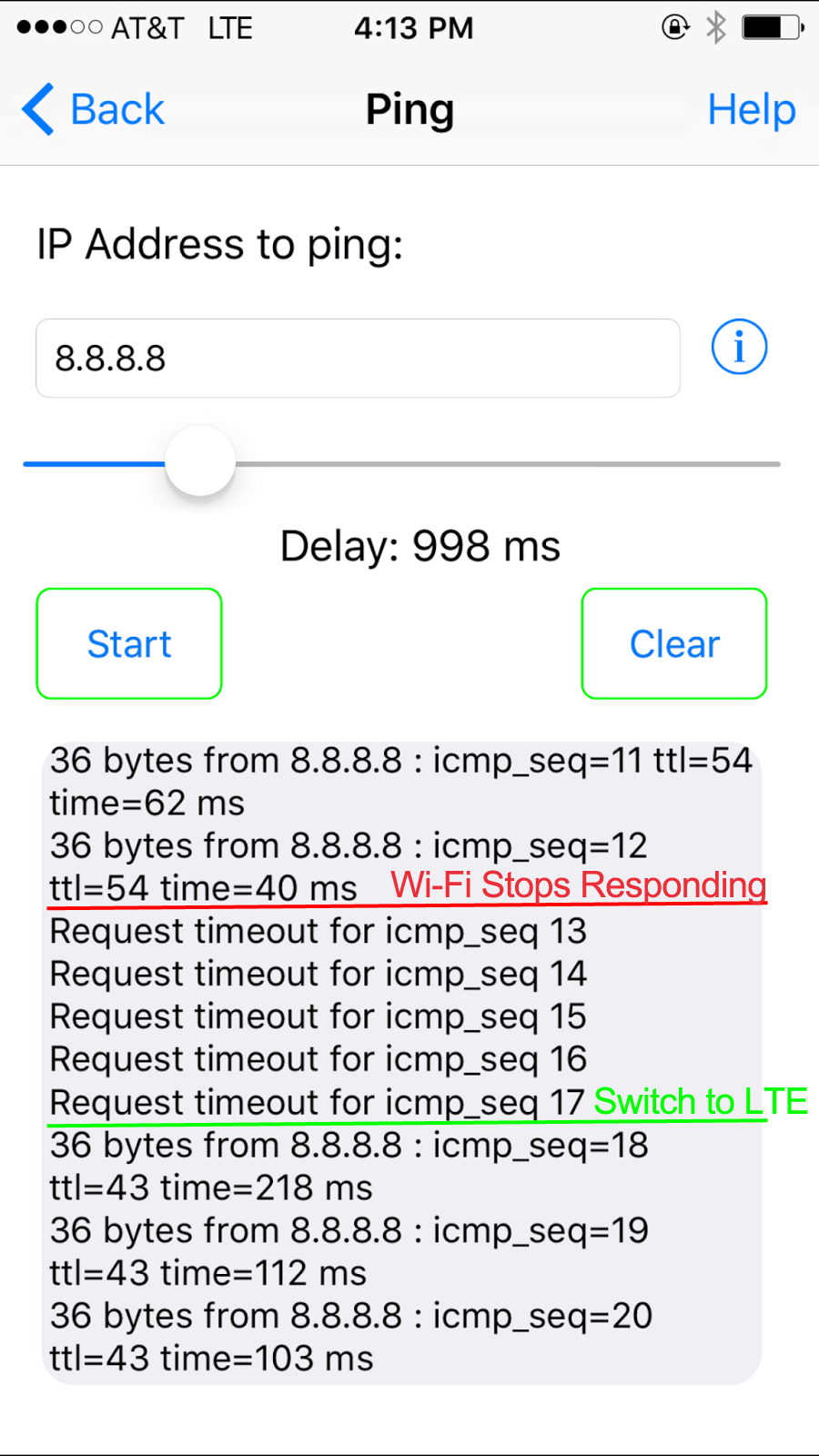
Test Results: Five Seconds Offline Before the iPhone Switches to 4G
The results show how the iPhone fails to stay online when it switches from Wi-Fi to 4G:
- In the first couple of pings, Wi-Fi takes longer and longer to respond, with times like 62 ms and 40 ms. That does not sound terrible, but one more step away from the router changes everything.
- For 5 messages in a row, none of the pings on Wi-Fi get a response: 5 full seconds without internet. Worse, several apps do not recover on their own, so internet radio stops, a live stream disappears for its viewers, and YouTube buffers until the video is restarted.
- Finally, the phone gives up on Wi-Fi and switches to 4G LTE. Latency on 4G LTE is higher than on Wi-Fi, but the phone is back online. Even so, streaming apps, uploads and downloads have to be restarted by hand before they work over the 4G connection.
At the edge of home or office Wi-Fi, the phone takes 5 seconds or more to notice and give up. For anyone streaming to or from an iPhone or Android phone, or running app updates, downloads or uploads, that is enough to break everything and leave you restarting apps by hand. Speedify avoids this gap because 4G/5G cellular is already carrying traffic when the Wi-Fi fades.
Speedify
Get started with Speedify today.
Speedify combines Wi-Fi, 4G/5G cellular, Ethernet, Starlink and satellite into one faster, more reliable internet connection. Free to try: 5 GB a month with a free account. No credit card required.
🚀 Speed
Faster uploads and downloads, because Speedify uses all your internet connections at once.
📶 Stability
If one internet connection drops, Speedify moves your traffic to the others in milliseconds.
🔒 Security
AES-256 encryption on every internet connection, on any network you join.



15M+ downloads worldwide. 75K+ five-star reviews on iOS and Android.