
Slow Internet Connection? Try These Tips to Pin the Cause
“Why is my internet so slow?” usually has a findable answer: the plan you are paying for, the modem, the wiring, or the provider. It is worth knowing which before you spend money on it, and you are not the only one asking. If it is only your phone, see why internet is so slow on a phone.
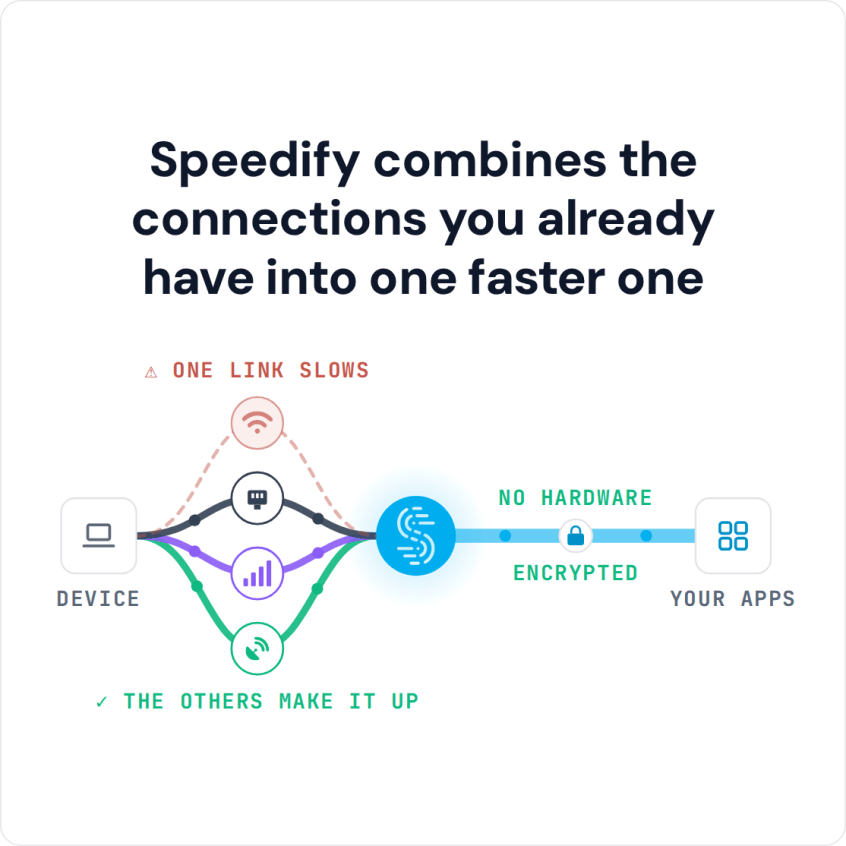
Speedify is an app that helps once you have found the answer and it is not something you can fix: it runs your traffic over more than one internet connection at once, so a slow line is not the only one you have. The speed gain needs two or more connections; on one connection, Speedify works as an encrypted VPN and can be a little slower. If uploads are the problem, see how to fix slow upload speeds.
Speedify combines the connections you already have into one faster one
You notice slow internet the moment you try to:
- stream video from YouTube,
- get on a FaceTime call,
- upload photos on Instagram to share with family and friends.
This guide covers a step-by-step check (speed test against your plan, restart the modem and router, inspect the wires, contact your provider) and what to do when none of it helps.
Before engaging in this troubleshooting guide, have your ISP contract and contact info handy. Also make sure you have at least another device available for tests.
If your internet is slow all of a sudden, check the simple things first: an outage at your provider (see its status page), someone on the network streaming or downloading, a computer or console installing updates, or evening congestion when everyone nearby is online. If none of those explains it, the steps below find the cause in order.
Step 1: Run a Speed Test When Your Internet Is Slow All of a Sudden
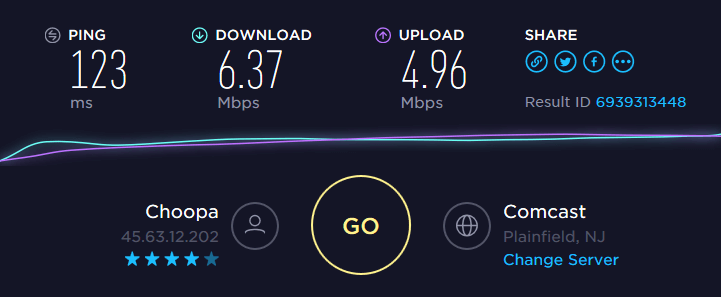
Just go to speedtest.net and run an online test. Use a computer connected to the router via wired Ethernet for most relevant results.
Repeat the test on another device if you can, such as a smartphone. When testing over Wi-Fi, stand near the wireless router with no walls or objects in between.
What to do
- Are the download and upload speeds close to what’s in the ISP contract? If so, you need to upgrade your plan. Contact your ISP for that.
- Speeds well under what your service provider committed to in the contract? Try the following steps before contacting your ISP.
Getting slow speeds when connecting via Wi-Fi from a location that is far from the wireless router? Time to improve your Wi-Fi signal: either put the router in a more central location or get a Wi-Fi range extender. You can also use your PC as a Wi-Fi repeater.
Step 2: Restart Your Modem and Router
Believe it or not, this procedure can do wonders for your slow Internet connection. That’s because your router is actually a mini-computer that has a CPU, memory, local storage and operating system. Any of those can have an issue at some point: high CPU temperature, memory or operating system error (!), etc. So, as you fix a computer when it’s acting up by rebooting it, you can do the same with your router.
What to do
The simplest way to restart your modem / router is to:
- remove the power cord,
- wait about 10 seconds,
- connect the power cord back into the modem / router and
- wait for about one minute for the equipment to initialize.
Then, you can check your Internet speed again. Did this solve your slow Internet issue? If not, go to the next step.
Step 3: Check the Wires that Go into Your Modem or Router
Your Internet can get really slow if you have loose connectors or damaged wires going in and out of your modem or router. Poor quality coaxial splitters can also lower your cable Internet speed.
What to do
- Start from your computer. Inspect the Ethernet cable that goes into the router: is it in good shape? Try to swap it and test speed with another one, if possible.
- Go to the router and modem: are all connectors plugged in firmly?
- If you have coaxial splitters, try to disconnect them and test your Internet speed.
Still no improvement? Go further!
Step 4: Contact Your Internet Service Provider
Sooner or later you’re going to have to face them. Your ISP may change its network configuration or encounter technical difficulties. These are usually communicated on a status page. If your ISP doesn’t have that, it’s best to contact them.
What to do
Call your ISP or contact them through instant messaging apps or social media. After all, you do want a quick response.
Still experiencing slow Internet? Then the connection itself is the limit, and a second internet connection is the fix.
Step 5: Combine Two or More Internet Connections with Speedify
Unless you’re living in a very remote area, you have multiple Internet connections available from different upstream networks. Examples include:
- your own smartphone through its cellular connection,
- nearby public Wi-Fi networks,
- USB cellular adapters for computers,
- a second Internet connection you keep for failover.
Rather than switching to one of these connections, you can combine them together at once with Speedify for more speed and stability.
Here’s what you have to do:
- Get Speedify on your computer or mobile device. It works on iOS, Android, macOS and Windows.
- Leave all your Internet connections active. On iPhones and Android smartphones, turn on both Wi-Fi and cellular data. You can set data caps from within the Speedify app, so you do not exceed your plan and pay extra.
For computers and laptops you can use:
- the wired Ethernet connection,
- a second Wi-Fi network (with a USB Wi-Fi adapter),
- additional 4G/5G cellular USB modems or built-in cellular cards.
- USB network adapters for Wi-Fi, Bluetooth or Ethernet (on a Mac, USB Wi-Fi adapters work only on Intel Macs with macOS 11 Big Sur or older)
- Enjoy faster, more reliable Internet. Speedify detects any new active Internet connection and starts using it. When one of your connections has performance issues (for example a bad Wi-Fi hotspot), Speedify moves traffic to the others so you stay connected.
Tired of troubleshooting slow Internet? Once the cause is something you cannot fix, get Speedify and combine the connections you already have for more speed and stability.
Pool Several Phones’ 4G/5G Cellular with Speedify’s Cellular Sharing Feature
Speedify’s cellular sharing feature lets Speedify users on the same local network share and combine their cellular connections with each other.
For example, a family can pool the 4G/5G cellular of several phones with the home connection when the home internet is slow.
To get started with cellular sharing:
- Pair Devices: on each device, open Settings > Pair & Share in Speedify, turn on Sharing or Receiving, tap “Start by Pairing a Device” and pick the other device under Discovered Devices; the other user accepts. Both devices must be on the same Wi-Fi network, or on one phone’s Personal Hotspot.
- Share Connections: each device can share and receive cellular connections. Sharing is capped at 10 Mbps per device by default, and you can change the cap. Shared data counts as hotspot data, so the phone’s plan must allow tethering.
Speedify
Get started with Speedify today.
Speedify combines Wi-Fi, 4G/5G cellular, Ethernet, Starlink and satellite into one faster, more reliable internet connection. Free to try: 5 GB a month with a free account. No credit card required.
🚀 Speed
Faster uploads and downloads, because Speedify uses all your internet connections at once.
📶 Stability
If one internet connection drops, Speedify moves your traffic to the others in milliseconds.
🔒 Security
AES-256 encryption on every internet connection, on any network you join.



15M+ downloads worldwide. 75K+ five-star reviews on iOS and Android.