
Outlook Says Disconnected and Trying to Connect. Sounds Familiar?
Outlook showing Disconnected or Trying to connect in its status bar means it has lost touch with your mail server, not that your email is gone. Usually the internet connection wobbled for a few seconds (the office network dropped, or a laptop moved onto a weaker Wi-Fi signal), and Outlook gave up rather than waiting.
Speedify is an app that lets your computer use Wi-Fi, 4G/5G cellular, wired Ethernet and other internet connections at the same moment, so Outlook keeps a path to your mail through a dropout. With only one connection, Speedify works as an encrypted VPN and cannot stop that connection from dropping.
Reconnecting Outlook is the easy part. This article covers that, plus what using Speedify does to stop the disconnect returning.
How to Keep Outlook Connected with Speedify
- Download Speedify on the computer or phone you use Outlook on (Windows, macOS, iOS, Android).
- Open Speedify and create a free account (the free tier includes 5 GB per month), or sign in.
- Give Speedify a second internet connection: on a phone, keep Wi-Fi on and turn on 4G/5G cellular. On a computer on Wi-Fi, add Ethernet or a phone tethered over USB (on a Mac, an iPhone or a supported Android phone); on a computer on Ethernet, you can also join your phone’s Personal Hotspot over Wi-Fi.
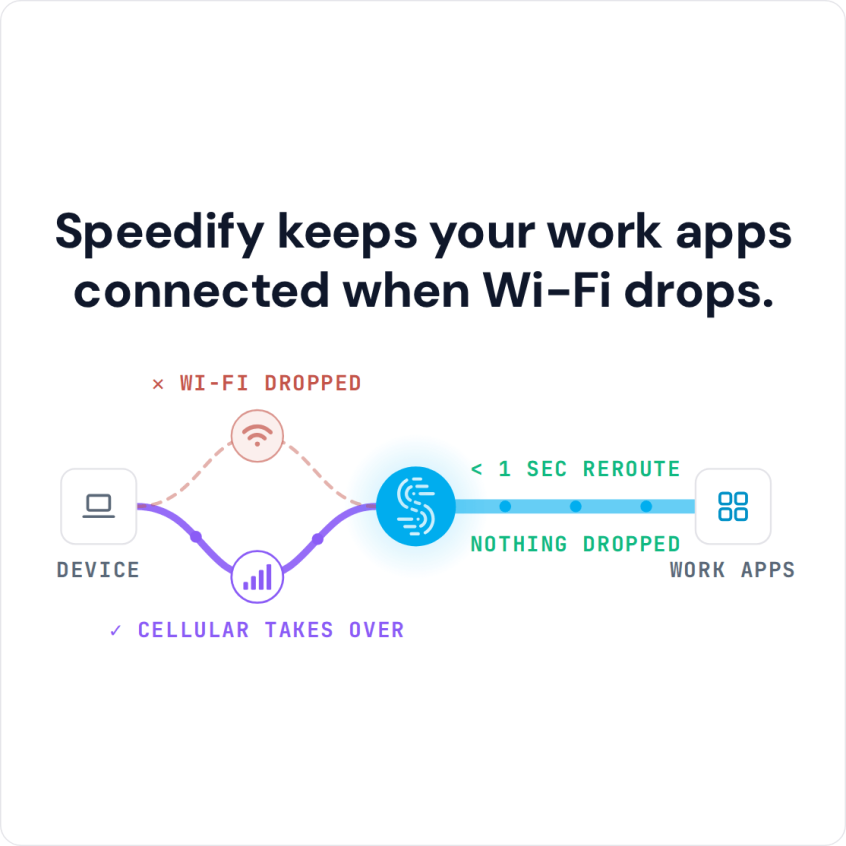
- Connect. Speedify uses both connections at once and moves your traffic to the working one when one drops.
- Open Outlook and check that the status bar no longer says Disconnected.
Why Outlook Disconnects from Exchange
When Outlook says Disconnected but you have internet, other apps can load while Outlook’s own link to the mail server has dropped and not come back. The usual causes are a short internet dropout that Outlook did not recover from, Work Offline turned on, an expired sign-in, or a Microsoft 365 or Outlook.com outage.
The most common cause of disconnected Outlook is actually the Internet you’re using. When you have a slow or unreliable Internet connection, Outlook isn’t able to work properly. Sometimes, you may not even realize that your Outlook is disconnected until you check the status bar or try and use the service.
Your device is exchanging a complex set of data packets with the Microsoft email servers. If your Wi-Fi connection has a momentary blip or your cellular connection fluctuates, some of the flow of those packets gets interrupted. It can take a few moments for the data to catch up.
This results in Outlook showing Disconnected, and you cannot send or receive email.
Outlook Disconnected: How to Reconnect and Keep Outlook Online
As mentioned above, Outlook is dependent on how stable your Internet connection is. But before you blame it on your Wi-Fi, check whether Outlook is set to work offline (see here): in classic Outlook, if Work Offline on the Send / Receive tab is highlighted, click it to reconnect.
If Outlook still shows Disconnected, close Outlook completely and open it again, and check that you can sign in to Outlook on the web with the same account. If the web version works, update Outlook and restart the computer; if it does not, the problem is on the account or Microsoft’s side.
If Outlook reconnects but keeps dropping again, look at your internet connection. Whether you use a laptop, a desktop computer or a phone, your device sends Outlook’s traffic over one connection at a time: a phone connected to both Wi-Fi and 4G/5G cellular still uses only one of them. The fix is to use both at once with an app that combines connections, such as Speedify, or Speedify for Teams for a whole organization.
The Speedify app monitors the quality of your Internet connections in the background and can combine all available connections simultaneously in a single “pipe”. This improves your bandwidth and connection reliability, so a drop on one connection no longer leaves Outlook disconnected. Speedify for Teams brings the same to everyone in a business.
If you are moving between Wi-Fi networks, or your Wi-Fi or cellular network suddenly goes out, Speedify intelligently and automatically reroutes your data over the connection that still works and keeps the same public IP address, so Outlook stays connected to the mail server.
How Speedify for Teams Keeps Outlook Email Working for Your Team
With Speedify for Teams, you don’t have to trade security for internet speed. Speedify uses multiple internet connections at the same time, which gives you faster, more stable internet and, with two or more connections combined, doesn’t slow down your connection like the other VPNs will do. On a single connection, Speedify works as an encrypted VPN and can be a little slower.
Plus, with Speedify for Teams you can also get:
- Dedicated VPN servers: they provide speed, reliability, port forwarding, and static IP addresses. Users with dedicated VPN servers will also experience more consistent speeds, as no one else is on your server.
- Teams dashboard to manage billing, add and remove users, monitor usage statistics and view performance analytics if you have a dedicated server.
- Management API : the Speedify for Teams API is a REST application programming interface that uses HTTP requests and provides responses in a JSON format and using HTTP status codes. You can create and remove users from your team, and check how much users are actually using their accounts.
- Support for virtually any device running Windows, macOS, Linux, iOS and Android.
If you are tired of not being able to send and receive email, cut the Outlook disconnects your connection causes and get Speedify for Teams today!
Speedify
Get started with Speedify today.
Speedify combines Wi-Fi, 4G/5G cellular, Ethernet, Starlink and satellite into one faster, more reliable internet connection. Free to try: 5 GB a month with a free account. No credit card required.
🚀 Speed
Faster uploads and downloads, because Speedify uses all your internet connections at once.
📶 Stability
If one internet connection drops, Speedify moves your traffic to the others in milliseconds.
🔒 Security
AES-256 encryption on every internet connection, on any network you join.



15M+ downloads worldwide. 75K+ five-star reviews on iOS and Android.