
Unbreakable VPN Connection for Windows by Combining Starlink, Wi-Fi, 4G, 5G, and DSL with Speedify
A Windows PC will happily sit on one Wi-Fi network and use nothing else, even with an Ethernet cable plugged in beside it.
Speedify is an app that puts every internet connection you have to work at once (Wi-Fi, wired Ethernet, a tethered phone’s 4G/5G cellular, Starlink) and encrypts everything crossing them like a VPN, so your internet provider cannot see or single out what you are doing.
Read on for why a VPN matters on Windows, a real-life test of what happens when the Wi-Fi drops, how VPN software handles school and work network blocks, and a three-step Windows setup. Afterwards your traffic is private, and with two or more internet connections your uploads and downloads are faster and one connection quitting no longer knocks the PC offline. On a single connection, Speedify works as an encrypted VPN and can be a little slower.
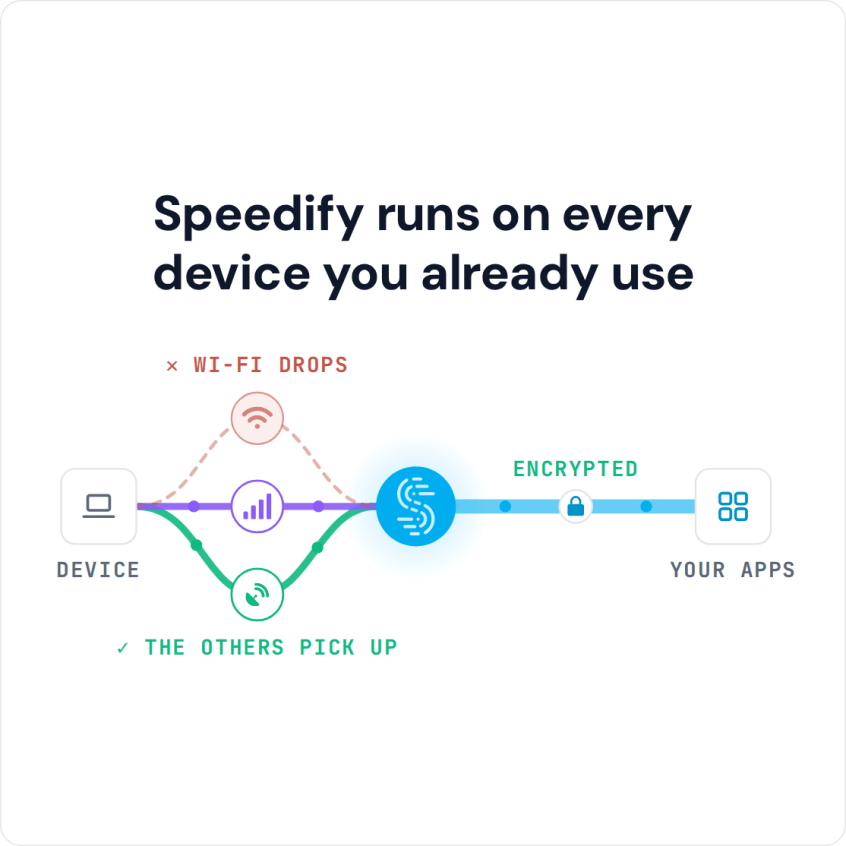
Speedify runs on every device you already use
Why Use VPN Software on Windows: Stop ISPs from Spying and Throttling Your Data
Your ISP can see which sites and services your computer connects to. Some ISPs use that information to throttle data, others as fuel for targeted ads.
And it’s not only you. If you are using someone else’s Wi-Fi, their ISP can also observe your Internet activity. You get the worst privacy when connecting to public Wi-Fi networks without a VPN on your Windows PC. Next time you join one, read the Terms and Conditions you accept when connecting; you may be surprised by what they allow.
A VPN encrypts all of the data sent to and from your computer, which stops your ISP and school or work IT departments from snooping on your online browsing. But not all VPN services are well intended, especially the completely free VPN software for Windows.
Real-Life Test: How Speedify Handles a Dropped Wi-Fi Hotspot on Windows
Older, conventional VPN software for Windows PCs (OpenVPN, IKEv2 or IPSec) also runs on iPhone, Android smartphones and other mobile devices. These protocols use one internet connection at a time, and Speedify’s VPN comparison test shows what that means when the connection drops.
A dropped Wi-Fi hotspot is a common scenario, so the test checked what each VPN did when the Wi-Fi hotspot dropped:
- Whether the VPN software moved from one connection to another on its own, without changing IP address and cutting off everything in progress.
- Or whether the VPN software stopped working when the connection failed and stayed stuck until the user stepped in.
The result: Speedify was the only VPN in the test that kept the connection up and protected. Because Speedify’s traffic leaves from the same server whichever connection carries it, the switch does not change your public IP address, so calls and logged-in sessions keep going. Most VPN services slow down your connection because of the way they’re built. Speedify is a VPN that combines connections: its technology for combining internet connections lets smartphones and computers combine multiple Internet connections at the same time, for more speed, reliability and security.
You can test any VPN service yourself with Pingify, a free network diagnostics app for iPhone that tests the reliability and speed of Wi-Fi, 4G/5G cellular and VPN connections. Pingify shows you when the VPN disconnects and whether it reconnects or leaves you unprotected.
Using VPN Software on a Windows PC on School, Work and Hotel Networks
Sometimes schools or companies will use a filter on the organizational network to block certain sites. This can keep you from accessing popular sites like YouTube.
Hotel and airport Wi-Fi can block sites too. When you travel abroad, Speedify helps you reach your own home services and subscriptions, though streaming services set their own regional rules in their terms.
With VPN software on your Windows machine, a network that blocks sites sees only an encrypted connection to the VPN server, so blocked sites can load and your school or office cannot see which sites you visit.
3 Steps to Set Up Your VPN Software on Windows
Setting up Speedify on Windows takes three steps:
- Download Speedify and install it on your Windows PC. Speedify needs Windows 10 or later, so it does not run on Windows 7.
- Run Speedify and create a free account (the free tier includes 5 GB per month), or sign in. If you can connect to multiple Internet connections, make sure you do that.
- Connect: Speedify picks a server automatically, or you can choose a country or city in the Servers list.
How Speedify Helps with Streaming, Video Calls and Gaming on Windows
When you use Speedify on a Windows PC, you no longer have to choose between security, speed and stability. Speedify helps you have a better experience when you:
- stream movies,
- get into video conference calls,
- play online video games.
Speedify can improve your Internet speeds while acting as a fast VPN: it can combine two or more different Internet connections into one faster connection.
With two or more internet connections, Speedify keeps you connected automatically when something goes wrong with one of them.
Speedify for Windows: Free Tier and Prices
Speedify for Windows is free for 5 GB per month with a free account. Paid plans cost $14.99 monthly or $89.99 a year ($7.49 per month), or as little as $4.99 per month on a 3-year plan, and an Individual plan covers up to 5 devices at once.
Stop taking chances with your online security. Get a secure, stable and fast Internet connection on Windows. Download Speedify now!
Speedify
Get started with Speedify today.
Speedify combines Wi-Fi, 4G/5G cellular, Ethernet, Starlink and satellite into one faster, more reliable internet connection. Free to try: 5 GB a month with a free account. No credit card required.
🚀 Speed
Faster uploads and downloads, because Speedify uses all your internet connections at once.
📶 Stability
If one internet connection drops, Speedify moves your traffic to the others in milliseconds.
🔒 Security
AES-256 encryption on every internet connection, on any network you join.



15M+ downloads worldwide. 75K+ five-star reviews on iOS and Android.