
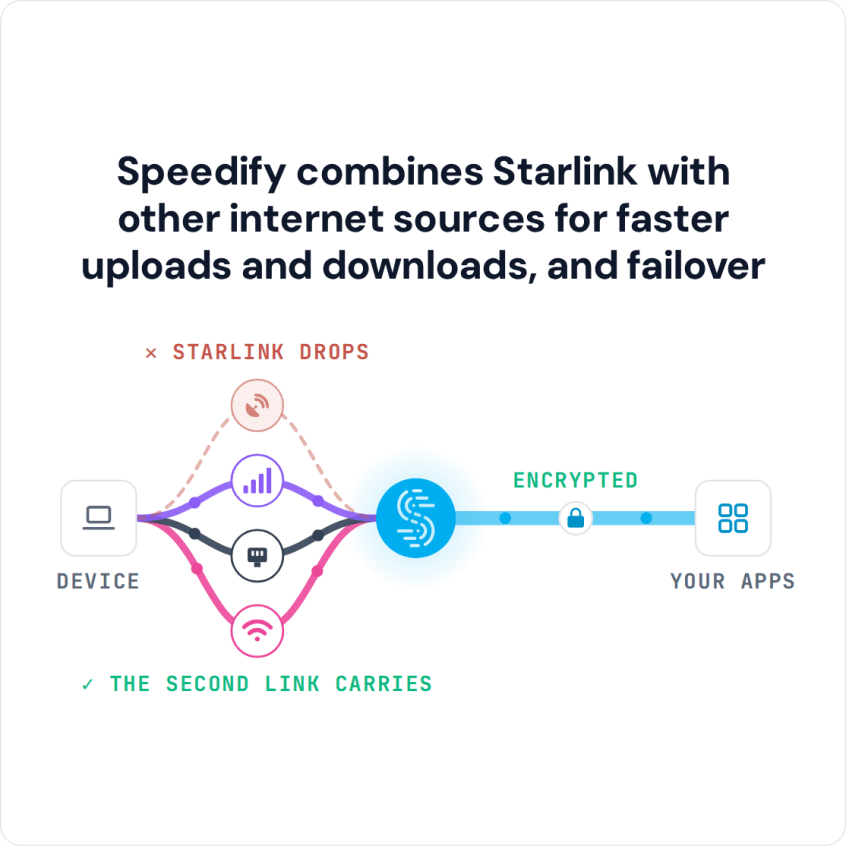
Combine Starlink with Wi-Fi, 4G/5G Cellular or DSL in Speedify to Get a More Reliable Starlink Internet Connection
To get more reliable Starlink, and faster speeds, use your Starlink internet connection together with a second internet connection, like 4G/5G cellular, another Wi-Fi network, a wired Ethernet line or DSL. When Starlink drops in heavy rain or snow, or when something blocks your Starlink dish’s view of the sky, the second internet connection covers for it.
Speedify is an app that uses two or more internet connections at the same time, on your computer, phone or router. You get faster uploads and downloads, and you stay online when one internet connection drops.
Speedify combines Starlink with other internet sources for faster uploads and downloads, and failover
Starlink Internet Connection Drops Happen to Everyone
Speedify measures thousands of Starlink users in more than 140 countries. In September 2026, fixed Starlink dishes went offline for about 38 minutes a day on average, and Starlink dishes on RVs and boats for about 46 minutes a day.
All Starlink dishes also see short dropouts roughly every 15 seconds as the Starlink internet connection switches from one moving satellite to the next. Even a perfectly installed Starlink dish goes offline, and about 7 in 10 Starlink users on Speedify use Starlink together with a second internet connection, like 4G/5G cellular.
Two Ways to Use Starlink with a Second Internet Connection
If you have Starlink, you almost certainly have a second internet connection already: the cellular data on your phone. You may also still have your old cable, DSL or other internet service. Here’s how to find a second internet connection if you’re not sure.
You can use Starlink with a second internet connection in two ways:
- Keep the second internet connection as a backup, used only when Starlink drops
- Use Starlink and the second internet connection at the same time
With a plain backup, the operating system on your computer or phone switches to the other internet connection once Starlink drops. It can take a while before Windows, macOS, Android or iOS notices that Starlink isn’t working. Until then, your video calls drop and your live streams buffer or disconnect.
The better way is to use Starlink and the second internet connection at the same time, instead of switching, with Speedify. Speedify sends your traffic over both, so a Starlink drop no longer means blurry video, buffering or a disconnect. Speedify needs that second internet connection: with Starlink alone, it can’t add speed or stop drops.
How to Connect Your Devices to Starlink by Wi-Fi or Ethernet
Starlink comes with a Wi-Fi router, and it works with Ethernet too. The Starlink Gen 3 router has Ethernet ports built in. Older Starlink routers need the Starlink Ethernet Adapter, which fits between the Starlink dish’s cable and the Starlink router and gives you a wired Ethernet port.
- Computers and phones: join the Starlink Wi-Fi network, or plug a computer into the Starlink router with an Ethernet cable.
- A TV: connect the TV to Starlink Wi-Fi in its network settings, or run an Ethernet cable from the Starlink router. Speedify has no app for smart TVs, so a TV uses Speedify through a router that runs Speedify.
- Checking your Starlink speed and status on a PC: there’s no Starlink app for PCs. While you’re on Starlink Wi-Fi, open dishy.starlink.com or 192.168.100.1 in a web browser to see your Starlink dish’s status and stats. Speedify also shows the live download and upload speed of each internet connection you use.
How to Set Up Starlink and a Second Internet Connection with Speedify
- Connect to Starlink over Wi-Fi or an Ethernet cable.
- Connect to your other internet connection: a USB cellular modem, a phone connected with a USB cable, a wired Ethernet line, or a USB Wi-Fi adapter joined to a second Wi-Fi network (a computer’s built-in Wi-Fi joins one network at a time). On a phone, turn on its cellular data.
- Get Speedify and run it on your computer or phone. Speedify finds your Starlink internet connection and the second one on its own.
- Click the switch to connect. Speedify now uses Starlink and your second internet connection together, for more speed, steadier internet and encrypted traffic.
Step-by-Step Setups for Starlink and a Second Internet Connection, by Device
- Starlink Wi-Fi together with cellular data on an iPhone or iPad, or an Android phone or tablet
- Starlink Wi-Fi together with a USB cellular modem on Windows, Mac or Linux
- Starlink Wi-Fi together with an iPhone connected by USB cable on Windows, Mac or Linux
- Starlink Wi-Fi together with an Android phone connected by USB cable on Windows, Mac or Linux
- Starlink Wi-Fi together with a wired Ethernet line on Windows, Mac or Linux, or on an Android phone or tablet
- Starlink Wi-Fi together with a second Wi-Fi network on Windows, Mac or Linux
- Starlink by Ethernet cable together with a cable or DSL line over Wi-Fi on Windows, Mac or Linux
Speedify
Get started with Speedify today.
Combine Wi-Fi, 4G/5G cellular, Ethernet, Starlink, and more into one faster, steadier connection. Free to try — no credit card required.
🚀 Speed
Faster uploads and downloads by bonding all your connections at once.
📶 Stability
Automatic failover in under a second when any connection drops.
🔒 Security
AES-256 encryption on every connection, on every network you join.



15M+ downloads worldwide. 75K+ five-star reviews on iOS and Android.